User's guide
Notes
Any writing longer than a line can become a note, a page with a title that you can come back to, edit, and find again. Notes is the tab that holds all of them, and every long entry you titled in the Journal is already one.
Where they come fromTwo ways to start one, and they make the same thing
Choose Write a note under the + in the Journal and you get a note with a card on your timeline at the moment you opened it. That is the note panel. It is centred in a wide browser window and rises from the bottom edge at a phone's width, and it holds a Title, the editor with its formatting bar, and one Close. Tap the card again a week later and the note opens back in the same panel. Open that same note from this page and it is a page of its own instead. Close a panel with nothing written and no title and the note goes, and its card goes with it.
Or start one directly. Notes has a plus, beside the heading on the web and at the foot of the screen on the phone, and it makes a note and opens it. The new note arrives unnamed with its title field waiting, so you name it on the note rather than before it exists. A goal's page and an event's page each have Write a note on their own Notes heading, and a note started there is filed under that goal or that event as it is made.
Every route makes the same object. A note started from the Journal or from a goal keeps its place in the day you wrote it on. One started from an event, or from this tab, is a page and nothing else.
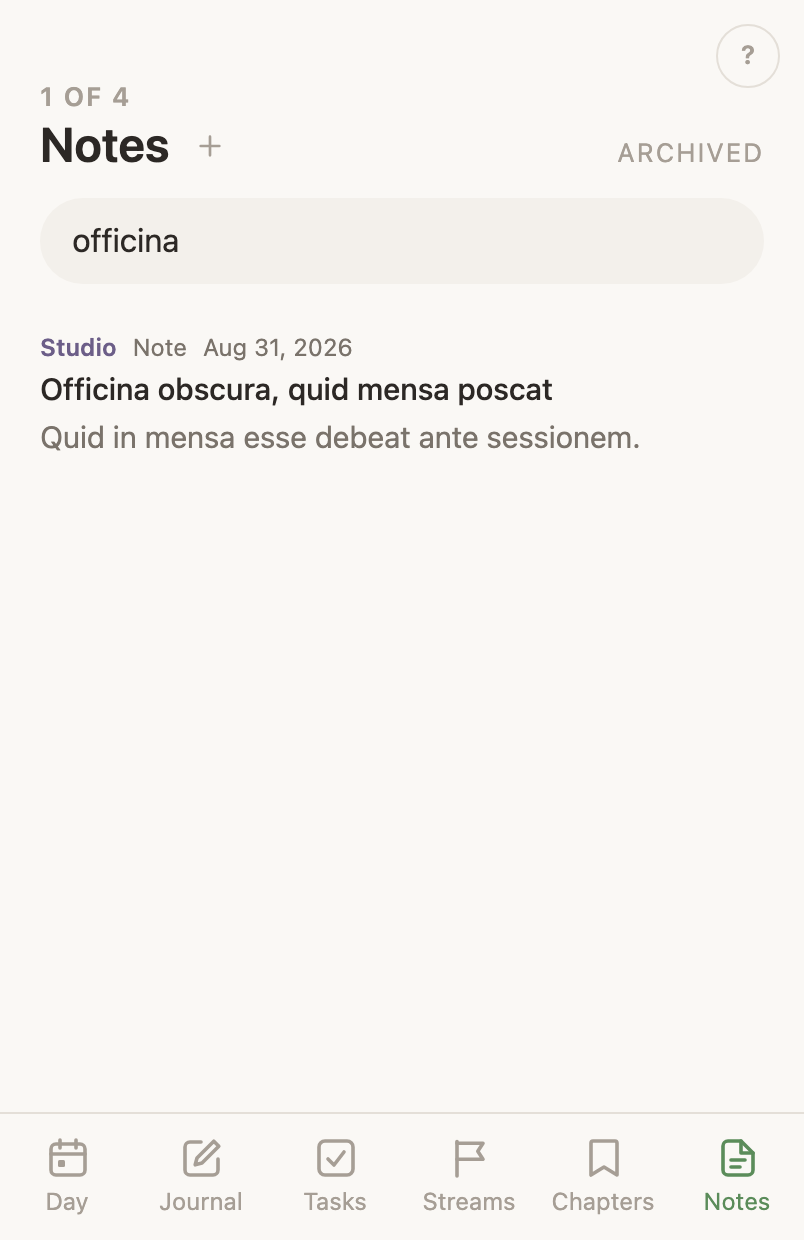
Finding oneThe list is the index, and the field searches it
Notes groups its rows by life area. Three words above the list — Areas, Type and Date — arrange the same notes three ways, and Areas opens first. Type sections the list by your own word for what a note is, and Date sections it by month, newest month first. A note you never filed under an area gathers under No area at the end of the Areas view, and one you never gave a type under No type at the end of Type. Every heading folds, and a folded heading stays folded until you open it again. On the phone a sideways swipe across the list moves between the three views as well, and in a browser the three words are the way across.
A row also says who wrote a note when it was not you. Yours are unmarked. One written by something else shows a word on its meta line, and again under its title when you open it: Claude for a Claude session working through the connector, Assistant for the chat inside the app, API for a program that used your account’s own token without saying which app it was, Agent for an agent account that works for you, and Unattributed for a write that named nobody. Notes made before the app started keeping this show nothing, so an unmarked row from that time is not a claim that you wrote it.
A row reads the life area it is filed under, your word for its type, its date, and the goal it is under where it has one, then its title and its description. Under Areas and Type a row drops whichever of those the heading above it has already said. Under Date a row keeps its own full date, since the heading names the month alone. Inside a section the newest date leads. A note with no date of its own takes the day of its last edit, and a new one starts stamped with today, so renaming a note does not move its row and neither does typing inside one.
The search field, rather than the top of the list, is the way back to the one you were writing in last week. The field searches as you type, and the grouping goes away while it has words in it: the list becomes one run of hits with a count above it. It matches the title, the description, the type, the goal a note is filed under and the life area, and it reads the text inside your notes as well, on the web and on the phone alike. A month later you remember a sentence you wrote far more often than the title you gave it.
If the server cannot search inside your notes right now, a line under the field says so, and the field keeps matching the rows.
The list exists so nothing gets lost. If you delete the journal entry that pointed at a note, the note is still here. Without this list you would have no way back to it.
Reading and editingThe same editor on the web and on your phone
Opening a note shows the whole thing, with its headings, lists and checkboxes as you wrote them, on the web and on the phone alike. On the web, Rename is one of the words along the top and tapping the title does the same thing. On the phone, Rename is under the ⋯ at the top.
Under the title is the life area the note belongs to, in that area’s colour, on the web and on the phone alike. Tap it and your areas come up, filtered as you type; pick one and the note is filed there. Picking No area at the bottom of the list takes it back off, and it stays off. With AI on, a note you have not filed yourself gets filed for you within a few minutes, on both, and your own pick always replaces that.
A note has no event of its own. Your events hold notes, so you file one from the event rather than from the note. Write a note on the line of an event’s Notes heading starts a note already filed under it, and Events says how. A note filed that way is listed under Notes on the event’s own page, where its title opens it, and it reaches an event only when you put it there. The web and the phone read the same way.
On the web, every note is fully editable, formatting included, and saves itself moments after you pause. If edits failed to save before you left the page, the note says so the next time you open it, so a lost save never looks stored. As you type, the writing is kept in that browser as well as in the open page, so closing the tab does not lose it. Open the note in that browser again and the writing is back and saving, with a quiet line above it reading Unsaved writing from an earlier visit is back. Saving it now. The exception is writing you did in the same note somewhere else in between, which is later writing and stands; the older copy goes without a word. The phone keeps the same copy on the device as you type, and brings it back the same way the next time the note opens.
The phone runs the same editor, so it writes the same things: headings, bulleted and numbered lists, checkboxes, quotes, code, links, tables, bold, italic, underline, strikethrough, text colour, highlight and alignment. A bar above the keyboard holds them, and it shows what the line your cursor is on already is. Typing - starts a bullet and ## starts a heading, the same shortcuts the web takes, and typing / lists the block types the way it does on the web. The ⋯ key on the bar is the phone’s stand-in for the handle beside a line on the web: it moves the line up or down, turns it into any of the kinds the web’s Turn this line into offers, Urgent included, and deletes it after asking.
On the web, right-clicking a line opens everything that can be done to it: Move up, Move down, the kinds it can turn into, and Delete, which asks first. A web page narrower than a phone has no handle beside a line, so a ⋯ key stands at the right end of the line your cursor is on and opens the same list.
Two kinds of heading, told apart by what you type. # , ## and ### at the start of a line make the ordinary heading. } , }} and }}} make a heading that folds, at the same three sizes, with an arrow beside it that hides the lines under the heading and shows them again. > makes a folding bullet the same way, and | makes a quote. A folding heading or bullet you have just typed is open, and pressing Enter at the end of it starts the first line under it; Shift+Tab steps a line back out beside it, and Tab puts a line written beside it under it, on the web and on the phone alike. One you have folded shut takes the next line beside it, and the arrow keys step over what it hides. What you fold is remembered on the device you folded it on, and a heading you have never folded arrives open.
A note written through the connector by a Claude session draws the same things, and marks its headings the same way you type them: ## is the plain heading, and }} is one that folds, holding the section under it down to the next heading of its size or larger, open. The connector tells a session to write folding headings, and tells it when it wrote plain ones. A table it wrote in text, rows of cells between bars with a line of dashes under the first row, is a table on the page, with that first row as its header and each column aligned the way the dashes said.
Typing [!] and a space starts an urgent line, the way [] starts a checkbox. The box holds the mark rather than a tick. Press it to turn the urgency off, press it again to put it back. The line is otherwise an ordinary list item, so it indents, formats and moves like one, and a note read back from History keeps its urgent lines. An urgent line has no tick on it, since a finished one gets deleted.
The menu that / opens lists Urgent after Check List, and Toggle heading after the three ordinary headings, on the web and on the phone alike. A toggle heading picked there is open, like one you typed, at the middle size.
Photographs go in too. On the web, drop one into the note or pick it from the editor's own menu. On the phone, the ▣ button on the bar adds one from your camera roll, and holding it opens the camera. A picture on the clipboard pastes into the note on the phone as it does on the web, and uploads as it lands. A photo that did not upload says so on the bar rather than quietly doing nothing.
The phone saves itself on the same clock as the web, and says Unsaved, Saving or Saved next to the note while it does. A save the server refuses tries again on its own, waiting longer each time and never giving up, and the word reads Unsaved, retrying while it does. While there is something to save, the word is a button: press it and the note saves now, on the web (where ⌘S does the same) and on the phone alike.
History at the top of an open note reads back what it said before. On the phone it is under the ⋯. Every save is kept for at least two days, and the panel gathers a long afternoon of them into one row rather than listing forty. Save version marks the text as it stands and lets you name it, opening one shows how the note read then, and restoring puts it back, keeping what the note says now as a version first.
Your Journal gets no entry about an editing session. The changes save into the note as you write, and the note itself is the record.
Turning one into a goalA note can become the goal it turned out to be
Writing often starts as a note and turns out to be a goal. Make this a goal moves it across without retyping a word. On the web it is along the top of an open note and in the row menu on the list, and it asks before it goes. On the phone it is under the ⋯ at the top of an open note, where it goes straight away, and on a press and hold on a row, where it asks first. The row leaves the list when the move lands, so a row menu asks on both.
The goal takes the note’s title as its name, its life area, and every word of its text. The note itself is archived rather than deleted, so it is still under Archived if the move was wrong. From that moment the two texts are separate. Editing the goal leaves the archived note as it was, and the other way round.
The web lands you on the new goal. The phone closes the note and the list says which goal it became, with a button that opens it.
A note with no title cannot make a goal, since a goal needs a name, and the app says so rather than naming one for you. A title that matches a goal you already have is refused for the same reason.
Putting one awayArchive keeps it, delete means gone
Archive takes a note out of the list without destroying the writing. On the web, right-click a row (press and hold on a touch screen) for Rename, Make this a goal, Archive and Delete permanently. An open note reads Rename, History, Make this a goal, Archive and Delete permanently along its top. On the phone, a press and hold on a row opens the same four, and an open note holds all five under the ⋯ at the top.
Archived notes stay reachable through the Archived link at the top of the list, where the same menu reads Restore and puts one back. Notes in the same place is the way back to the live list. The phone puts the same word in the same place, beside the heading.
Delete permanently is the one action that asks first. The note and its text are gone for good. A journal entry that pointed at the deleted note keeps its writing and simply stops being a note.