User's guide
Journal
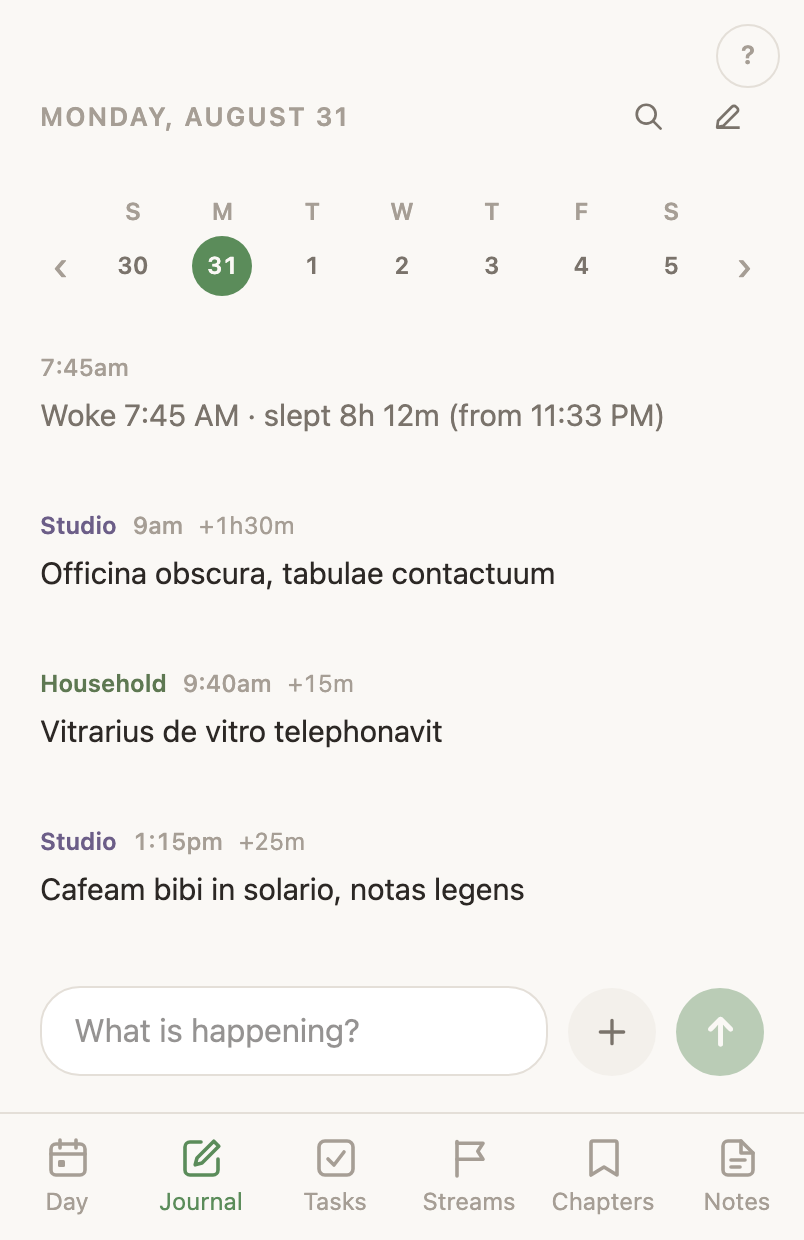
The Journal is a running log of your day. You type what's happening, it appears on a timeline at the moment you wrote it, and you read the day top to bottom.
Writing an entryYou type in the bar and send it
The bar at the bottom reads What is happening? Type an answer and tap the arrow, or press Enter. On the web the bar is the note editor: Cmd-B, Cmd-I and Cmd-U (Ctrl on Windows) make the selected words bold, italic or underlined, selecting words raises a formatting bar that also makes a link, and a dash and a space starts a bullet. Shift-Enter starts a new line, and in a list Enter adds the next item. On the phone the bar is the same editor, and while you write a row of keys above it makes bold, italic, underlined, struck-through or code words, a link, or a list. The entry in the feed shows the formatting. The entry appears in the day's feed stamped with the current time, and the bar clears for the next one. Your meetings appear in the feed at their times too, with the rest of today's under Upcoming, an amber heading. An all-day item has no time of day to appear at, so it stays off the feed.
Hold a meeting (right-click on a computer) and its menu reads Open task, Going, Done, Cancel task and Cancel & Decline. Open task comes first and opens the meeting’s own task page, where the goal it works for is set the way any task’s is. A meeting filed under a goal says that goal’s name at the end of its line. Going marks that you plan to attend, and a meeting still ahead of you then says Going beside its time. Done turns it into a time log with its real title and times. Cancel task takes the meeting off the day and cancels the task behind it, and Google is never called, so it works on a calendar connection that can only read. Cancel & Decline does all of that and answers no on the invitation as well, and Google emails nobody. What separates them is what the organizer can see. After Cancel task your invitation still reads as unanswered and nobody is told anything, so that is the one to press when you want the meeting off your day and no word about it. After Cancel & Decline your name reads Declined in the guest list the next time they look. Both items ask before anything happens, and both leave six seconds in which Undo brings the meeting back. A meeting you declined in Google never reaches the feed at all.
A decline the server cannot get through leaves the meeting where it was, on the day and on the task list. Leaving the day or closing the tab sends the answer early. If the server refuses it then, the app names the meeting, says it is still there, and gives the reason it was handed. A connection that reads your calendar and cannot answer invitations gets Google refused the decline. Reconnect Google in Settings and try again. It says so the moment you are looking at that screen again, or on the next load of that day when the screen has gone for good. Settings is where the reconnecting happens.
Hold the arrow for about half a second instead and a clock appears above it. Keep your finger down. Letting go while still on the arrow counts as a tap on the arrow, which saves the words as an ordinary entry and takes the clock away. Slide off the arrow before you let go and the clock stays where it is. Then tap the clock, and the same words start a time log, an entry that keeps counting until you tap its Stop. One runs at a time, and the clock is offered on today only.
On the web, Start a time log in the + menu does the same without the hold: type what you are doing, open the menu, choose it. Until there are words in the field it says to type them first.
Above each entry's words is one caption line: the life area it belongs to, in its own colour, then the time, then the goal it was written against when it has one, then the task it is tied to when it has one. The goal name opens the goal’s page and the task name opens the task’s, on the phone as well as in a browser. An entry saved without a time still says when. Written on the day it is filed under, it shows the clock it was posted at. Written on some other day, it shows that posting date, Jun 4. A time log adds how long it ran, +29m, and one still running shows a count that climbs with Stop beside it. With the AI on, the app picks the area for you, so a quick entry stays a quick entry. Pick the areas yourself and your pick stands. Entries marked Agent were written by your Claude — a conversation logged, or a note taken on your behalf. Your Claude is the agent that works alongside whoever runs your LifeOps. What your devices report, and what the app records for its own bookkeeping, stay off this feed and out of search; both appear on your Day under System instead.
The strip of week days above the feed opens any day in the week it shows, and the arrows either side move a day back or forward. Step off either end and the strip follows to the week your new day is in. Hold a day, or right-click it on a computer, and the whole month opens under the strip for a date further off. Today is one tap away when you leave it. On an earlier day the bar reads Add a note to Friday instead, and an entry you add there saves untimed, since it belongs to that day rather than to this minute. Untimed entries collect below that day's timed ones, in the order you wrote them.
Longer entriesEvery note opens in one panel, new or written weeks ago
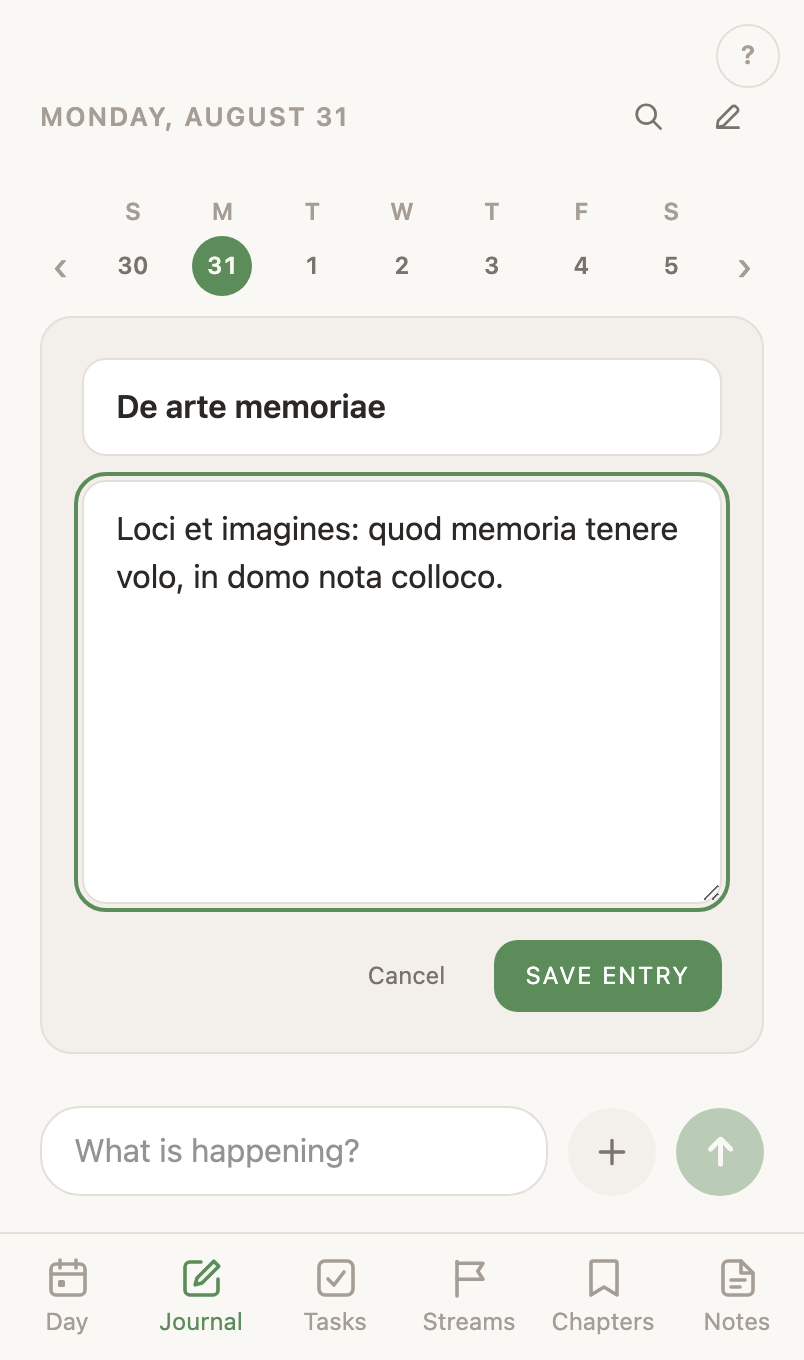
Write a note, the first choice under the + beside the bar, opens that panel. It stands in the middle of a wide browser window. On a phone, and in a browser narrowed to a phone's width, it rises from the bottom edge instead. Either shape takes 85% of the height, so the day you are writing on stays behind it. It holds a Title field, the note editor with its formatting bar, and one button, Close. Name it whenever you like. The writing is the note, and the title is a choice about it. A line you had already typed into the bar arrives as the note's first paragraph, and the bar clears, since the words moved rather than being copied.
There is nothing to save. The title and the writing are both sent a couple of seconds after you stop typing, and every way out keeps them: Close, a press on the day behind the panel, and the Escape key in a browser. The note's card is on the feed from the moment the panel opens, so a note you are still writing is already on the day you are writing it on. The card takes the title when you close the panel.
A title names the card. Leave it blank and the card reads Untitled entry until you give it one. Close the panel with nothing written and no title and the note goes away, and its card goes with it. Tap the card later and the same panel opens on the same note. Every note is also a page of its own on the Notes tab, which lists all of them.
Finding an entrySearch is a corner magnifier, not a Journal tool
You remember the words, rarely the date. Search reads every day you have ever written on, and everything inside your notes with it, so it is not on this header. It is the magnifier in the top corner, beside the chat bubble and the gear, in the same place on a wide browser window, on a narrow one, and in the phone app. Search covers what to type and how to read what comes back.
Photos and recordingsThe plus button beside the bar records straight into the feed
The + button beside the bar opens everything you can add to the day. The bar is three things on the phone and in a browser alike: the field, the +, and the arrow, and the arrow stays grey until there is something to send. The menu starts with Write a note. A browser then offers Record a video, Record a voice memo, Record screen, and Photo, video or audio file… from your device. The phone offers Record a video, Record a voice memo, Record screen, Take a photo and From the library, since it has its own camera. A screen recording on the phone is the app's own screen, with the microphone over it, and the row that appears above the bar holds the clock, Post and Discard while it runs. The menu is the one way in on both: the arrow only ever sends. Until the phone's next store build, Record screen is on the web only.
In a browser the menu opens downward, and turns upward only when there is no room below the button. That is what puts the whole menu on screen on a day with nothing written on it yet, where the bar stands at the top of the page rather than at the foot of a full one. The phone raises it as a sheet from the bottom edge instead, and the keyboard goes down first so nothing covers it.
A recording posts itself the moment you stop it, since making the recording is the act of writing the entry. A photo or a picked file, or a screenshot pasted into the bar, waits above the bar instead, as a thumbnail with an ✕ to take it back off, and the arrow sends it with whatever you have typed by then, so a photograph goes up with the sentence about it.
Record a voice memo records with no camera at all, for an update you don't want your face in. It is on both the web and the phone. The red clock and the level bar stand in for the preview a video gets, and they are what show it running. It posts the way a video posts, and an entry with a voice memo in it plays where it sits.
The app's own recorder starts rolling the moment it opens, and the red clock shows it is running. A level bar shows your voice registering on the mic and warns you in red when it goes silent, so a dead mic is visible before you lose a take. In a browser that recorder uses the machine's camera and mic, and pickers choose between them when you have more than one, with the choice remembered for next time. On the phone the app's recorder is the voice memo one, and Record a video or Take a photo hands you to the phone's own camera instead.
A take is saved on your device before it uploads. An upload that fails reappears, even after a restart, with Retry to send the same take. Save file in the browser writes that take to disk, and Save on the phone hands it to the share sheet, so the recording is out of the app before anything else happens to it. Discard deletes the only copy, so it always asks twice.
Anything longer than one piece posts with a percentage, and once the rate has settled the line adds how long is left, about 5 minutes. Stop beside that line ends the send, on the phone and in a browser alike. The recording stays where it was, with Retry beside it, and Retry sends the whole thing again from the first piece rather than from where you stopped it.
A video you pick goes up as a smaller 720p copy, so an hour of camera footage is a send you can finish. The row above the bar says what that copy weighs, and what posting it will cost once a send has measured your connection. Full size beside it posts the same video untouched, priced the same way. The phone makes the smaller copy on the way out of the picker and a browser makes it before the post, so the video you picked is never changed. A browser that cannot make the copy says so on that row, and the video posts full size.
A recording can be transcribed. With Transcribe a recording on in Settings → AI and an ElevenLabs key on Integrations, a video or a voice memo you post comes back with what you said as its words on the timeline. Tapping them opens the full transcript in its own reader. Anything you typed beside the recording is kept as written, and the transcript sits underneath it. With that switch off, a recording is saved and plays, and nothing is sent anywhere. A video is compressed in the background either way, which keeps the storage bill down and makes a file a browser can play out of one a phone camera wrote.
Where those files go, what protects them, and which outside services receive a recording is spelled out in the owner's guide, under Your videos and photos.
Fixing an entryEach entry has a menu for small corrections
A click on an entry's words in a browser, or a tap on them in the phone app, opens it in Edit journal. A recorded entry's words open its transcript instead, and a link in the words still opens the link.
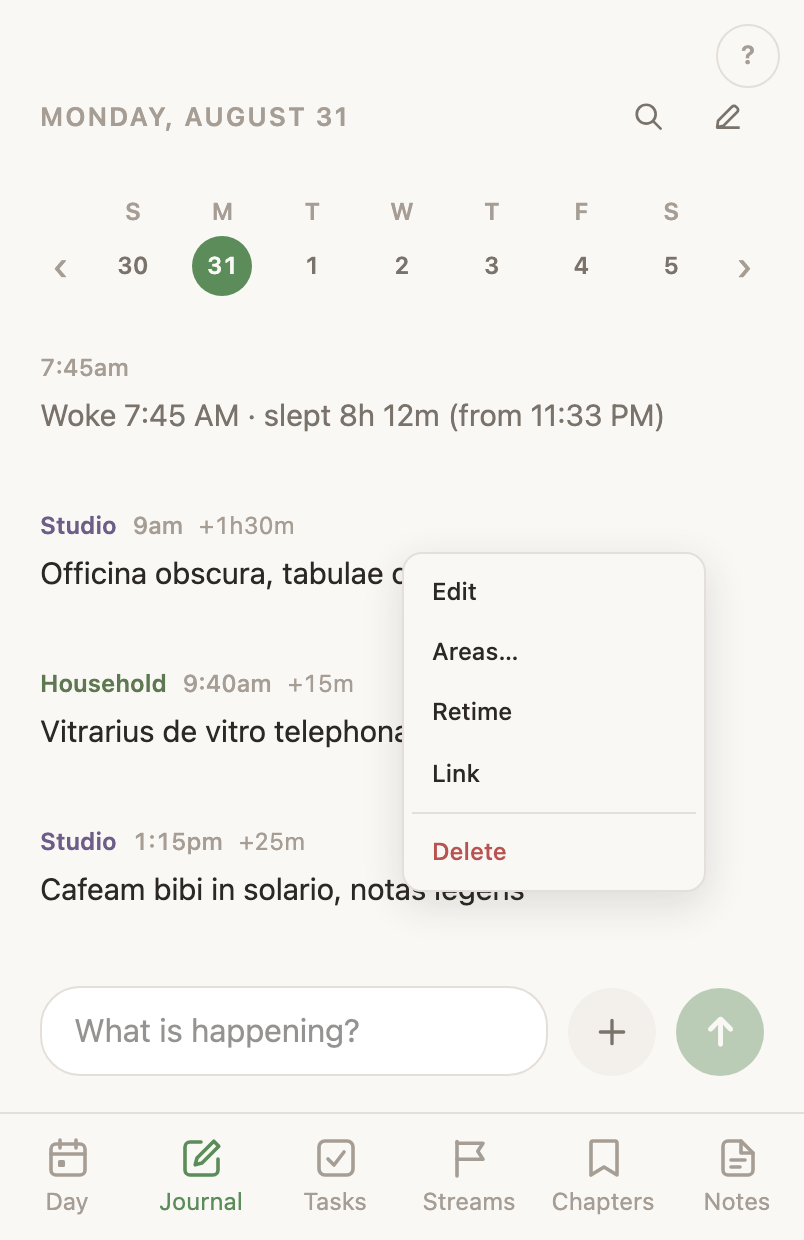
Right-click an entry on a computer, or press and hold it on a touchscreen or the phone, and its menu opens:
- Edit entry — open the entry in the Edit journal dialog, in the order the row prints them: its life areas and its time on one line, its words under them, its task, and Delete. It is the same dialog a mark on the Day opens. A long-form entry has no Edit here. Its words belong to its note, so the phone offers Open note in that slot instead, and a browser opens the same note from the card in the feed.
- Delete entry — remove it, after a one-tap confirm. The feed then shows Entry deleted. with Undo for six seconds, and Undo restores the entry whole: words, time, areas, and link.
- Transcript — on recorded entries only. It opens the recording's words in their reader.
- Write this up — on a recording that has no transcript. Use it when the recording missed its pass, which happens when the feature was off at the time, no key was stored yet, or the transcription failed once.
- Correct sleep — on the morning sleep reading only. It replaces what the app read, and Last night's sleep has the details.
Inside Edit journal, the first line is the entry's life areas as chips, then its time, the start clock and the end clock with how long that is beside them. A tap on a chip opens a menu under the line: the areas the entry has, each marked, and a tap on one takes it off; a field that filters; every other area, the ones you used lately first, and a tap on one adds it. An entry with no area shows a dashed Area chip that opens the same menu. The first area sets the entry's colour. Type a time into either clock and leave it, or press Enter, and it lands; the arrow keys move a focused clock five minutes, or an hour with Shift held. Moving the start moves the end with it, so a stretch keeps its length. The end clock is always there. Typing a time into an empty one turns a moment into a time log, and emptying it takes the end away. On a running timer, Live timer stands over the end clock, which shows the time now in amber, blinking slowly, and moves with it, as does the length. One tap on a running entry in the feed opens the dialog. The words save themselves a moment after you stop typing, and a caption by the footer says Saving, Saved with the time, or Unsaved with the reason; Save writes the clocks and the areas, and a time typed into the end is what stops a timer. The words are the note editor's field under that line, on the web: a dash and a space starts a bullet, two square brackets and a space make a box, a hash starts a heading, Tab indents a list line, and Enter puts the same bullet or box on the next line; Enter on an empty one ends the list. The entry keeps its words as plain lines, so the feed and the phone read them as ever, a bullet as a dash and a box as brackets. The phone's edit screen is plain text with the dash and bracket shortcuts. Under the words, Task reads none or the task's name; a tap opens your open tasks, the ones in the entry's own areas first, with a field that filters, and a tap on one links it, so the entry takes that task's area and your log and your work line up. A linked task's menu ends with Unlink. Your pick replaces the app's: the app files an entry once and never asks about it again, so areas you clear stay cleared. Save writes only what changed, and a refused save keeps the dialog open with the reason on it.
The phone's menu is the same two rows, Edit entry and Delete entry, and its edit screen has the same shape: the area chips and the two clocks on one line, the words under them, the Task field, and Delete. A tap on a chip opens the phone's area sheet, and the Task field its task sheet.
Last night's sleepEach morning the app posts an entry with last night's sleep
Some time each morning an entry appears in the feed reading Woke 9:00 AM · slept 12h 18m (from 8:42 PM) — the sleep reading. You write nothing to get it. The app works the night out from what you already left behind. It appears at the hour it has you waking, so it shows at the start of today rather than the end of yesterday. The night is filed under the life area you chose for it under Sleep, in the Apps section of Settings, on either app, and under no area at all until you choose one.
The night is the gap between the last proof you were awake and the first proof you were awake again. Proof means something only an awake person does: a line you wrote in the journal, your phone joining the home network, a car stereo pairing with it. The app takes the longest quiet stretch that could be a night, at least three hours and at most fourteen, so a silent evening over dinner never counts as one. The device half of that proof works only after a small setup on each device, done by whoever runs your LifeOps. Until then the reading works from your journal lines alone. Your calendar says what was meant to happen. A meeting stays on it whether or not you got up that morning, so the app takes none of it as proof.
Some mornings the entry reads Woke by 2:10 PM · slept under 12h 18m instead, with no (from …) after it. The word under marks a waking the app never saw. When the first sign of you comes at eleven in the morning or later, that mark is not your waking. It is the first thing you happened to leave behind in a day you were already up and living in. You woke some time before it, so the span is a ceiling, and the entry says under instead of printing a number nobody measured.
Some mornings it is wrong. A home network dropping at 1:35 AM leaves the same trace as a person getting up, and the entry then reports a 1:35 AM waking. Correct sleep, in the entry's menu, is the fix: say when you woke and fell asleep, and the app recomputes the span, rewrites the sentence, and moves the entry to the corrected waking. The corrected entry reads like any detected one. The correction is kept inside the stored reading, and no later run of the detector replaces it.