User's guide
Tasks
Tasks holds everything you have open, grouped into your life areas. You check things off with a tap, add new ones from the bar, and open any one of them to change or remove it.
Your areasYour tasks are grouped by life area
One line names the area you're in, with a count of what's still open in it. Tap that line and a sheet lists every area, each with its own count, along with a field to narrow a long list of them. Pick one and the tasks below change. A task you add belongs to the area you're looking at, and tasks with no area are under General. On a wide screen the areas are a column down the left instead. That column lists the areas with something open in them, plus whichever one you are in, and All areas under them raises the same sheet, with every area on it and the field to narrow them. The column arrives once a browser window is about 640 pixels across, and the labelled line covers every width below that, so there is a way into an area at any size. On a window between that and roughly a thousand the column narrows itself rather than taking width off your tasks, so the list reads at the measure it has under Status and Date.
You do not have to file a task yourself. With AI on, an open task with no life area is filed under one of yours within a few minutes, read from the task’s own words. A task that belongs to a goal takes that goal’s area instead, with no model asked at all, so that part holds even with AI off. Set the area yourself on the task’s page and your pick stands; clear it there and it stays clear.
A task that Chat or a connected Claude added waits in a section of its own at the top of this page, headed Added by your assistant, which folds like the others and shows how many it holds while it is shut. It is not your work yet, so it stays out of every area, every count and every view until you answer it. Add moves it onto your list, where it reads and behaves like a task you wrote. Discard deletes it. The row’s words open its page first, so you can read what it is before you answer. A line beside the two answers says which assistant wrote it, when, and through which connection, Claude Code · 9:41am · connection a1b2c3d4, and opens that connection under Settings › Apps › MCP, where every call it made is listed. One line at the top of the section says the same: a connected assistant wrote these, and Add puts one on your list still marked with who wrote it. So a task wearing that line in your list, with no section around it, is one you added, and the day’s changes on Day show when. When My assistant acts as me is on under Settings › Apps › MCP, an assistant’s tasks skip this section and go straight onto your list, still marked.
Tap the ring beside a task to complete it. It fills in and the words strike through, and the task stays put for a second and a half before fading off the list — long enough to see what you cleared, and to tap the ring again if you did it by mistake. With Goals & task detail on, the status pill does the same job: picking a finished status strikes the row and it leaves the same way. Show finished at the bottom of the list brings back the fifty you finished most recently, across every area, drawn as the same rows the list above uses. The ring beside a finished task reopens it, and with that switch on its status pill does that instead. The bar above the list adds a new task to whichever list you're looking at.
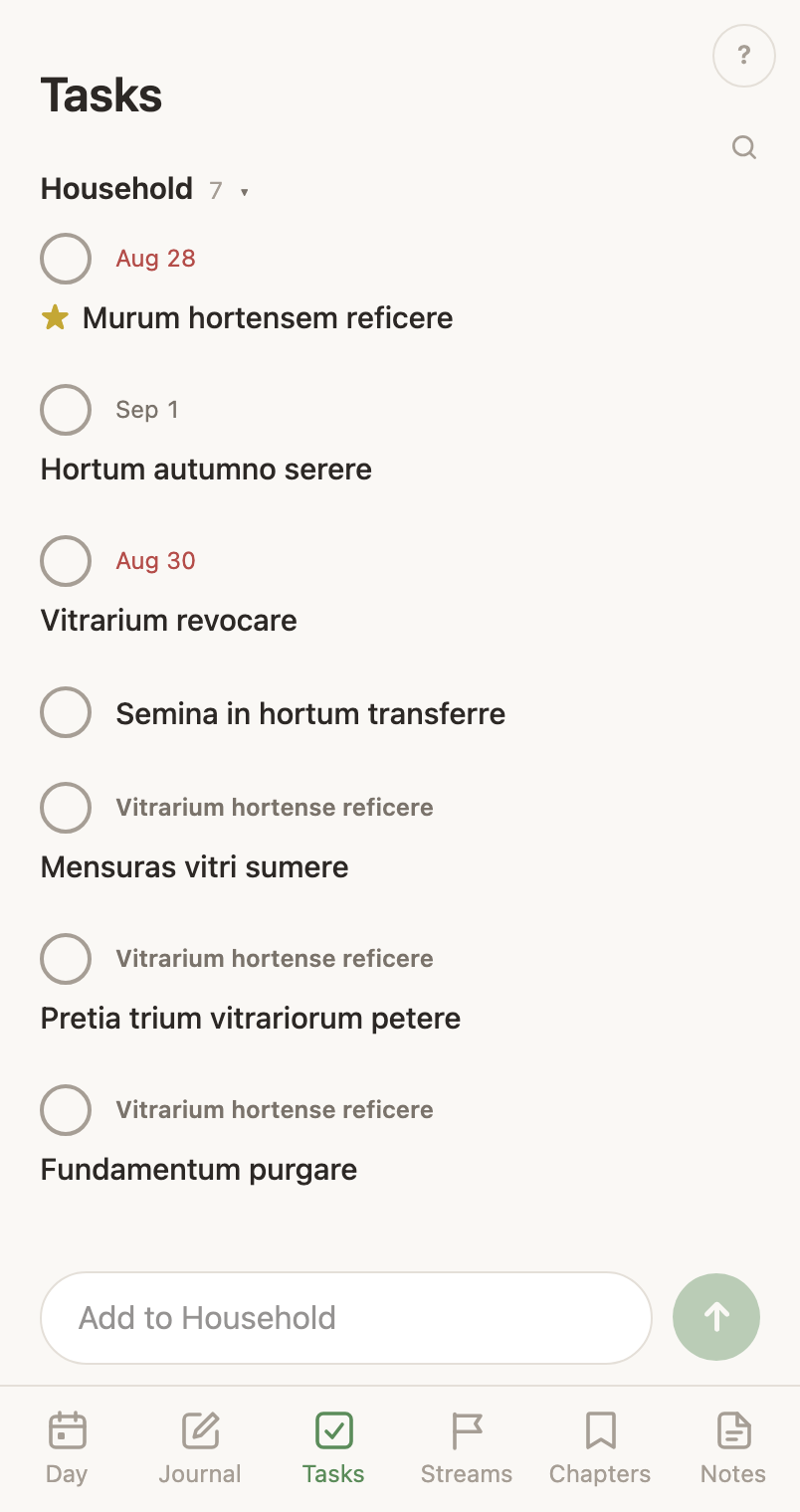
A row says where a task is filed before it says the task. The ring leads it, or the status pill where Goals & task detail is on. Beside that runs one quiet line: the life area, then the date, then the goal the task works for. The area stays on that line even while you are looking at that area's own list, so the goal never reads as the area's replacement. A goal's name there is never cut short, however long it is; the line takes a second row instead. The task's own words sit under that line, starting at the same place on every row, so sixty of them read as one column. A task you starred for today has a gold star out in the margin, level with the middle of the first line of its words, which leaves the words themselves lined up with the rows above and below.
A task has a page of its own, and it is the only place a task is edited. It holds every field the task has, room to write, its subtasks under that, and the notes you have written against it. In a browser its words open it, and so does the rest of the row; on the phone a tap opens it. A task’s page covers what is on it, including the Goal field that files a task under one of your goals. Putting the rows in your own order is a drag, under More detail below.
Right-click a task in a browser, or press and hold it on a touchscreen or in the phone app, and its menu opens. It holds the moves the row cannot make by itself. Finishing a task is not one of them: that is the ring beside the row, or a finished status on its pill. Nor is opening the task's page, which is a click on the row, or setting a reminder, which is at the foot of that page.
- File under a goal… — puts the task under one of your goals, or takes it off the one it is under. It comes with Goals & task detail.
- Highlight as Event — puts the task on Events, among your named stretches of time, on the day it falls. It is for a meeting big enough to shape the weeks around it. An event is a span of days under one heading; a highlighted task is the one dated point those days are read against. Only a task with a date is offered it. Events is a line of dates, and an undated task has nowhere to stand on one. The task stays a task. It is still on this list and you still finish it here, and a finished one stays on Events struck through: the day still happened. On a task already there this item reads Not an Event. It is a different mark from the star. The star means today; this means the month.
- Cancel task and Cancel & Decline — only on a meeting mirrored from your calendar. Both close the task behind the meeting as cancelled. Cancel task tells Google nothing, so the organizer sees your invitation still unanswered. Cancel & Decline answers no on the invitation, so your name reads Declined in their guest list, and it asks before it does. Google emails nobody either way. Journal covers what each does to the meeting.
- Top priority today — stars the task, and a starred task sorts first in whatever list it is in. The star holds until you finish the task or press it again, so a priority you did not get to is still a priority tomorrow. On a task already starred this item reads Not top priority.
- Make this a goal — turns the task into a goal, for work that grew past one line. It comes with Goals & task detail.
- Hide until tomorrow — the task is off the list until morning. It comes with Goals & task detail.
- Delete — removes the task for good, after a confirm.
In the phone app the same menu, with the same items in the same order, opens on a press and hold released where it began. Move your finger while you are holding and the row lifts to be dragged instead, so one gesture does both jobs. An item that asks first puts its question at the top of the sheet, with the answering word under it and Keep to back out. The same moves are on the task's page as well: the star, Hide until tomorrow, Make it a goal, Remind me, Not going on a meeting, and Delete. Finishing a task there is the ring or the status pill on the row, the same as on the web.
Finding oneSearch when you don't know the area
The magnifier in the top corner finds a task by its words, wherever it is filed. The usual reason to hunt for one is that you forgot which area you put it in, so the search reads every area at once, and your notes and your days with them. A finished task comes back too, since a search is a question about what you wrote rather than about what is still open. Search covers what to type and how to read what comes back.
More detailA switch in Settings gives tasks statuses and more views
A switch in Settings → Apps → Tasks called Goals & task detail gives each task a status you named and a type, adds Status and Date views of this list, and fills in the Goals tab beside this one. The type picker on a task's page offers the types already on your tasks, busiest first, and narrows as you type. It picks from those words. A type you have never used is not named there, and the app has no other screen for naming one, so the words on that list are the words already on your tasks. A goal's kind works from a list instead, the kinds you keep under Settings.
The Status view leads with Today, above your own status words. What is dated today or earlier and still open reaches it, whatever its status, along with what you starred for today and what you added today. A meeting stays in it after its time has passed, until you mark it done or cancel it. Today reads by date: the most overdue task comes first, then today’s by the clock, then the ones with no date. A late task’s date is red and says how late it is, as in Oct 27 · 3 days overdue. The section is worked out each time you look, from the task’s date, its star or its age, so a task goes when those change.
The Areas view is divided inside as well. An area whose tasks disagree about where they stand is split under your status words, and one that agrees on that and is mostly dated is split into the same day bands the Date view uses.
The + at the right of a section's header opens a field at the top of that section, with the cursor already in it. What you type is filed in that section with what the section stands for already set — your status word under Status, today's date under Today, the star under Top priority today. A section that was folded opens to hold the field. Enter files the task, and return does in the installed phone app. Escape drops the field in a browser; the phone has no Escape, so leaving the field with nothing typed in it drops it there, and a field with words in it stays. Either way the page’s own bar comes back as it was. The field at the top of the page is still there for a task that belongs nowhere in particular, and it stands down while a section’s field is open.
Every section is a card, and a press anywhere on its header folds it. The chevron at the left of the header points down while the section is open and right while it is shut, and a shut header says how many rows are behind it. A heading you shut stays shut on that browser or that phone until you open it again. Renaming one of your statuses opens that section, since the app reads the new word as a heading you have not decided about rather than guessing that your old choice still applies.
You can put the tasks in your own order. Drag a row where you want it: on a computer the whole row moves and there is no handle to aim at, and on the phone you hold the row until it lifts. A line appears at the edge where the row would go, along the top of the row you are over while you are in its upper half and along the bottom while you are in its lower half, so the last seat in a section is one you can reach. A row dropped past everything in its section goes to the bottom of it. A drop into another section moves the task there and writes what that section stands for: your own status word under a status heading, today's date under Today, the star under Top priority today. Overdue, Next 3 Days, 4 to 7 Days, 8 to 14 Days, Later and No date name a stretch of days rather than one day. A row dropped into one from elsewhere would need a date nobody chose, so those four take no row from another section, and reordering inside them still works. The place and the word are written together, so a drop the app refuses leaves the task exactly where it was rather than half-moving it. Every section reads by date. Tasks with a date come first, soonest day and time at the top, and tasks with no date come after them, newest added first, so a task you have just added is at the top of its section rather than the foot. Your order settles only what the dates leave tied, such as two tasks on the same day, so a drag within a section moves a task only among those. In a browser the drag comes with this switch. The phone's hold reorders the plain checklist too.
The add bar stands above the Areas and Status views. Every section naming one of your statuses has a + at the right end of its header, open or shut, which opens a field inside that section. The Date view has no standing bar, since a task typed under a day you are not in gets the wrong date. The + on its Today and Top priority today cards is what opens one there, and the other bands have none. Show finished appears under the Areas view. Off, Tasks is the simple checklist the rest of this page describes. Goals & task detail covers everything it changes.