The feature guide
Each card is one feature of the app, said in a sentence, with links to the pages that go deeper. A card with no links has no page yet. If the app does something you can't find here, tell whoever runs your LifeOps.
Getting inYou reach your LifeOps at one web address, or from its phone apps
Claim a new account
A LifeOps nobody has signed into yet opens with a form that makes the account rather than asks for one: a username, a password of at least twelve characters, and the same password again. It works once, and that password cannot be reset by anyone, so keep it somewhere you trust.
Sign in to your account
Your LifeOps is at one web address, with one username and password. A refusal says the username and password were not accepted, and never which of the two was wrong. Five wrong tries lock sign-in for fifteen minutes.
One counter, two doors
Wrong passwords at the sign-in page and wrong current passwords at the change-password form count toward the same fifteen minutes. Five at either door closes both.
A session that runs out over your work
When a session expires while you are on a page, a sign-in box opens over your work instead of throwing you back to the sign-in page, and nothing you have typed is lost. Opening a new page on an expired session does go to sign-in.
Signing in finishes the trip
A page you asked for while signed out opens once you sign in, rather than dropping you on the Journal. Anything that is not a page of this app is discarded rather than followed.
Sign in on the phone
The phone app opens on a sign-in and takes the username and password you use on the web. It already knows which server it belongs to, so there is no address to type, and the line above the fields names the server. The password buys a token from the server, and it is the token the phone keeps — your password is never stored on the device. Wrong tries lock the door on the same count the web uses.
Make a token for your phone
Settings on the web shows the server address and mints a token, so you do this yourself rather than asking anyone. The token is shown once and only its fingerprint is kept. Making a new one does not stop the old ones: a phone already connected stays connected, and the screen says so as it hands you the new token. Signing in on the phone does not need any of this; a token is for a phone pointed at a server its build does not know about.
Connect the phone app with a token instead
Under the sign-in, and behind the Server row on the phone’s Settings tab, is the older pair of fields: a server address and a token. The app checks the pair against the server before it stores anything, keeps them in the device’s keychain, and then shows who it connected as.
The phone says when it cannot reach the server
A strip across the top says which it is: the server is updating, or the network is gone. It retries a few times before saying anything at all, and says Back online and re-reads your day once the server answers again.
The phone app takes most changes without a new build
A change that is only JavaScript — a screen, a wording, a rule the app follows — reaches an installed phone app without a store, a build or anything for you to install. The app asks for one each time it opens, downloads it in the background, and runs it the next time you open the app, so the open that fetches an update still shows you the old version. Anything native still takes a full build: a permission, the icon, a new capability. A build only takes updates stamped with its own version, and version 1.7.0 is the first build with the updater in it at all.
Look into another account without signing out
On a LifeOps holding more than one account, the pill in the top corner lists every account opened to yours: an agent that works for you, the person an agent works for, and any account the owner opened to you. Choosing one shows its LifeOps, and Back to your LifeOps returns you. Web only; the phone app does not have the pill yet.
A read-only account refuses every change
An account opened to you read-only says so in the pill's menu, and every page shows a band reading Viewing and its name, then read-only. The server refuses every change into it with one sentence, from the web and from a connected Claude alike. A change into an account opened for writing is marked as yours, never as the account's own.
Open one account to another
The owner of the LifeOps picks, in Settings › Accounts, which account may look into which, read-only or read and write. A grant runs one way, changes with a right-click and is taken back with one press. A person and their agent are linked already and need no grant.
Every visit into an account is logged
Who looked into which account, read-only or not, through which app, and from when to when. Requests within half an hour of each other are one visit. Everyone sees who looked into theirs, and the owner sees every account's.
The phone apps
The iPhone app is handed out through TestFlight, and the App Store comes later. The Android app is built and not handed out yet. The web app is the way in for everyone either way, on a phone as well as a laptop.
Apps and the barYour LifeOps is seven apps, and you choose which stand on the bar
The bar
The bar holds the apps you choose in the order you choose, and Apps at the end of it. There are two: the phone app and a narrow browser draw a bar of icons along the bottom, and a wide browser window draws its own row of words across the top. Either holds up to twelve and slides sideways when its width is too narrow for them; the phone app keeps Apps pinned at the right edge while the rest slides. Each is arranged on its own; the wide row follows the phone's bar until it is. A LifeOps nobody has rearranged starts with Journal, Day, Tasks and Goals on both, Journal first. Fewer is allowed: taking an app out moves the ones after it up a slot, and a bar can be emptied down to Apps alone.
The Apps page
Apps is the last press on the bar, and in a browser the address /apps. It is a grid of the apps you run, each drawn as its picture with its name beneath, four across a phone and more across a wide window; pressing one opens it. The core apps are green, and an app an extension adds, such as Money or Photography, is blue, on the web and the phone. After the apps, in a pale yellow-green because they are not apps, a Guide tile opens the user's guide and a Config tile opens Settings; on the phone, Guide opens the guide in the browser at the web address the LifeOps names, and one that names none draws Config alone. Which apps stand on the bar is arranged by dragging on the Menu bar page in Settings, and dragging an app off is how it leaves; no app has a switch that turns it off.
Quick capture
The foot of the Apps page is a wide box reading Quick Capture Journal & Tasks and a microphone beside it, and either takes one thing. Typed words are sent with Enter and the AI files them as a task or as a journal entry on today; a line under the box says Filed in Tasks or Filed in Journal, and the word opens that app. The microphone records in place, the tile turning a warm red with a disc breathing behind it, and a second press sends the take: the recording is filed as a journal entry at once, the line reads Listening until the write-up has its words, and the words are then sorted the way typed ones are. With AI off the box reads Quick Capture Journal and everything becomes a journal entry. The phone app has the same box and microphone under its tiles, the microphone recording in place with the level drawn inside it.
There is no switch that turns an app off
There is no control that turns an app off. An app you do not want in front of you is dragged off the bar on the Menu bar page, and it keeps its page, its address in a browser and its picture on the Apps page. Each app’s page under Apps in Settings opened with an on/off switch for one morning, and it went the same day at the owner’s word: “the ability to turn apps off in general is not needed.” Your work is untouched either way: every note, goal and event is still stored and still comes back in search.
The home page
The foot of the Menu bar page chooses the app LifeOps opens on: in a browser a card titled Home page with a dropdown of the apps that are on and the Apps page after them, in the phone app Opens on, the apps that are on as pills with the home filled in, and both offer the Apps page after the apps. The phone app starts there and a browser’s bare address goes there. Nobody’s choice is the Journal; switching the home app off puts the home back to the Journal, or to the first app in the phone’s bar when the Journal is off too.
Your bar follows your account
Both bars and the home page are stored on your account rather than on the machine you set them on. The surface the change was made on redraws its own bar straight away; the other catches up on the next page a browser loads, and the next time the phone app comes to the front. A change the server refuses leaves the drawing where it was and shows the server’s own sentence.
Apps from an extension
An instance can install an extension, a separate piece of software its owner chose, and an extension brings apps of its own. Each appears on the Apps page with its own picture and name, takes a slot on the bar when placed there, has a page under Apps in Settings when it brought settings of its own, answers at its own address in a browser, and puts what it records on the Day under its date. An instance with no extension shows nothing about them.
Search, Chat and Settings take no slot
The magnifier, the chat bubble and the gear stay in the top corner, the same three at every width and in the installed phone app, on the page title’s line at phone width in a browser. They are about the whole app rather than one part of it, so they are neither apps nor candidates for a slot, and rearranging the bar leaves them alone. The Config tile on the Apps page is a second way to Settings.
JournalYou write the day down as it happens
The capture bar
The bar at the bottom of the screen reads What is happening?, and your entry goes into the day at the minute you send it. On an earlier day it saves to that day with no time.
Sending an entry from the capture bar
Enter sends it. Shift and Enter break the line instead, and the box grows as you write until about a paragraph, where the pen takes over.
Hold ↑ to time an entry
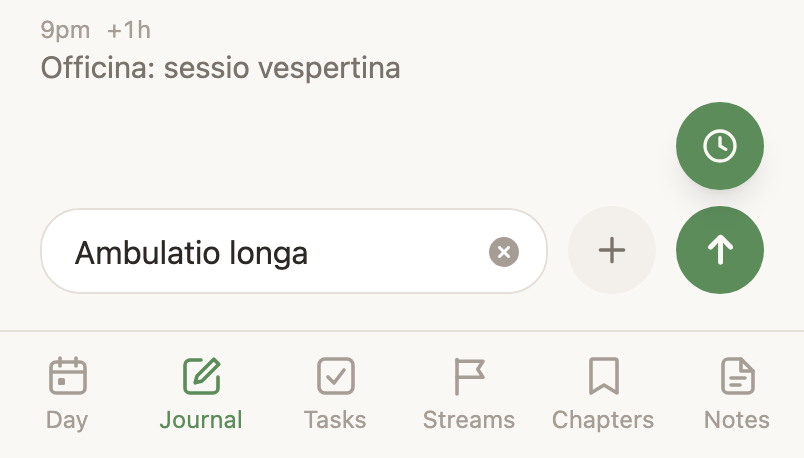
Hold the send arrow and the entry starts as a running time log. Tap its Stop when you finish. Only today can be timed, and only one time log runs at a time, so starting a second closes the first.
The day’s feed
The feed is your day read top to bottom. Each entry shows its time, its life area’s colour, and its length when it has one. An entry with no time of day shows a dash instead.
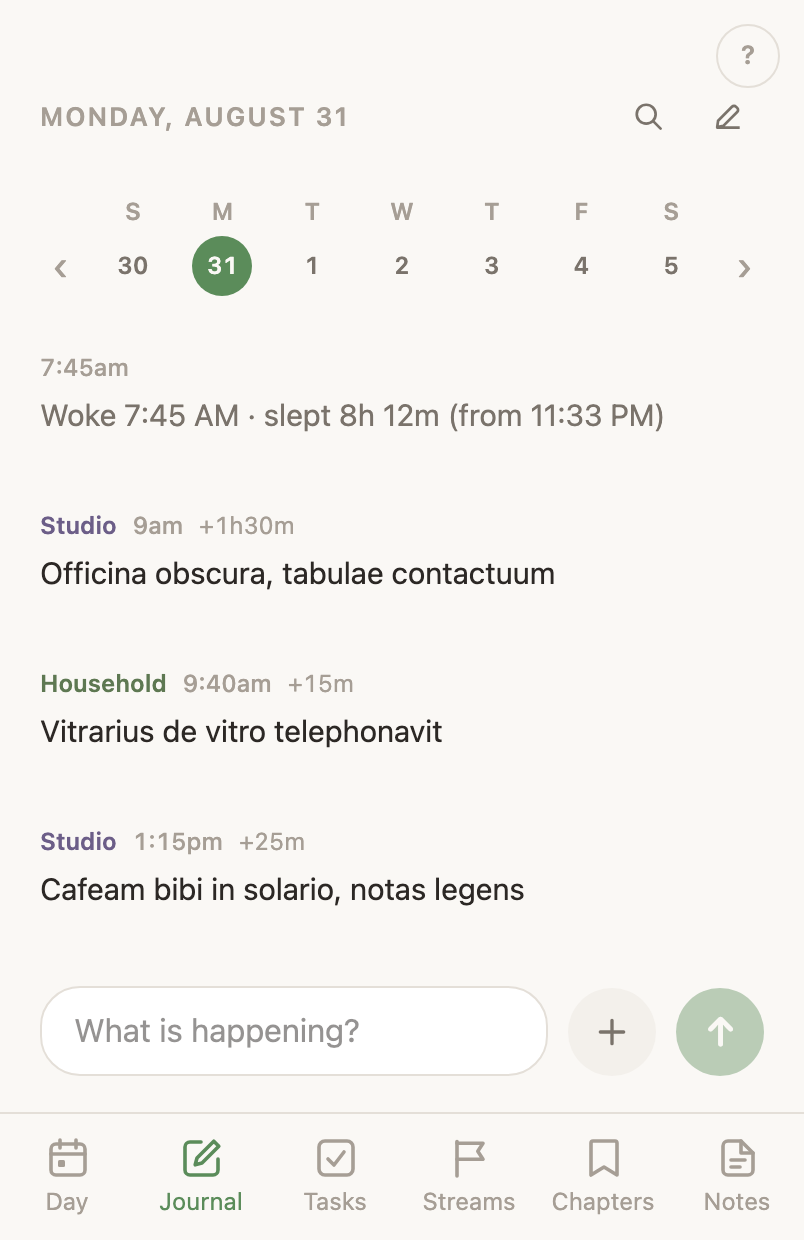
An entry › the goal it was written against
An entry written against a goal says which one, after the time on its caption line, and the name opens that goal’s page. It reads the same in the browser and in the phone app. An entry with no life area of its own borrows the goal’s, so the caption still says which part of your life the entry belongs to.
Meetings in the feed
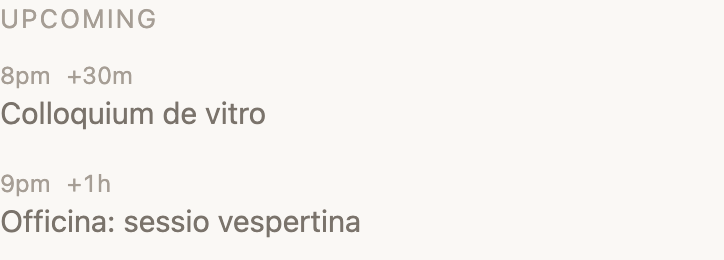
Your meetings appear in the feed at their times, and the rest of today’s come under Upcoming, a heading in the attention colour. Hold one for the same four words the Day uses. Going marks it Going beside its time. Done turns it into a time log. Cancel task takes it off the day and cancels the task behind it without calling Google at all. Cancel & Decline does that and answers no on the invitation as well, emailing nobody. Both ask first and both leave six seconds in which Undo takes the meeting back. A meeting you declined in Google never reaches the feed.
The entry menu
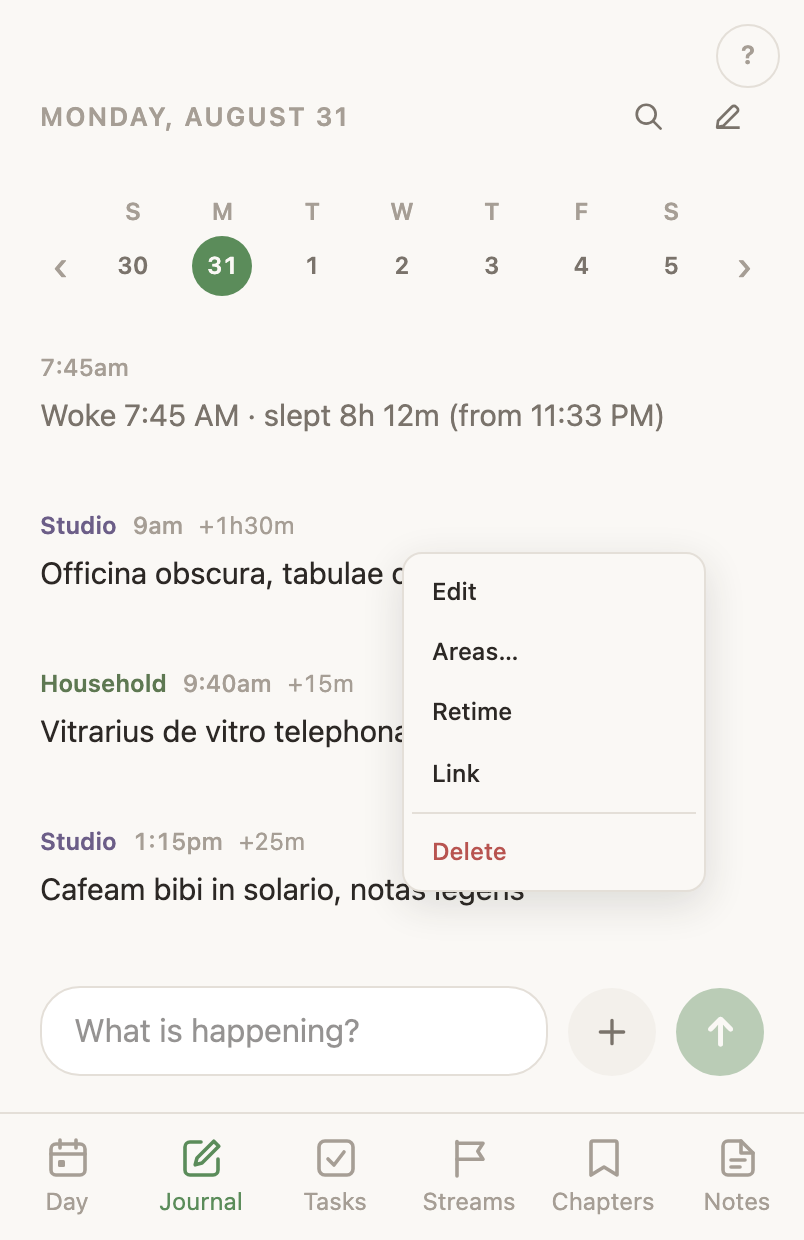
Right-click an entry on a laptop, or hold it on a phone. On the web the menu opens Edit journal or deletes the entry, and Edit journal holds the rest. The phone's menu is the same two rows, and its edit screen the same shape. A long-form entry has no Edit there. Its words belong to its note. A click on an entry's words opens Edit journal too, and so does a tap on the phone.
The Edit journal dialog
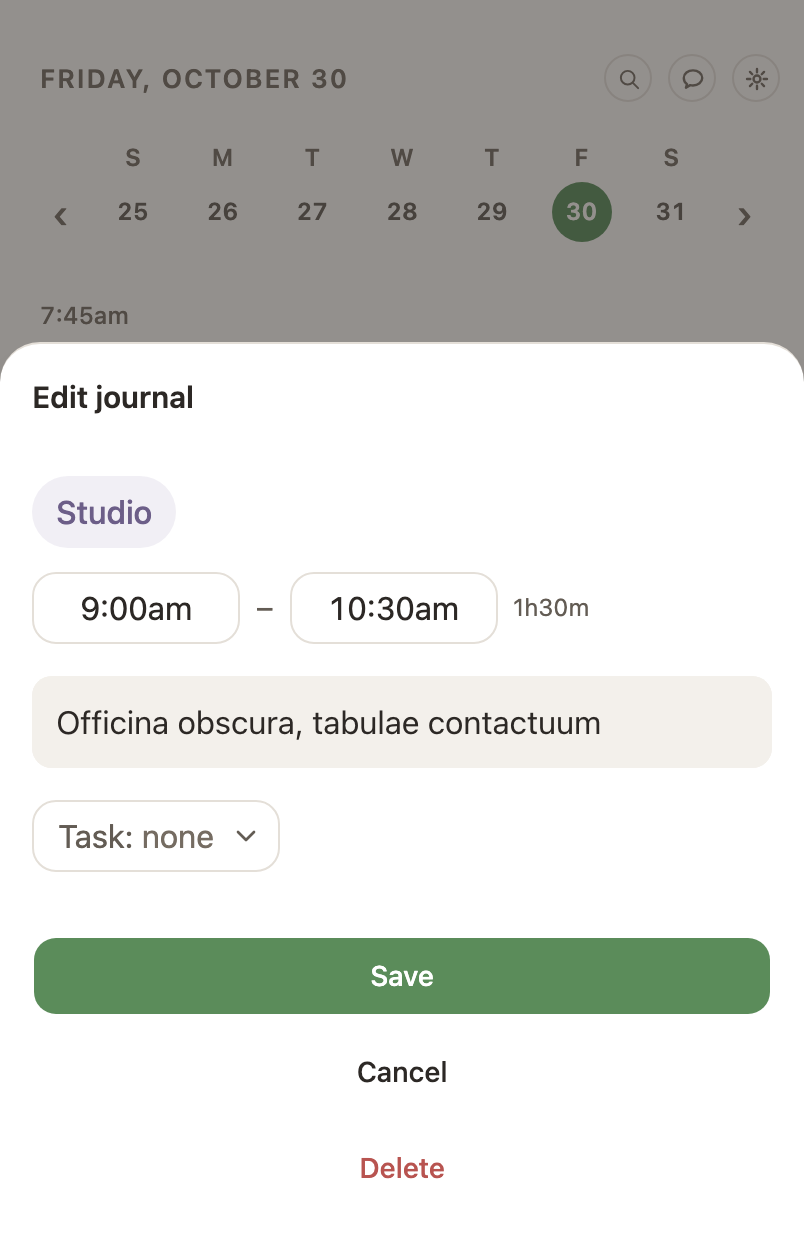
One dialog holds every detail of an entry: in the order its row prints them: its life areas and its start and end clocks on one line, its words under them, its task, and Delete. A tap on an area chip opens the menu that takes one off or adds another; Task under the words opens the open tasks, the entry's own areas' first; the end clock is always there, empty meaning no end, and on a running timer it shows the time now in amber, blinking slowly, under a Live timer label, while the words save themselves as you type and the dialog says so; and on the web the words are the note editor's field, with its lists, boxes, headings and indents, kept as plain lines the feed and the phone still read; the phone's words are plain text with the dash and bracket shortcuts. The dialog holds its shape while it is worked. Lines pasted into the words keep their lines, blank lines included, and pasted Markdown becomes the lists and headings it names. It is the same dialog whether the entry was opened from the Journal’s menu, a click on its words, or its mark on the Day, and Save writes only what changed. On the web it floats in the middle of the window; on the phone it is a screen.
Format an entry as you write it
On the web, the journal's bar is the note editor. Cmd-B or Ctrl-B makes the selected words bold, Cmd-I or Ctrl-I italic and Cmd-U or Ctrl-U underlined, and selecting words raises the note editor's formatting bar, which also makes a link. A dash and a space starts a bullet, two square brackets and a space make a box, and a hash starts a heading. Enter saves the entry, Shift-Enter starts a new line, and in a list Enter adds the next item; Enter on an empty item ends the list. The entry in the feed draws the bold, italic, struck-through and underlined words, code, links and headings as they were written. On the phone the bar is the same editor: while you write in it, a row of keys above the bar makes the selected words bold, italic, underlined, struck through or code, makes a link, and starts a bulleted or numbered list. Return saves the entry, and in a list Return adds the next item. The phone's feed draws the formatting too.
Paste a screenshot into an entry
On the web and the phone, pasting an image into the journal's bar attaches it, just as picking it from the plus menu does: it waits above the bar, and the arrow saves it with any words you typed. Pasted words go into the bar as before.
Undo stands for six seconds
Deleting an entry, and declining a meeting, both leave an Undo on screen for six seconds. Press it and the entry comes back whole, or the meeting keeps its place. The app waits out the six seconds before it sends anything.
Change an entry’s time
The start and end clocks in the Edit journal dialog move an entry to another time, typed; with a clock focused, the arrow keys move it five minutes, or an hour with Shift. Moving the start moves the end with it, so a stretch keeps its length. Give a moment an end and it becomes a time log. On the phone the clocks are typed into the same way, landing when the field is left.
Life areas on an entry
An entry belongs to the life areas you pick, and the first pick sets its colour. The Edit journal dialog shows the areas an entry has as chips, and a tap on one opens the menu: the areas it has, each a tap from coming off, a filter, and every other area to add, the recently used first. On the phone a tap on a chip opens the area sheet. Clear them all and the entry stays as you left it. The AI files an entry once at most, and never returns to one it has answered.
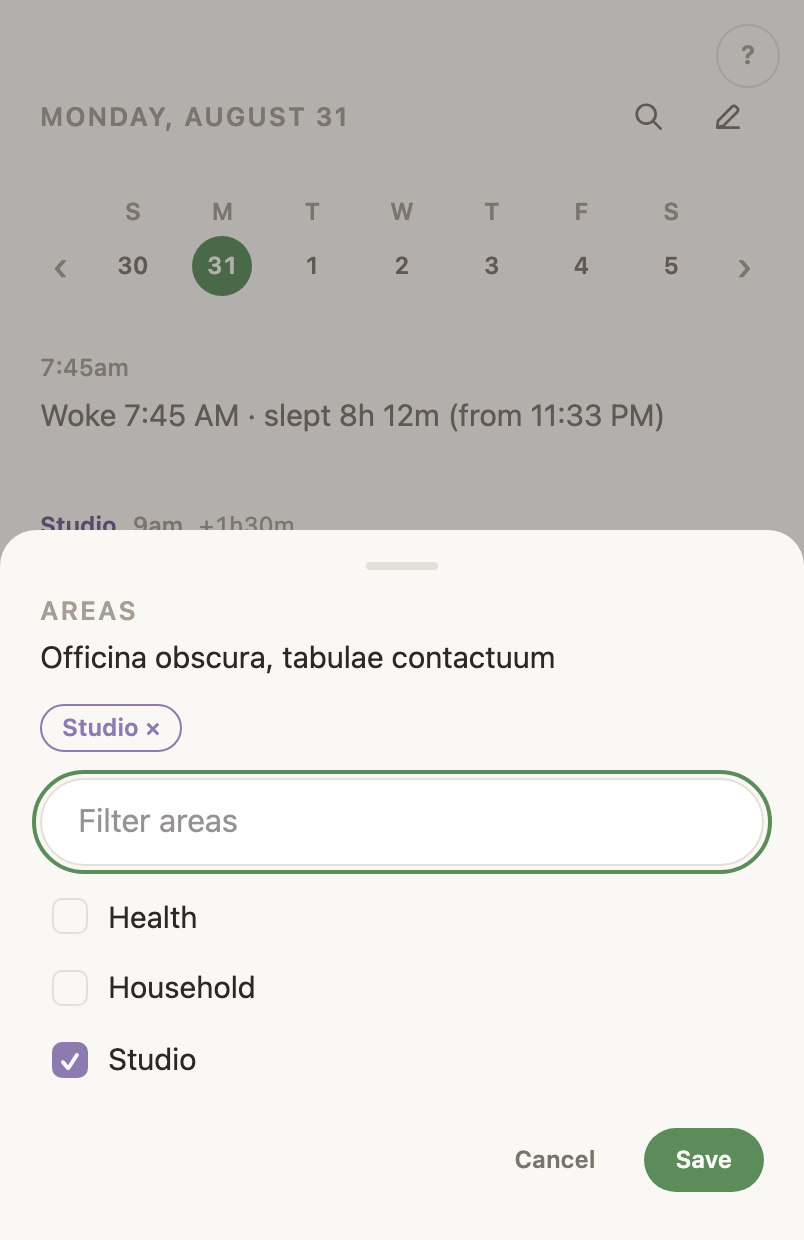
Link an entry to a task
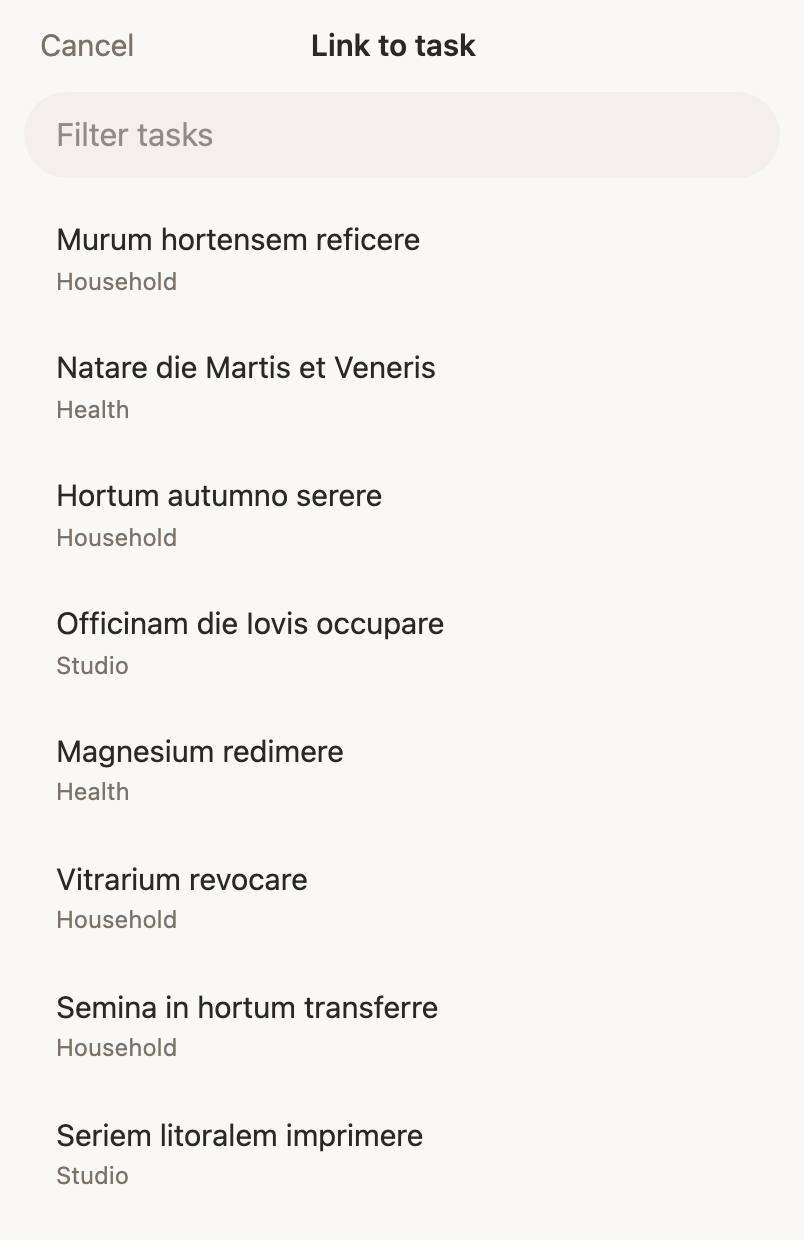
An entry linked to one of your open tasks takes that task’s life area, so your log and your work line up. On the web the Task field in the Edit journal dialog opens the open tasks, the entry's own areas' first; on the phone the Task field opens the task sheet. Both offer Unlink, which returns the entry to standing on its own.
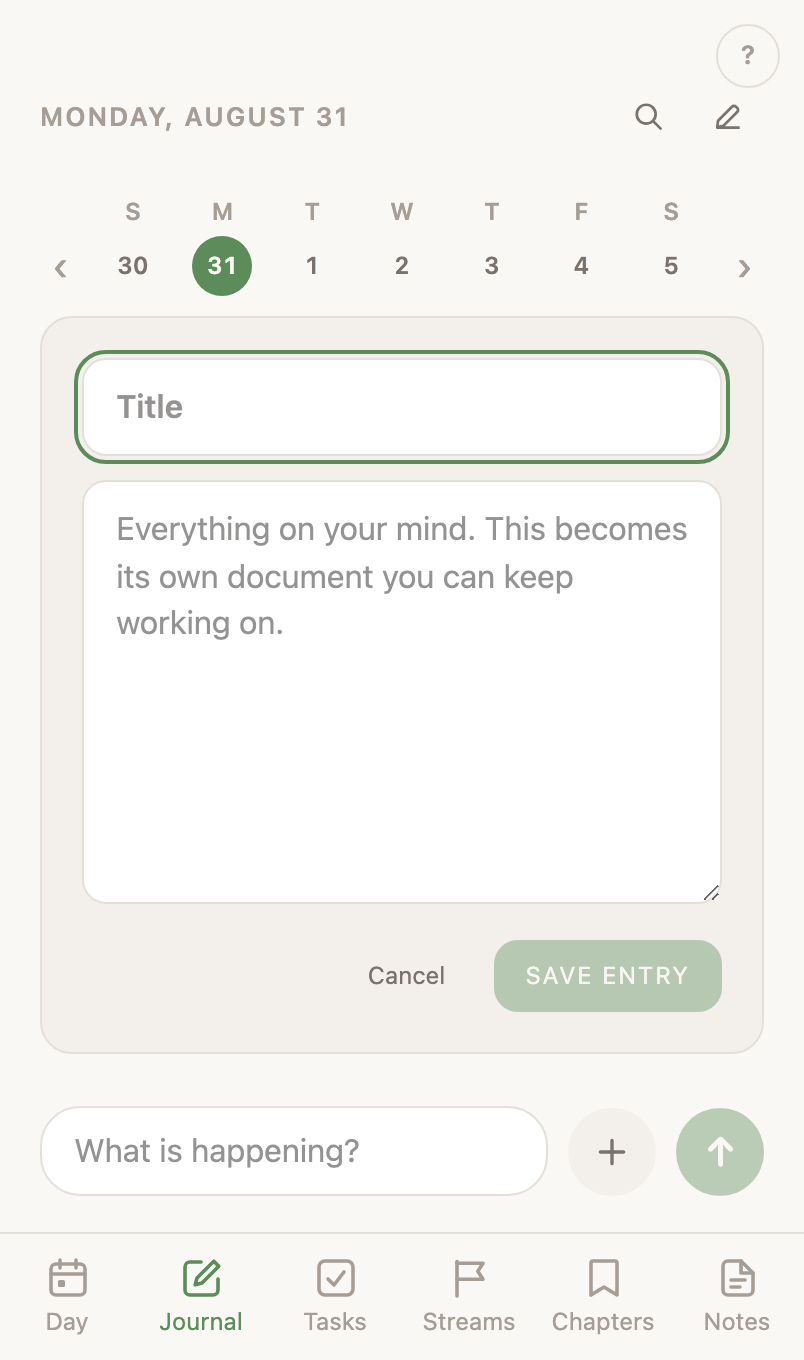
The note panel
Write a note under the + beside the capture bar opens one panel for every note, new or written weeks ago: centred in a wide browser window, rising from the bottom edge at a phone’s width, 85% of the height either way, holding a Title, the editor with its formatting bar, and one Close. The card is on the feed from the moment it opens, and tapping that card opens the same panel again. There is nothing to save. Close a panel with no title and nothing written and the note and its card both go.
Search
One search covers every day you have written on and the text inside your notes. The magnifier is in the top corner beside the chat bubble and the gear, on every screen, in a browser at any width and in the phone app. Results come back grouped, notes then entries, and an entry opens the day you wrote it on.
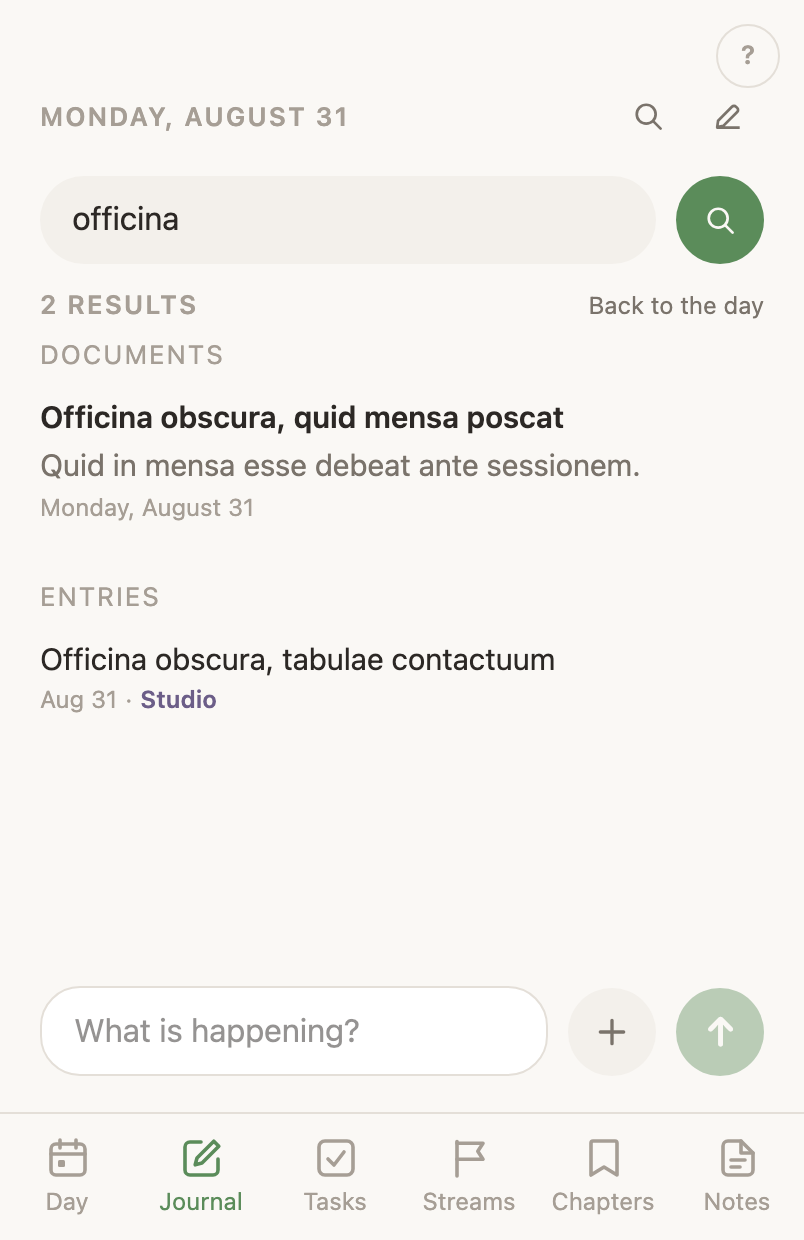
Every word has to appear, in any order
The words you type may sit anywhere in what comes back and in any order, so steak dinner finds an entry that says the steak at dinner. Quotation marks hold words together in the order you typed them. There is nothing else to remember.
The best answer leads, not the newest
Whatever holds all your words, in what you typed rather than in what a recording transcribed, and as whole words rather than buried inside longer ones, comes first. Between two that answer equally well the more recent one leads.
A result shows the words it matched
Each row shows the stretch of text your words were found in, cut out of something longer where it had to be. A recording’s words are down in its transcript, so without this a row could contain none of what you searched for.
The week strip
The week strip above the feed opens any day in the week shown, and the arrows either side move a day at a time. Step off either end and the strip follows, showing the week the new day is in. Today is one tap away when you leave it.
Photos and videos in the feed
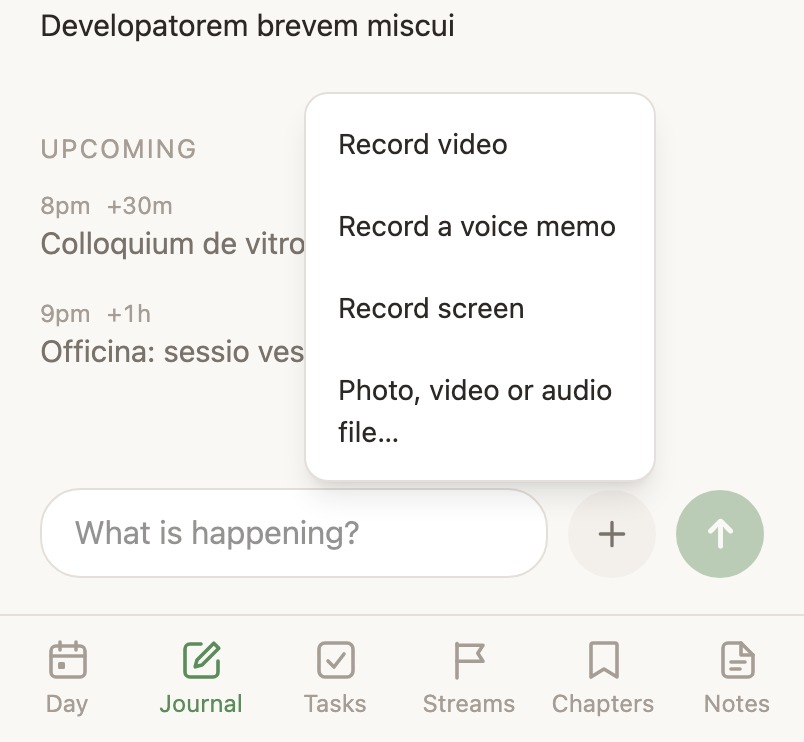
The + button beside the bar records a video, records a voice memo, records your screen, or attaches a photo, video or audio file from your device, and the result posts into the feed. A photo opens full size, and a video plays where it sits, in its own shape. The still a video shows before it plays is chosen from its first seconds for sharpness and stillness, never the first frame. On the phone, the screen recording is the app's own screen with the microphone over it, and a row above the bar holds the clock, Post and Discard while it runs. Until the phone's next store build, screen recording is on the web only.
Record a voice memo into the journal
Record a voice memo in the plus menu opens the recorder with the camera shut, for a journal update you don’t want your face in. It rolls on open, the clock and the level bar show it running, and the entry plays where it sits. It is transcribed on the same switch a video is, Transcribe a recording under Settings › AI. Web and phone both.
Your device keeps the take until it uploads
A take is saved on your device before it uploads. One that fails reappears after a restart, with Retry to send it again. The web can also write it to disk with Save file, and the phone hands it to the share sheet.
A long recording uploads in pieces
Anything over about eight megabytes goes up in pieces of that size, each sent on its own and tried again on its own, with a real percentage as it climbs. A connection that drops near the end costs the piece it was on rather than the whole take. The browser and the phone app both do this.
A posting recording says how long it has left
Once two pieces have landed and five seconds have passed, the posting line adds a remaining time beside the percentage, worked out from the rate the upload is actually achieving. Before that there is nothing behind the number, so the line shows the percentage alone. Stop beside the line ends the send, in the browser and in the phone app, and the recording stays on the device with Retry beside it. Retry sends the whole recording again from the first piece. A stopped send does not resume.
Choose what size a video from your library posts at
A video picked from the library goes up as a smaller 720p copy, and the row above the bar says what that copy weighs. Full size beside the weight posts the same video untouched, and the row prices that one too. Once a send has measured the connection, each size also shows roughly how long posting will take. The phone makes the smaller copy on the way out of the picker and a browser makes it before the post, so the video you picked is never changed. A browser that cannot make the copy says so on the row and posts full size.
Every action on an entry answers a screen reader
The entry menu opens on a hold, and a hold is the one gesture a screen reader cannot make, so each row also declares Entry actions as an action the reader can perform. Edit entry and Delete are reachable that way on both tiers. The week strip and a meeting row answer the same way.
Transcripts
A recording’s words belong to its entry. The feed shows what you said, tapping it opens the full transcript in its own reader, and search reads the words. Recordings brought in from an earlier system keep the transcripts they arrived with. New ones are transcribed when Transcribe a recording is switched on under Settings › AI, and a video is compressed in the background either way so it plays in the browser.
Correcting the sleep entry
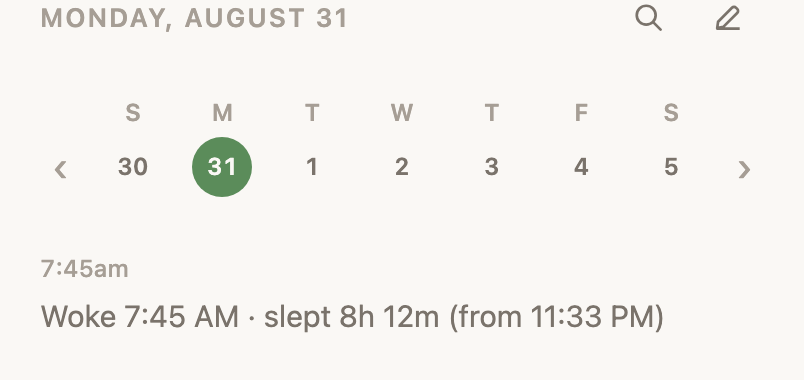
The sleep entry’s menu has Correct sleep: say when you woke and when you fell asleep, nudged or typed, and the night’s length follows as you go. Editing its words changes nothing. The reading is a number, not a sentence.
Signal and System rows stay off the journal
The journal holds what you wrote. Your devices’ reports and the app’s own bookkeeping belong to the Day instead, and search leaves them out too.
Entries with no time collect under the day
An entry written while you were looking at another day has no place on the clock, so it collects under the day’s timed entries in the order you wrote it.
Task comments stay on the task
Something you type on a task belongs to that task. It stays off the feed, out of search, and off the Day.
Features you switch onThe parts that run on a service you pay for
A journal recording is transcribed
A video or a voice memo posted to the journal comes back with a readable transcript of what you said. The recording goes to ElevenLabs for the transcript. The transcript alone then goes to Anthropic, which cleans it up. Anything typed beside the recording is kept as written. The write-up runs behind the entry, so the recording posts straight away and the row shows where the write-up has got to. On a recording that never got one, with the reason on the row, Write this up is in the entry’s menu to ask again.
An email when a background job breaks
The one email this app sends says a job that runs on its own has stopped working, and a second says it started working again. It goes on the Resend key stored in Settings › Integrations, so it is your account's key that sends it, and an account with no key stored gets no email and a line in the backend's log naming what is missing. The address it goes to and the address it comes from are set by whoever runs your LifeOps.
A transcription needs its switch and a key
Transcribing a recording spends money at an outside service, and it needs two things to run: its switch on the AI page, and an ElevenLabs key on Integrations. With the switch on and no key stored, the recording is kept and nothing is sent. A key is stored for your account, never shown again, and removed on Integrations.
TasksTasks holds everything open, grouped by life area
Statuses, types and the extra views come with the Goals & task detail switch.
Your areas
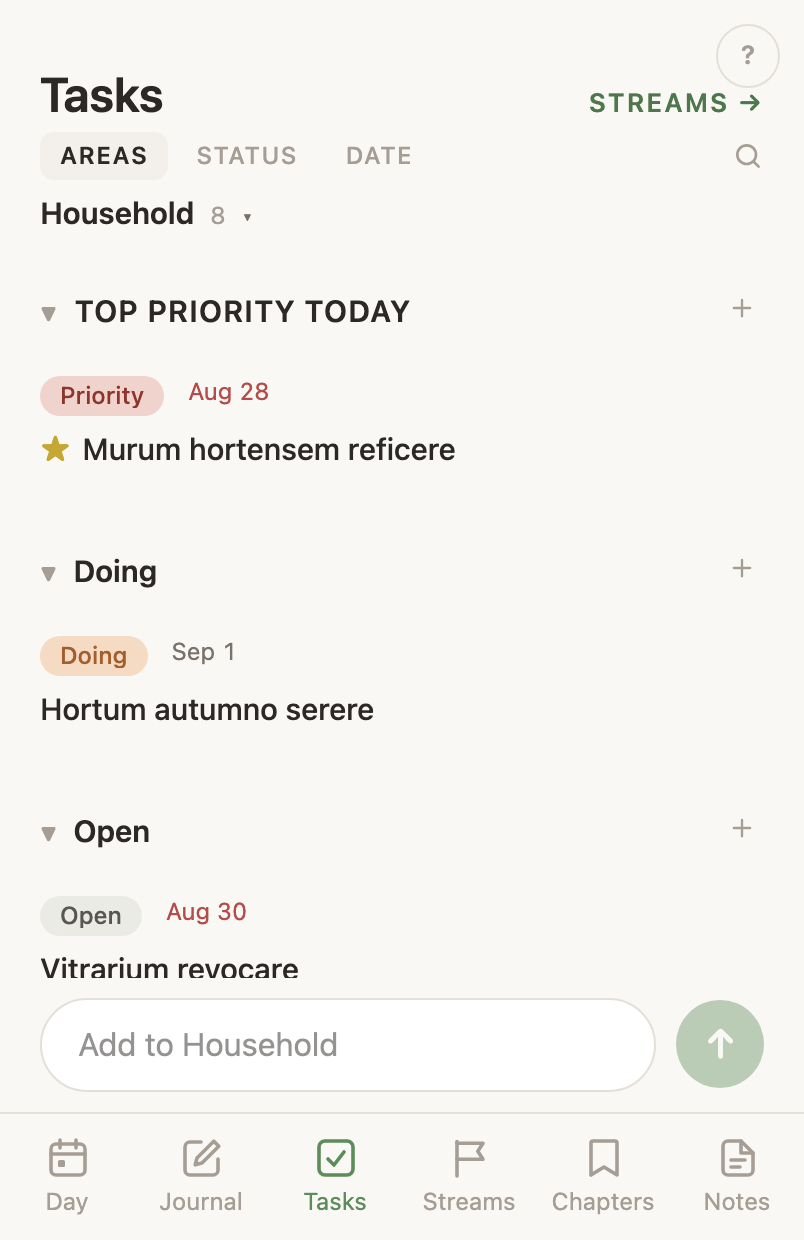
The Areas view shows one life area at a time. On a narrow screen the name at the top says which one, with its count beside it, and tapping that name lists your areas to switch between them. On a wide screen every area stands in a column down the left, each with its count and the busiest first, with All areas at the foot. Inside an area the tasks split under their status words. An area whose tasks disagree about where they stand splits under your status words, and one that agrees and is mostly dated splits into day bands. General holds the tasks with no area, and the add bar names the area you are in, so what you write there joins it.
A task with no life area is filed for you
With AI on, a background sweep reads an open task that has no life area and files it under one of yours, from the task’s words, its kind and its note. A task it cannot place stays under General, and it is asked about again the next time you add, rename or remove a life area — the list it was choosing from has changed. A task you filed yourself it never touches. Your pick always replaces its own, and clearing a task’s area keeps it clear.
A task under a goal takes that goal’s area
When the goal a task belongs to has a life area, the task takes it, and no model is asked. That makes it a rule rather than a guess, so it holds with AI switched off entirely. An area you set on the task yourself still wins.
An area you clear stays an area
Finishing the last task in a life area leaves that area on the list at zero, so the shape of your list does not change under you. The busiest areas come first, and General is always last.
Complete a task
Tap the ring beside a task to complete it. The task strikes through and stays exactly where it was for a second and a half, then fades off the list — long enough to see that it worked, and to change your mind. Tapping the ring again during that pause keeps the task, on the status it held before, unless that status was itself a closed one, in which case it comes back Open.
Search your tasks
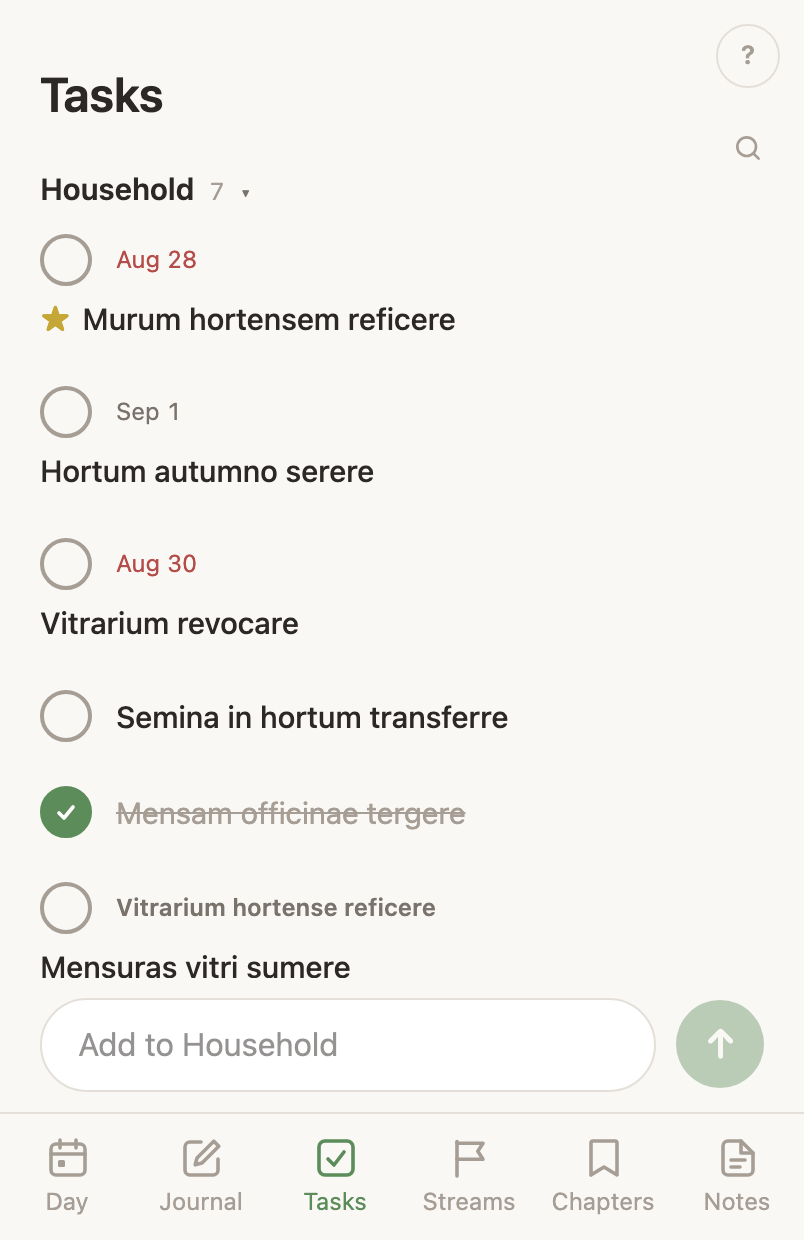
The magnifier in the top corner finds a task by its description or by the note on it, in any life area, alongside the days and notes the same search reads. A finished task comes back too. The Tasks page had its own second magnifier until Sep 2 2026, filtering the list in front of you.
A task’s own page
A task opens into the same page a goal does, and it is the only surface a task has. The top gives its name, its status, its life area, its type, its dates and its today star, and each of those is the control for itself. Under that comes the long-form writing in the editor notes use, with History in the top corner. Then its subtasks and the journal written against it, one after the other, each with a bar at its foot for adding. Delete and Hide until tomorrow are at the foot. A task has no movement verdict and no Notes fold. Those belong to a goal.
Open a task’s page
Every gesture on a task opens the page. On the web that is the task’s words, the rest of its row, and Details… on its menu. On the phone it is a tap on the row or a press and hold on it. A task named on another page opens from there too.
Add a subtask to a task
Add a subtask at the foot of the list makes a task under this one. A subtask is an ordinary task with an ordinary row, and its name opens the same page one scale down. There is no limit on the depth.
Write a journal note against a task
Add a note at the foot of a task’s page writes a journal entry filed to that task, so it reaches your Day and your Journal like anything else you write. The entry takes the task’s life area and its goal as it is created.
A task’s writing
The long-form text on a task’s page takes the same writing a note does. Typing - starts a real list item, and a photograph dropped or pasted in lands where you put it. There is no toolbar and no menu that pops when you type a slash, and it saves itself as you write.
Move a task to another life area
Click the life area on a task’s page and pick a different one, and the task leaves one list and joins the other. The empty answer is in the same list, so a task can be taken back off an area from where the area is shown.
File a task under a goal
A Goal field on a task’s page, beside the life area, reads the goal the task works for and reads No goal when it has none. It opens your open goals with a field to narrow them, and the first row clears the goal. A goal already closed stays on that list while this task is under it. Until Sep 6 2026 a task could get a goal only by being added from the goal’s own page.
A refused change goes back to what it said
When a change cannot be saved, the fact returns to what it was and the page prints the server’s own sentence about why. The list waits for the server to agree, so a change that was refused never reads as saved.
Delete a task
Delete is on a task’s menu on a laptop and at the foot of a task’s page, with or without Goals & task detail. It asks first, then removes the task for good.
Star a task as Top priority today
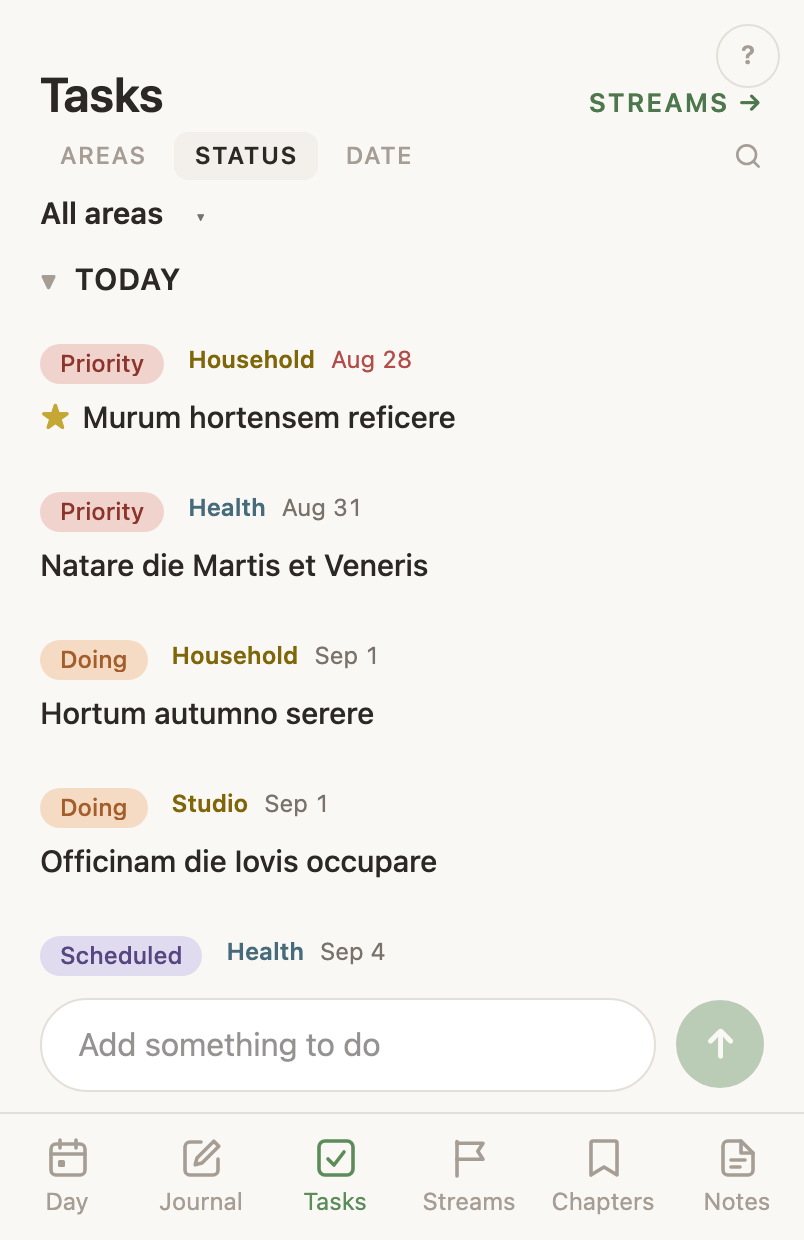
Top priority today stars a task and floats it to the top of whatever list it appears in, with the star showing on its row. The star holds until you finish the task or press it again, so a priority you did not get to is still one tomorrow.
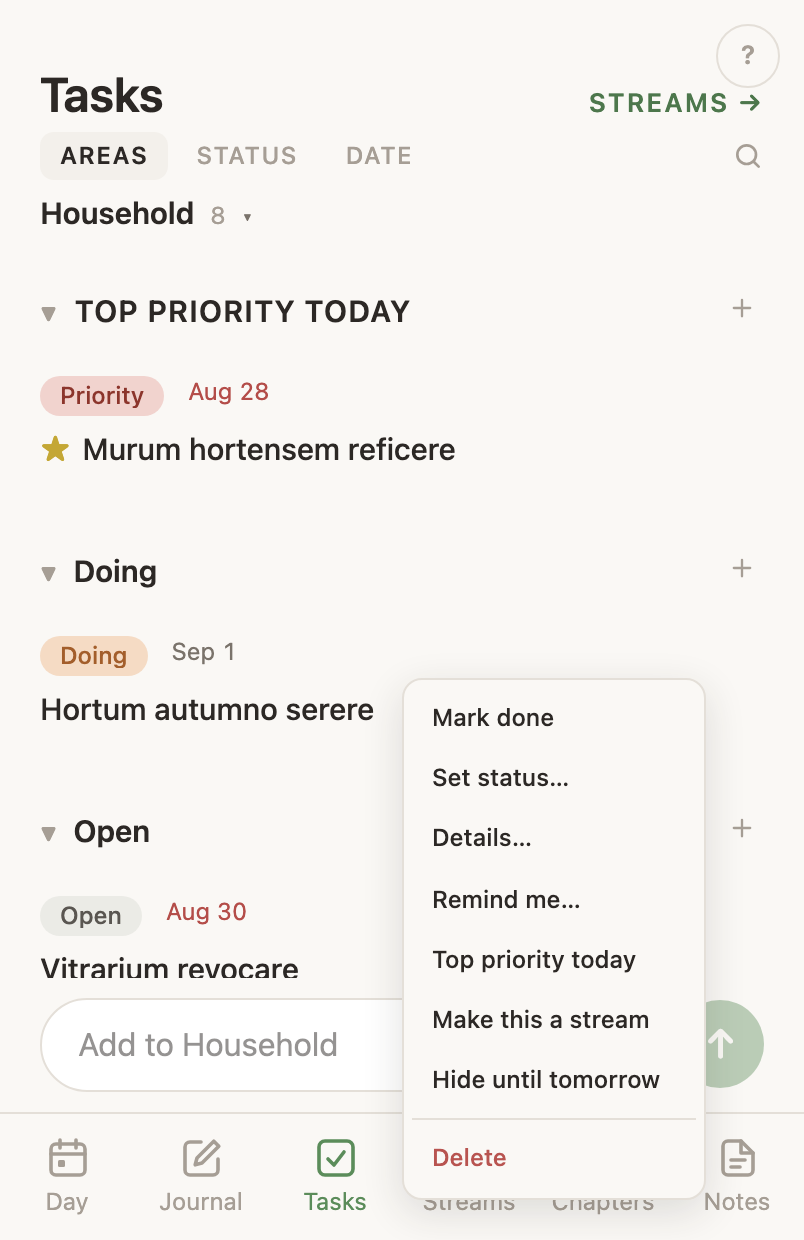
Hide a task until tomorrow
Hide until tomorrow takes a task off today’s list until morning. Its due date does not move, and the task comes back on its own.
A late date turns red
A due date that has gone by reads red on the task’s row, wherever that row appears, and says how many days overdue it is.
Statuses
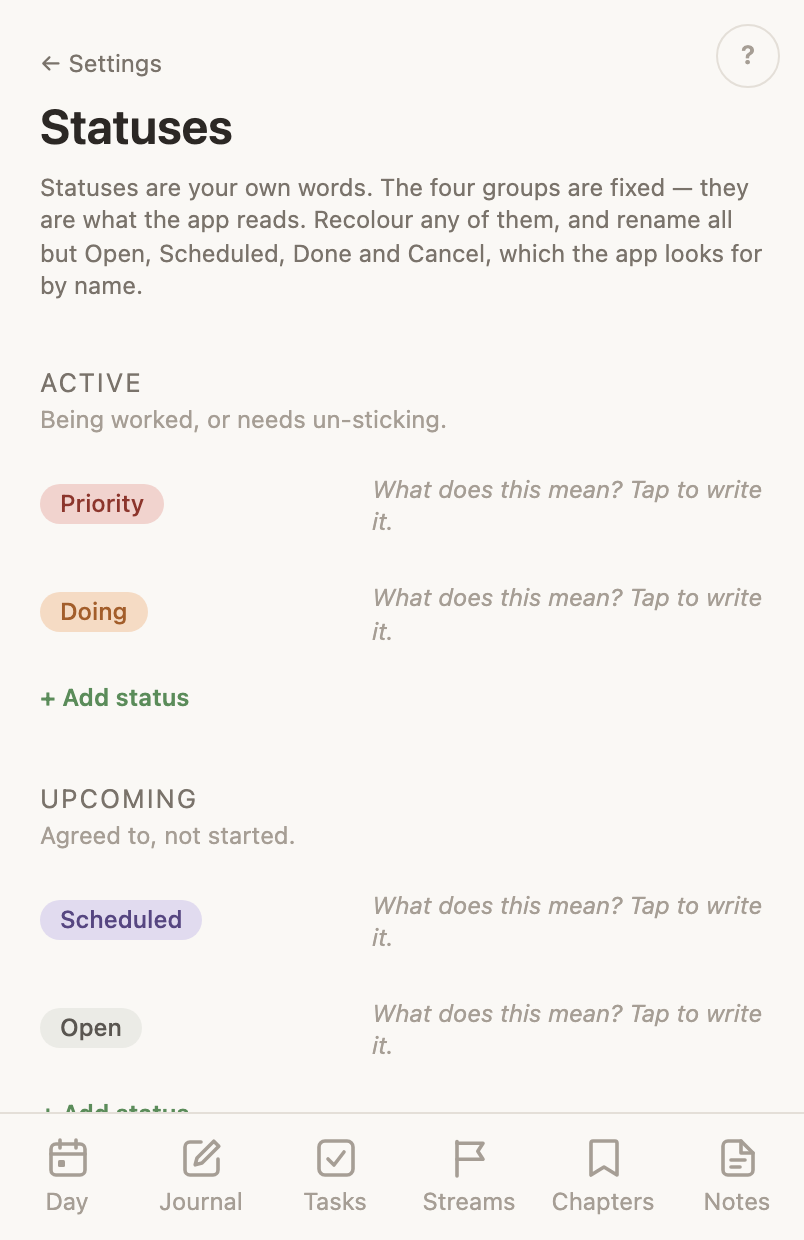
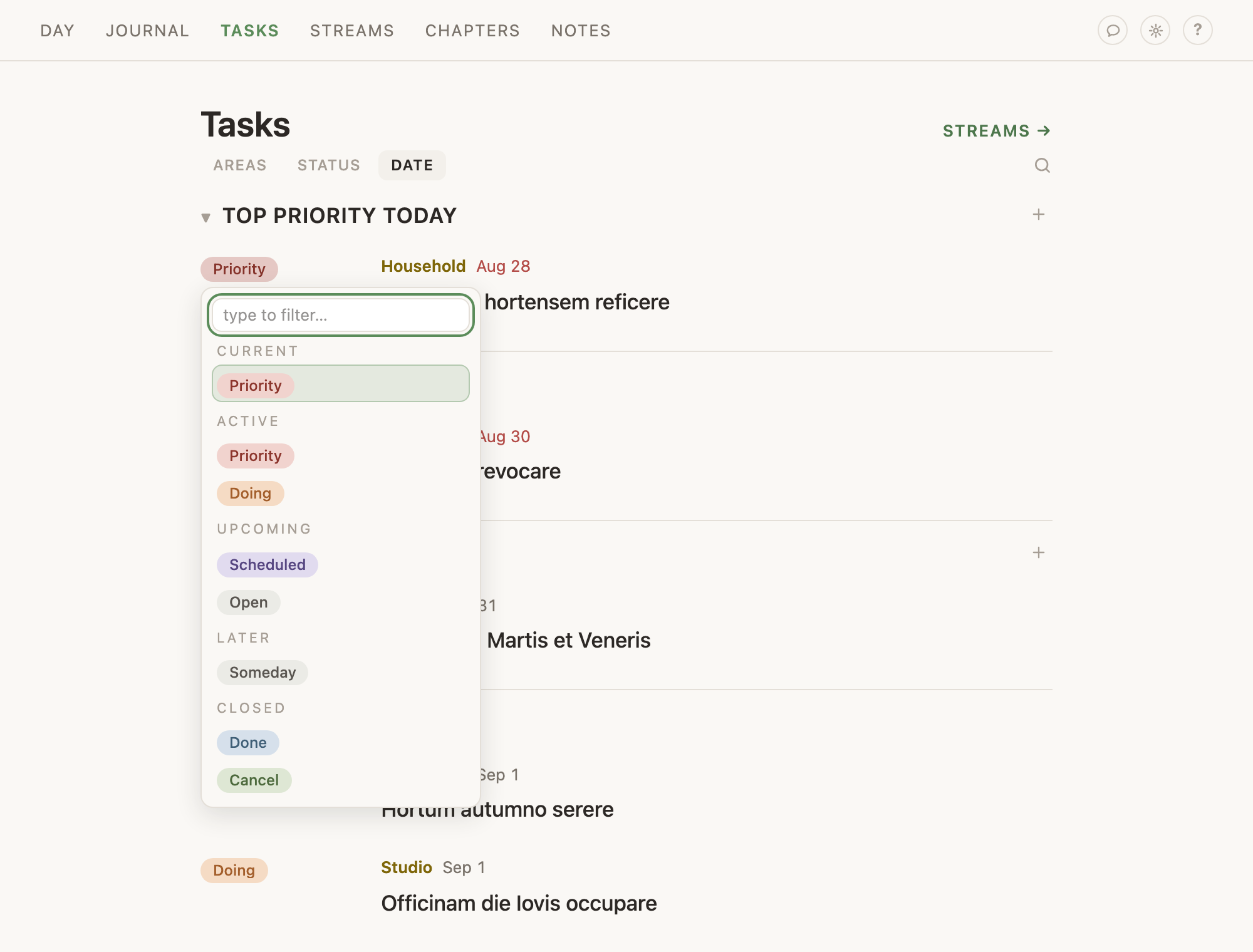
A status says where a task stands, and the words are yours. Recolour any of them, add your own, write what each one means, and rename all but Open, Done and Cancel. Every status belongs to one of four fixed groups, Active through Closed. Deleting a status moves its tasks to a status you pick.
Kinds
A kind says what sort of thing a goal is, and the words are yours. The list is on the Goals page under Apps in Settings, under the app's switch. Rename any of them, add your own, and delete one by saying where its goals go when any are using it. A kind is a name and no more, since a goal's row prints its kind as plain words. There are no groups and nothing is protected, except that the last kind stays: a goal is made with the first word on the list. A fresh account starts with Upcoming Goal, Long Term Goal and Responsibility; an account that already had goals starts with the words those goals were using.
Status headings inside a life area
A life area holding more than one status splits under those status words, each with a count. An area where everything is Open stays a plain list.
A task dated ahead moves to Scheduled
Scheduled is one of your statuses, sitting just ahead of Open. Give an Open task a date still to come and it moves there: the row says Scheduled, and it heads its own section wherever the list is split by status. Pull that date back to today or take it off and the task returns to Open in the same gesture. The day arriving moves nothing on its own, so the task is still Scheduled that morning until you touch it. A task carrying any other status keeps that status whatever its date, so work you marked as mattering now stays where you put it. Move a task out of Scheduled yourself and it stays where you put it too — nothing moves it back. The pickers offer Scheduled once you have connected a calendar. Until then it is not one of the words they list, and a task you date ahead still moves to it and still says so on its row. Because it is an ordinary status, its heading takes a new task and takes a dragged one, the same as Open or any status you named yourself.
Change a task’s status from its row
On the web a task’s row shows its status word, wherever the list is not already split by status. Tap that word, pick another, and the task is saved without leaving the list.
Task types
A type is your own word for the kind of work a task is. It shows on the task’s page and is picked there. A row with no type says No type rather than claiming one.
Where a task’s type comes from
The type picker on a task’s page offers the words already on your tasks, busiest first, and narrows as you type. It picks from those words and names none, so a type no task has yet cannot be made from this screen. A goal’s kind is a configured list instead, kept under Settings.
The views
Areas, Status and Date appear in a row above the list, and each one arranges the same open tasks a different way. Tasks opens on Status. Date puts the overdue first, then Today, Next 3 Days, 4 to 7 Days, 8 to 14 Days, Later and No date, with any task starred for today lifted above them. Under Status every heading has a plus that adds a task with that status. Under Date only Today and Top priority today have one, since those name a day a new task can be given. Overdue, Next 3 Days, 4 to 7 Days, 8 to 14 Days and Later name a range and take none. The bar at the foot adds to the area you are in under Areas and to no area under Status, and Show finished belongs to Areas alone.
Swipe between the views
Drag the list sideways to reach the next view, or use a two-finger swipe on a laptop’s trackpad. It stops at the ends rather than wrapping around.
Add a task inside a section
The + at the right of a section’s header opens a field at the top of that section, with the cursor already in it, and the page’s own bar stands down while it is there. What you type is filed with what the section stands for: your status word under a status heading, today’s date under Today, the star under Top priority today. A folded section opens to hold the field. Enter files the task in a browser and return does in the installed phone app; Escape drops the field in a browser, and on the phone leaving it with nothing typed drops it. Overdue, Next 3 Days, 4 to 7 Days, 8 to 14 Days and Later name a range and have no plus.
Put the tasks in your own order
Drag a row where you want it: the whole row moves on a computer, and on the phone you hold it until it lifts. Which half of the row you drop on decides whether it lands above or below, so the last seat in a section is reachable. A drop into another section writes what that section stands for as well as the place: your own status word under a status heading, today under Today, the star under Top priority today. Overdue, Next 3 Days, 4 to 7 Days, 8 to 14 Days, Later and No date name a stretch of days and take no row from elsewhere. Your order outranks the sort the app would otherwise apply, except in Today, which reads by date.
See the tasks you finished
Show finished at the bottom of the list brings back the fifty you finished most recently, across every life area, each with the status it closed on. The ring beside a finished task reopens it.
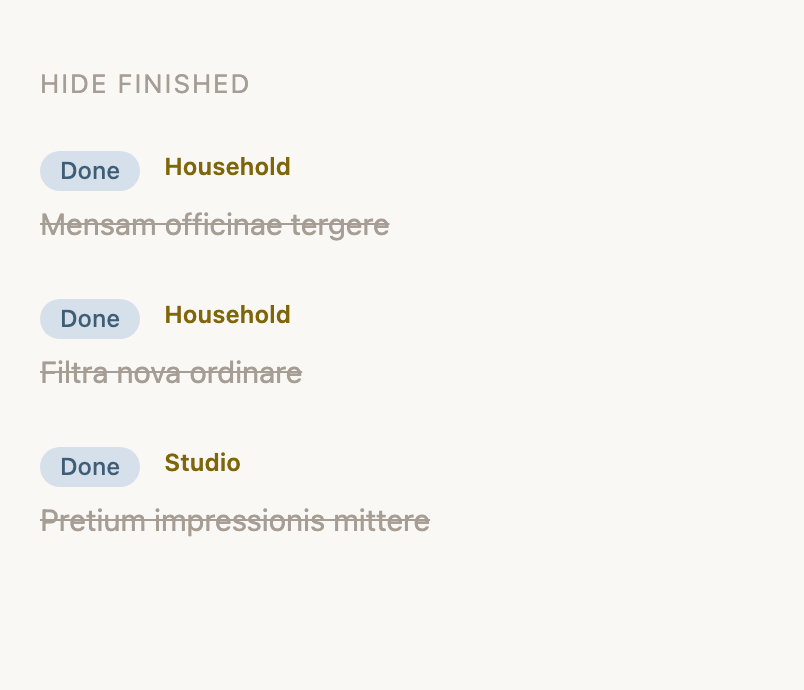
Open a task from the Day
A change on the Day opens the task it changed, straight onto that task’s page. A task you have already finished says so and offers to show the finished list.
Find a goal’s tasks
A goal’s tasks are on the goal’s own page, in its Tasks section. The sheet on the Goals list has one row for getting there, Page →.
NotesLonger writing has its own tab, Notes
The note list
Notes lists every note you have. Grouped by life area it sections them under their areas. Ungrouped it runs newest first by the date each row shows, so a new note starts at the top and renaming one does not move it. The search field is the way back to the one you were writing in last week.
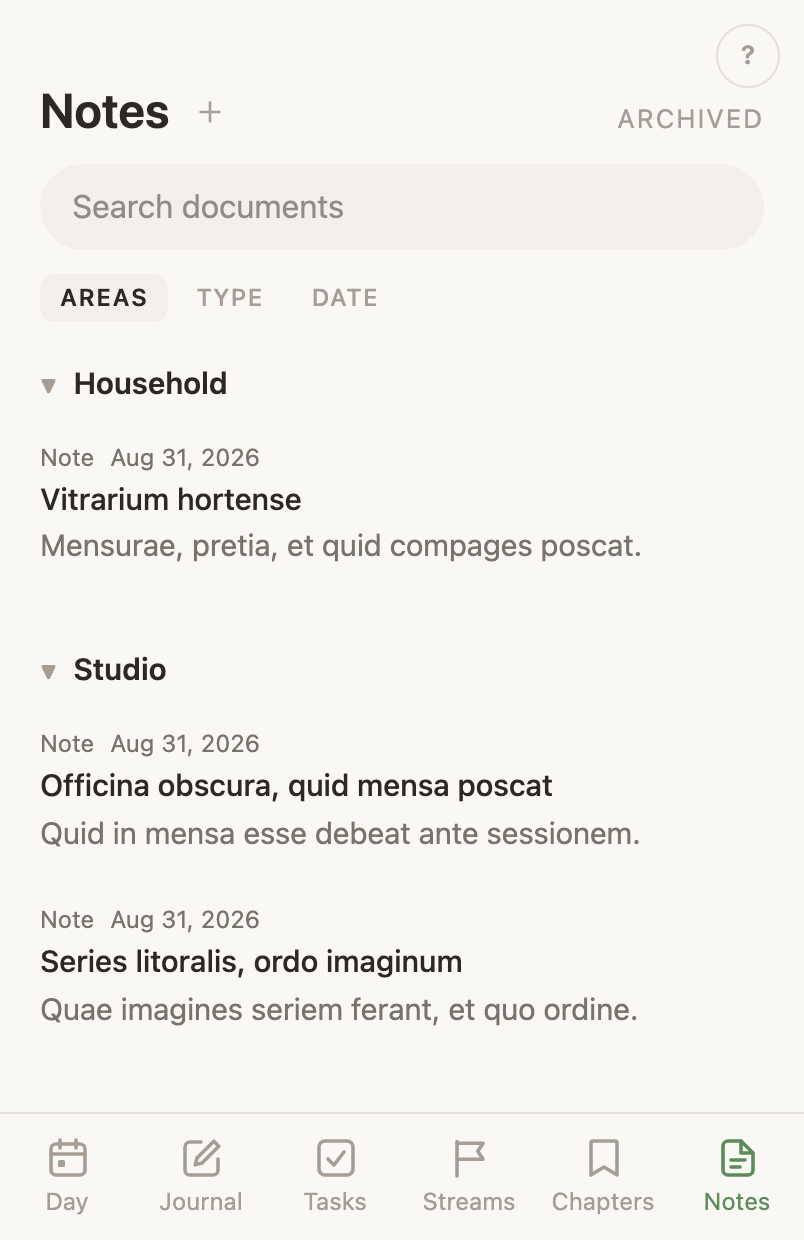
What a row says
A row gives its labels above the title — the type, the date, and the goal or life area when it has one — and its description under the title. A date the app cannot read shows as nothing at all rather than as an error.
Start a note
The plus on the Notes tab makes a note and opens it, unnamed with its title field waiting, and a long journal entry you give a title becomes one as well. Both routes make the same note, and the one from the Journal keeps its place in that day. A note started from the Journal and left with no title reads Untitled entry until you give it one.
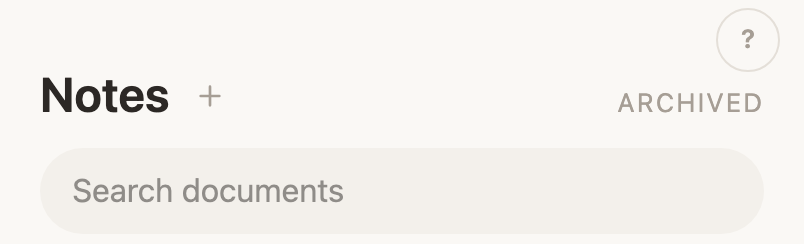
File a note under a life area
On the web, an open note shows the life area it belongs to under its title, in that area’s colour, and No area when it belongs to none. Clicking it lists your areas, filtered as you type, and picking one files the note there. Picking No area at the bottom takes it back off, and the sweep leaves it off. The phone shows the same line under the title and opens the same list.
File a note under an event
A note has no event of its own. Events hold notes, so the filing happens on the event’s page, where Write a note on the Notes heading starts a note already filed under it. The browser and the phone app both read this way, and a note reaches an event only when you put it there.
A note with no life area is filed for you
With AI on, a background sweep reads a note that has no life area and files it under one of yours. It reads the name, the kind, the description and the text. A note it cannot place stays unfiled, and it is asked about again the next time you add, rename or remove a life area — the list it was choosing from has changed. One you file yourself it never touches. Your pick always replaces its own.
Rename a note
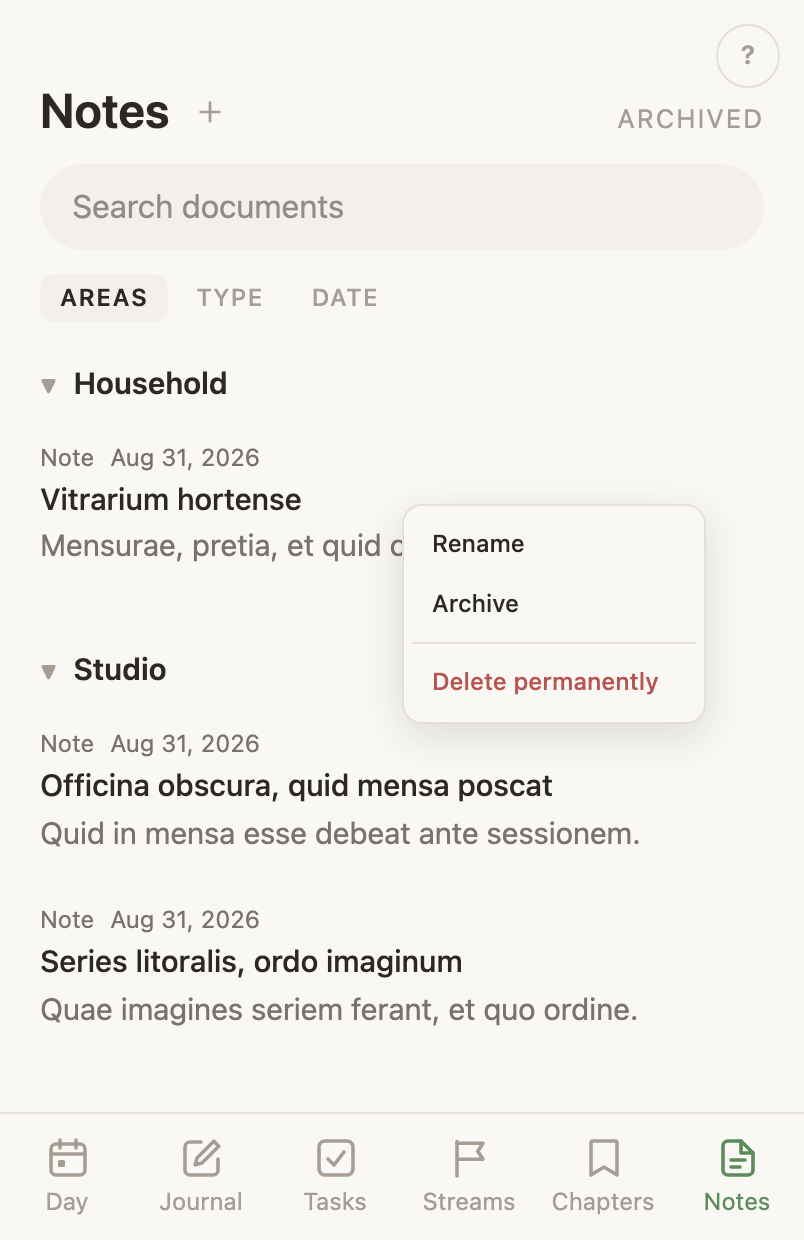
On the web, click a note’s title to rename it, or right-click its row in the list. On the phone, Rename is under the ⋯ at the top of the open note.
Archive a note
Archive takes a note out of the list and keeps every word of it. Archiving leaves you on the list it just left, even when you opened the note from a journal card.
Make a note a goal
Make this a goal turns a note into the goal it turned out to be, carrying its title, its life area and every word of its text. The note is archived behind it rather than deleted, and the two texts are separate from then on. The web asks first and lands you on the new goal; the phone goes straight away, closes the note, and says on the list which goal it became. A note with no title is refused, and so is a title a goal already has.
Restore an archived note
The Archived link above the list opens what you put away, and Restore puts one back. Restoring keeps you on the note. On the phone the way in is Archived in the corner menu.
Delete a note
Delete permanently asks first. The note and its text are then gone.
Note search
On the web the search field reads the text inside your notes, as well as the title, description and labels on a row. When the server cannot read inside them, a line under the field says so. The phone’s field reads inside them the same way, and says so under the field when the server cannot.
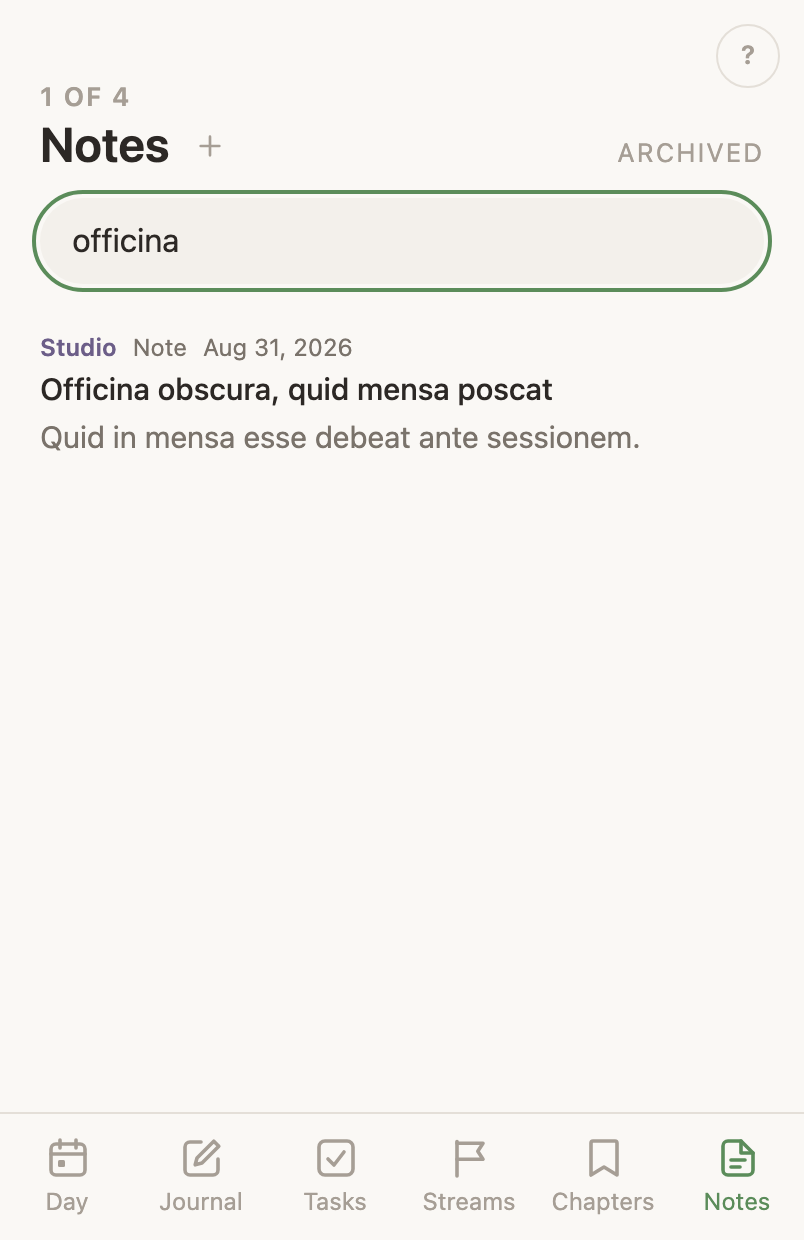
Search covers the live list only
Searching covers your live notes and leaves the archived ones out, on purpose. The way back to what you put away is the Archived link above the list, and Archived in the corner menu on the phone.
An open note
An open note shows its title, its text, and a way back that names where you came from. Journal from a journal card, which returns you to that day. Notes from the list, Archived from the archived one. The title always comes from the note, so a link saved before a rename opens under the current name.
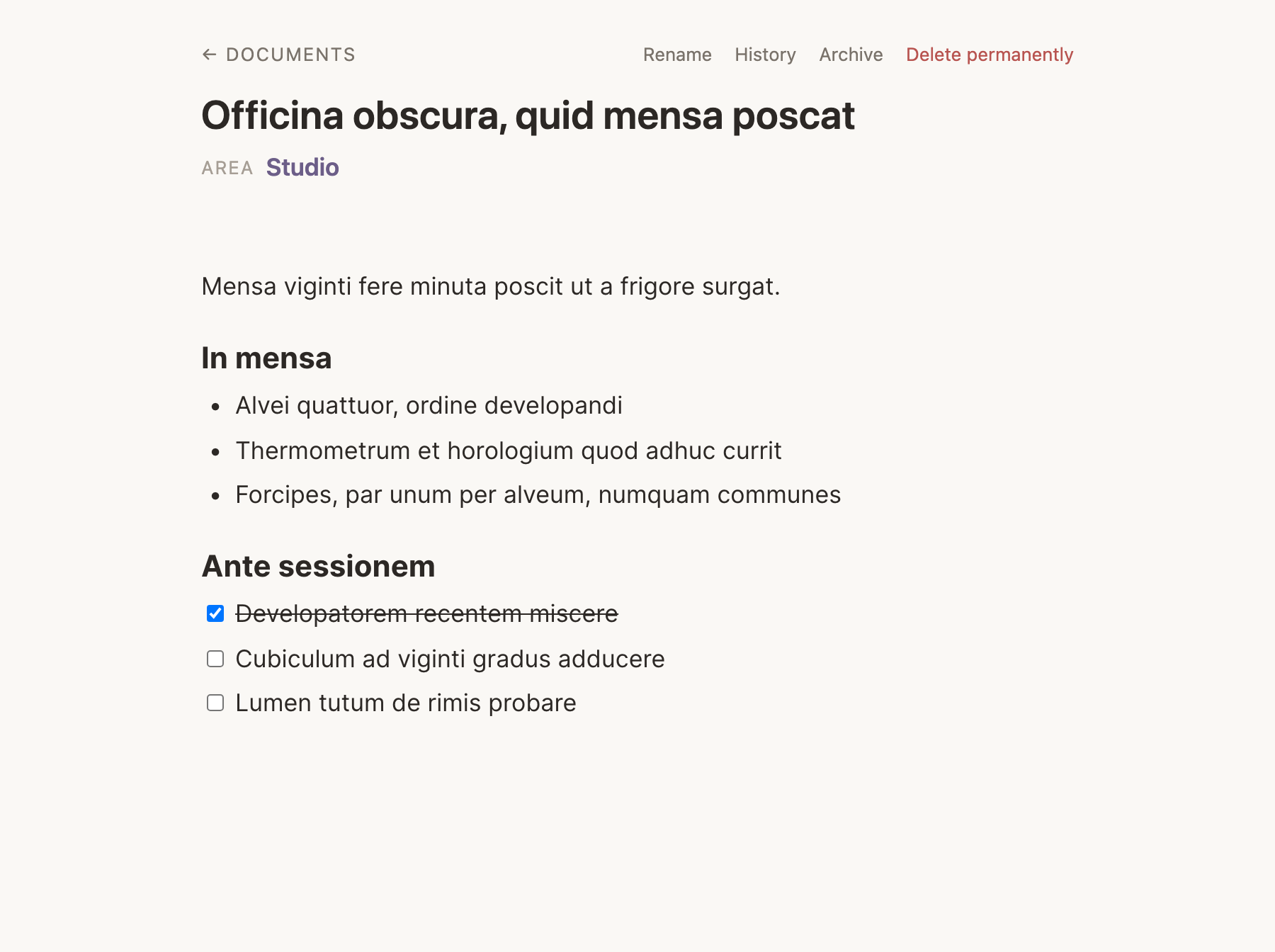
Edit a note on the web
On the web every note is fully editable, formatting included: headings, bulleted and numbered lists, and checkboxes. It saves itself moments after you pause.
Leaving the page mid-save
The browser asks before you leave with words that have not saved yet, and a save still in flight goes out as you go. If it dies on the way, the note says so the next time you open it, so a lost save never reads as stored.
Writing the server refused survives a closed tab
Every keystroke is kept in that browser as well as in the open page, so closing the tab does not take the words. Opening the note in that browser again brings them back and saves them, and a quiet line above the text says so. Writing done in the same note somewhere else in between is later writing and stands instead; the older copy goes without a word. The phone keeps the same copy on the device and brings it back the same way. A save the server refuses tries again on its own, waiting longer each time, and the word at the top reads Unsaved, retrying; while there is something to save, that word is a button that saves now, on both.
A note that will not load stays shut
When the text cannot be fetched, no editor appears. An empty editor saving itself over writing the app could not read is how a note gets quietly emptied, so the editor stays shut instead.
The history panel
History at the top of an open note opens a panel beside the text: one list, newest first, holding the versions the note has passed through and the autosave trail together. A version gives its time and a plain sentence saying what moved between it and the one before, and the trail is gathered one row per run of writing rather than one per save. Open the panel on writing newer than every row and it keeps a version of the page first, so the list arrives with what is in front of you on top. A goal’s page and a task’s page have the same panel over their own writing.
Read a note as it was
Clicking a version swaps the note on screen for what it said then, drawn by the editor rather than printed as source. The panel stays beside it, so you can move between versions and come back to the current text.
Restore a note to an earlier version
Restore this version, above the version you are reading, makes it the note again. The line under the button says what happens to the words you are replacing: what the note says now is kept as a version first, so restoring is reversible. The browser and the phone app both do this.
Name a version of a note
Save version keeps the text as it stands under a name you type, so a state worth going back to has a word on it rather than a time.
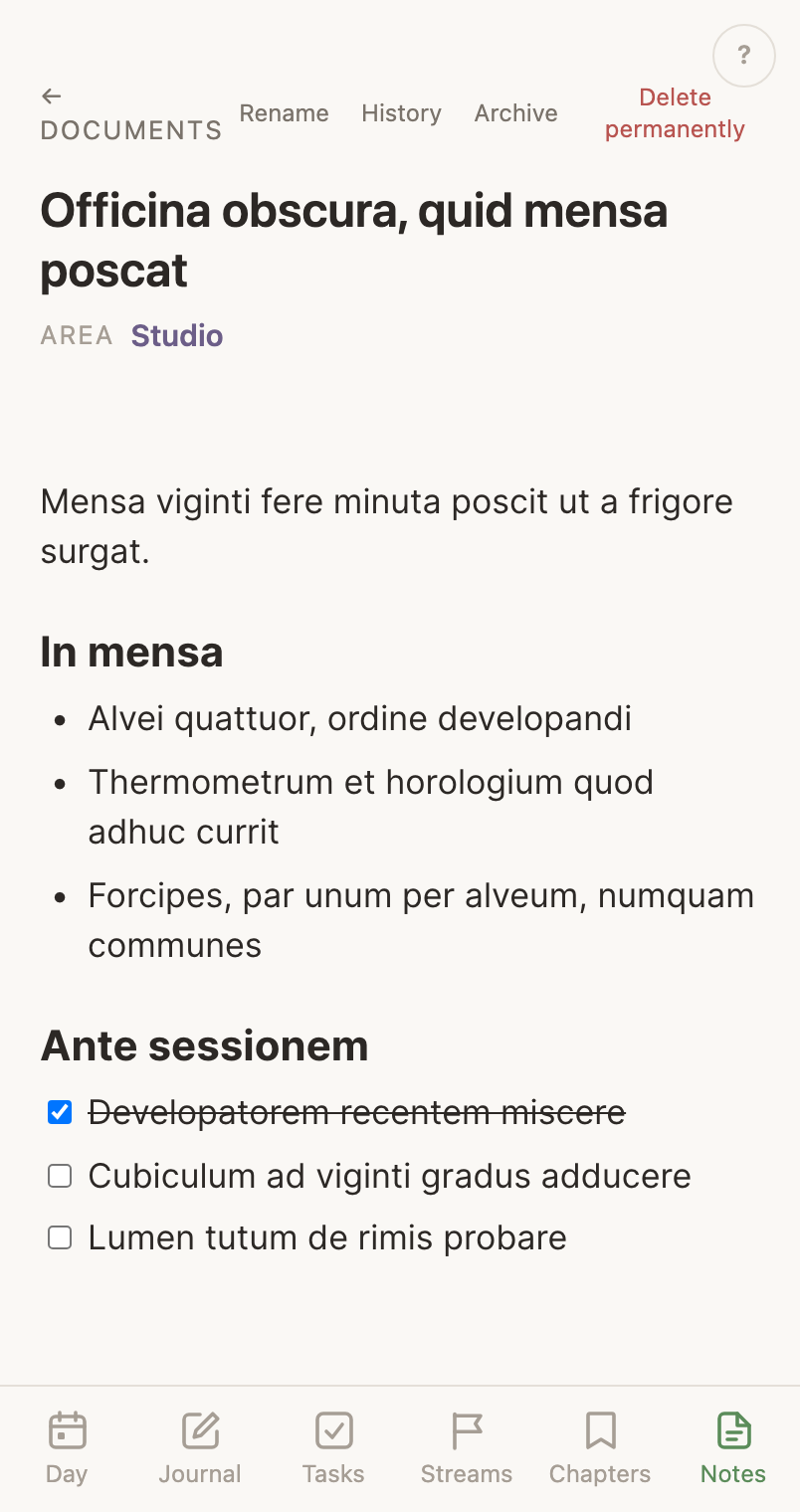
Read a note on the phone
The phone shows a note with its headings, lists and checkboxes, and you type into it where it stands.
Edit a note on the phone
The phone runs the same editor the web does, so it writes the same things: headings, bulleted and numbered lists, checkboxes, quotes, code, links, tables, bold, italic, underline, strikethrough, colour, highlight and alignment. A bar above the keyboard holds them and shows what the line the cursor is on already is. Typing / lists the block types, Urgent and Toggle heading among them as on the web, and the ⋯ key on the bar does what the handle beside a line does on the web: move the line up or down, turn it into another kind, Urgent included, or delete it after asking. It replaced a plain field that could author a paragraph and nothing else.
A note and its journal entry
A long journal entry you gave a title is an entry and a note at once. The entry on your timeline shows the opening of what you wrote, and tapping it opens the whole note.
Deleting a note keeps the entry
Delete a note and the journal entry keeps its words. It stops being a card that opens one.
An outage is not an empty shelf
When your notes cannot be fetched, the list says so and offers to try again. It never tells you that you have none.
DayDay draws your hours to scale
The timeline
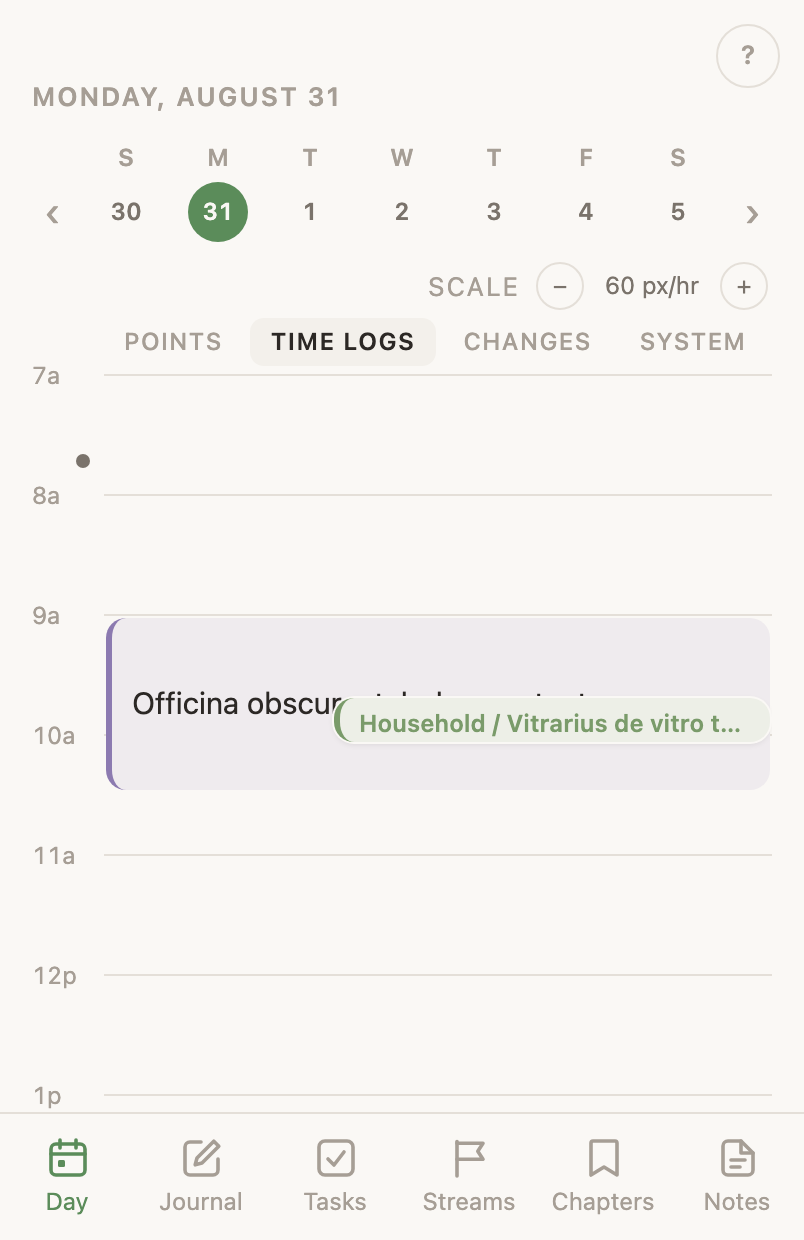
Your meetings show as blocks across the hours they took, and what you wrote shows on the same hours. A line marks now. You see a meeting and what you did during it in one place.
The columns
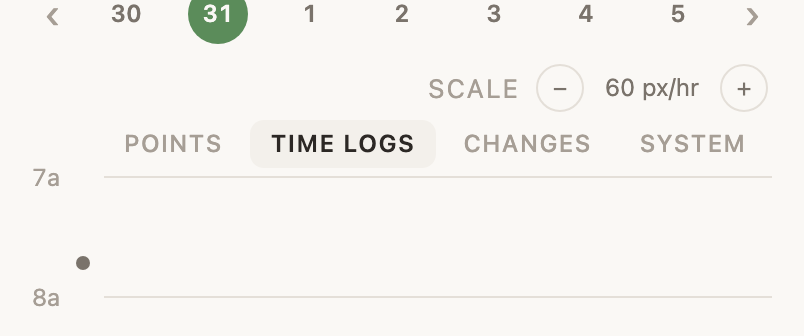
A wide screen shows four columns beside the hours. Points is what you wrote at a moment, Time logs is what you did for a stretch, Changes is what you made, shelved or edited on a task, a goal, a note or an event, and System is what your devices reported and what the app recorded on its own. A phone shows one at a time, and the tabs above them switch.
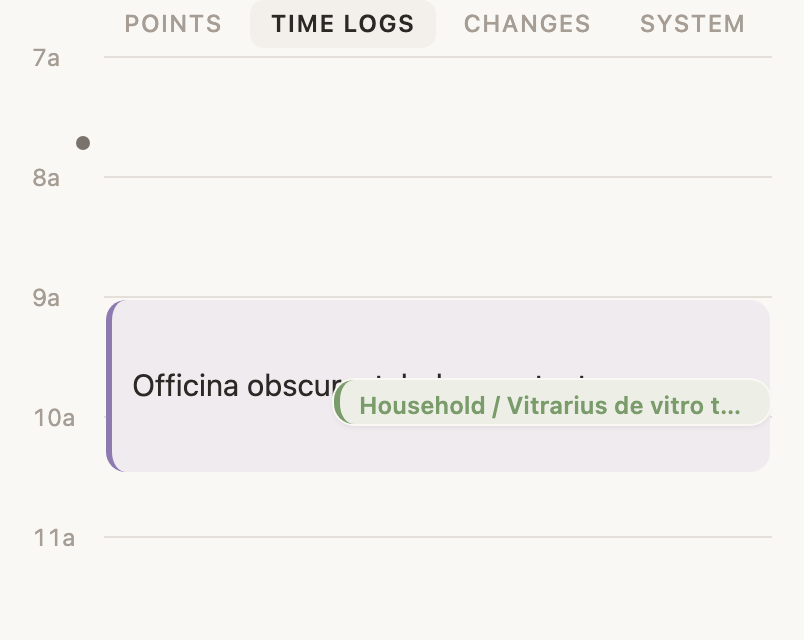
Draw a time log on the hours
Press on a blank part of the hours and drag down. The Day asks what you were doing and saves your answer across the stretch you drew. On a phone, hold still for a moment before you drag. Press without dragging and you get a single moment instead of a stretch.
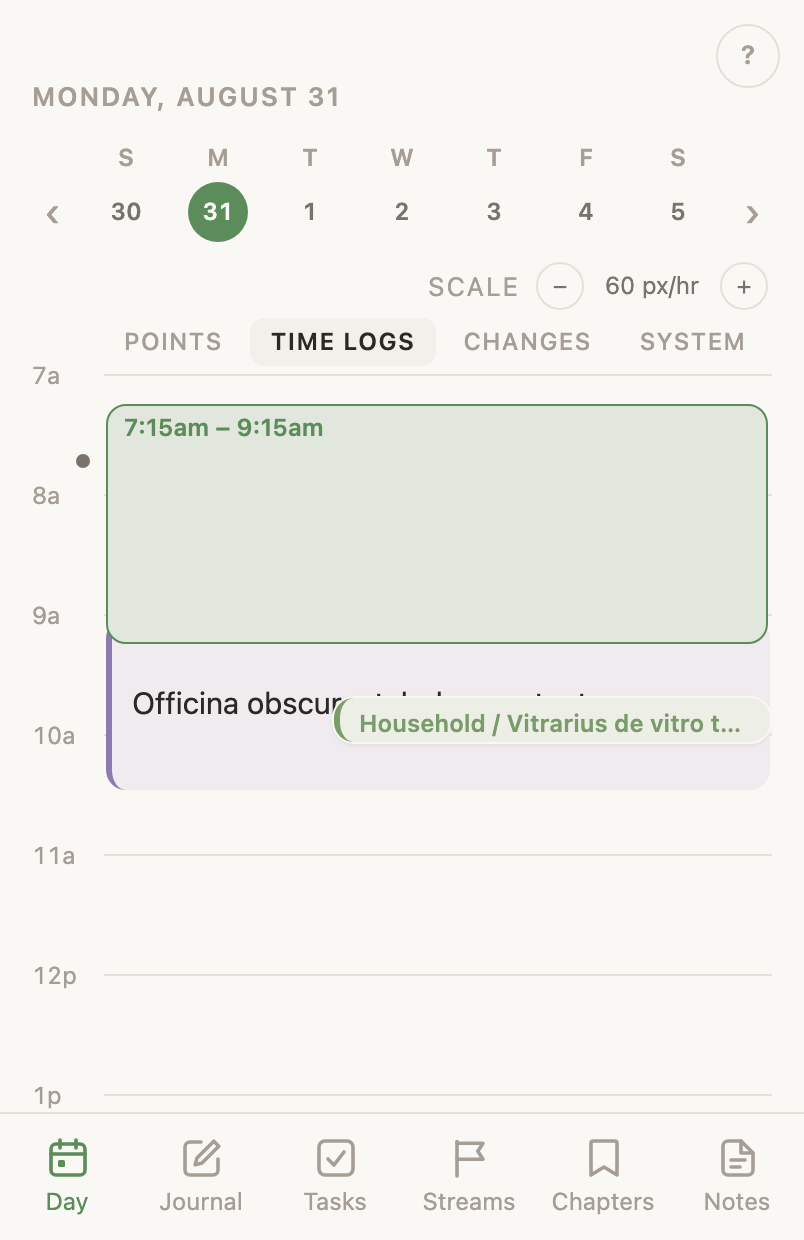
Tap anything on the timeline to open it
A time log, a moment, a meeting, a change: each one opens to its own words and its own time. One of your own entries opens the Edit journal dialog, the same one the Journal opens, with its areas, its clocks, its words and Delete. A meeting opens with Going, Done, which turns it into a time log, Cancel task, which takes it off the day and cancels its task without calling Google at all, and Cancel & Decline, which does that and answers no on the invitation, emailing nobody. Join the call appears when the meeting has a link.
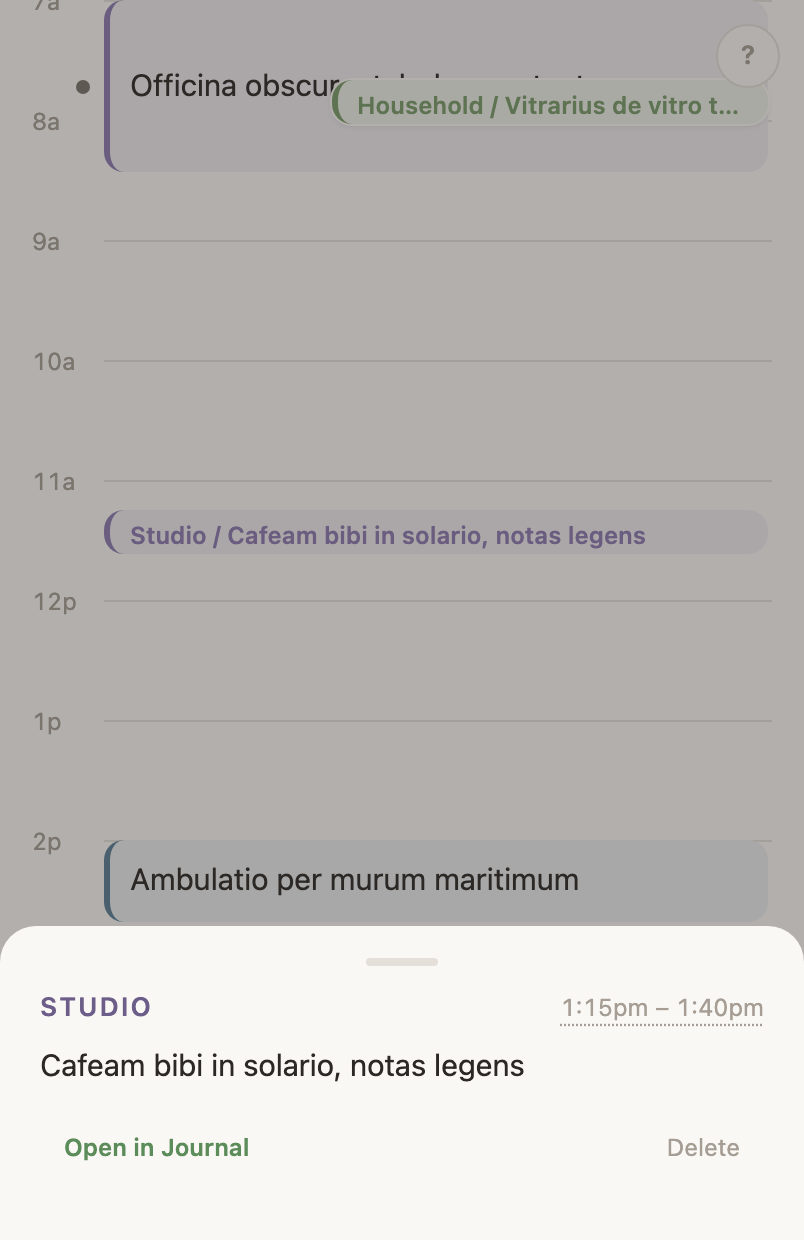
A decline that did not go through says so
The decline is sent after the six seconds, and closing the tab or leaving the screen sends it early. If it goes out at that moment and the server refuses it, the app names the meeting, says it is still there, and gives the reason it was handed, such as Google refused the decline. Reconnect Google in Settings and try again. A screen you are still on says so at once; one you switched away from waits until you are back; one that is gone leaves the next load of that day to say it, and only the day itself decides then, so a meeting the server shows as declined is left alone.
Change an entry’s time
Something logged at the wrong hour is fixed where you drew it: on the web the mark opens the Edit journal dialog with its start and end clocks, and on the phone the mark opens the same screen. Moving the start moves the end by the same amount, so a stretch keeps its length.
Delete an entry from the day
Delete asks once. What you deleted then leaves every column at once and an Undo stands for six seconds, and nothing is sent until it runs out.
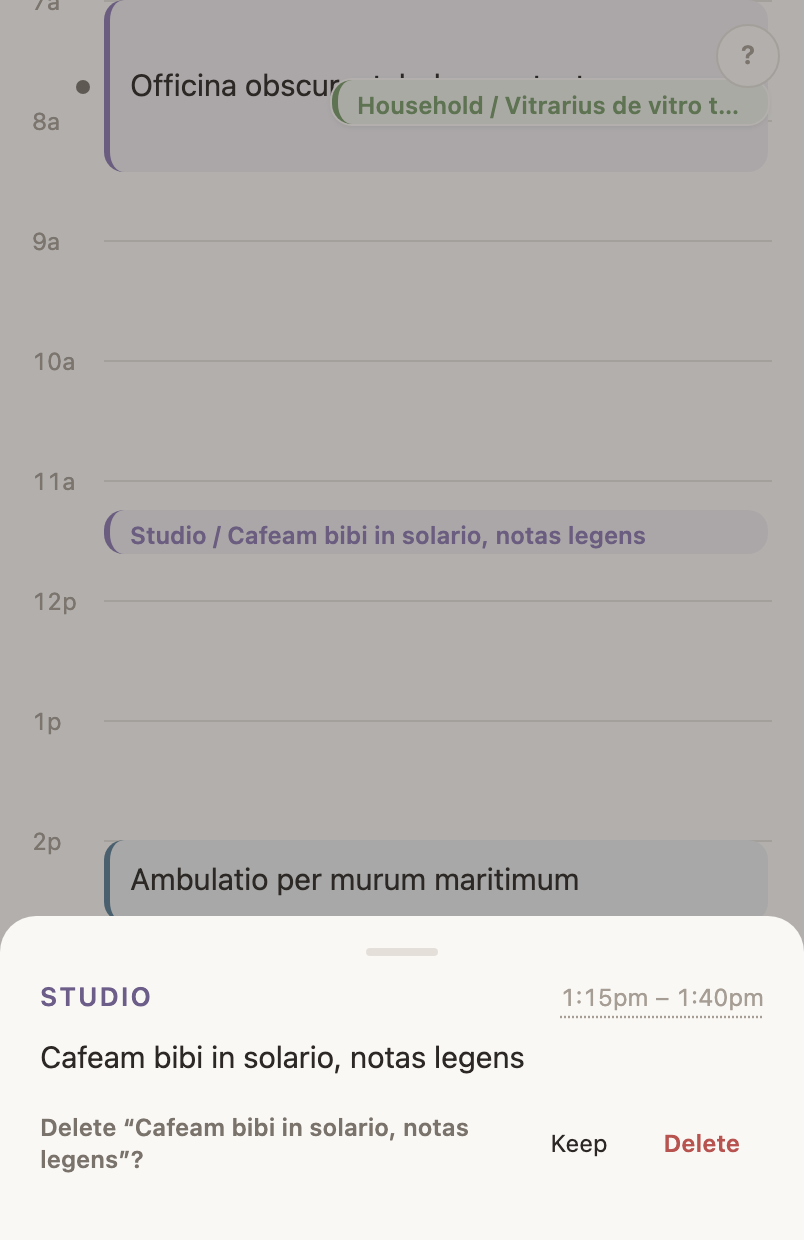
Scale the hours
Scale at the top of the day stretches the hours until a packed morning opens up, or shrinks them until the whole day fits one screen. The web remembers where you left it.
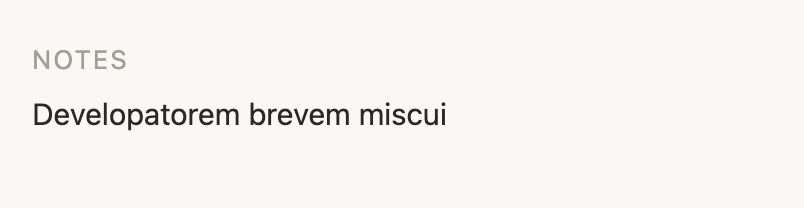
Untimed entries
Entries with no time of day appear under the hours at the end of the day, under a heading the app calls Notes. An entry has no time when you wrote it while looking at another date, and each says how far from its own day it was written.
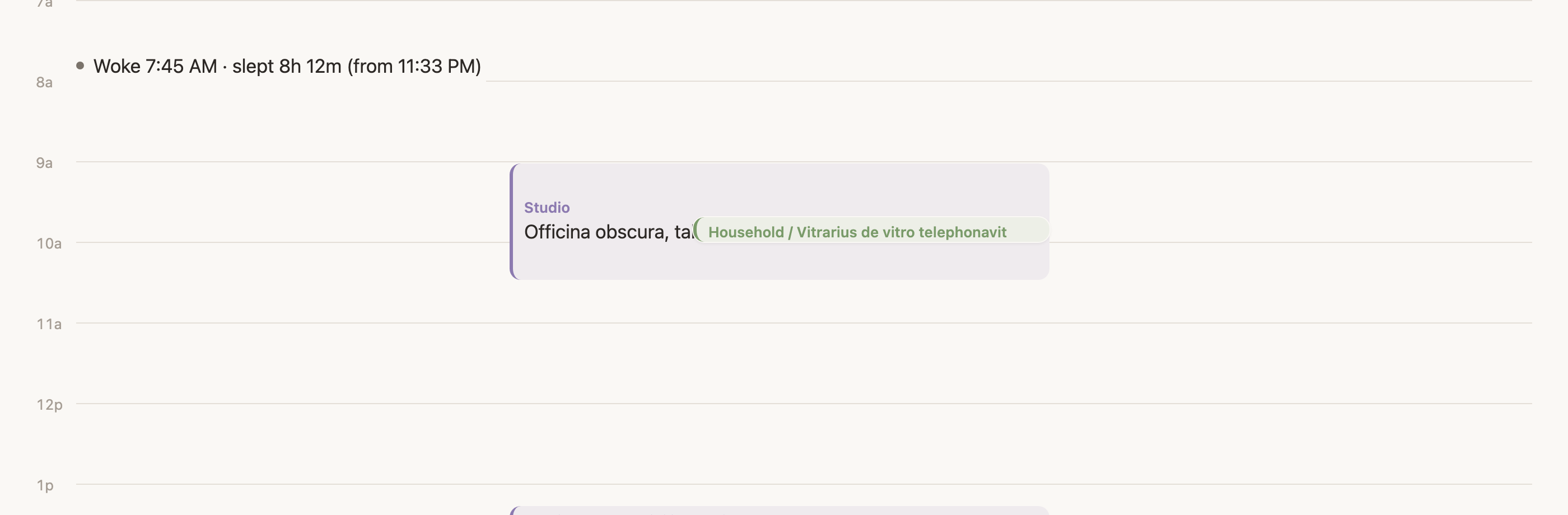
Blocks that overlap
Two things at once draw side by side. A brief interruption draws inset on top of the long block it interrupts, so an eight-hour block is not halved by a fifteen-minute one.
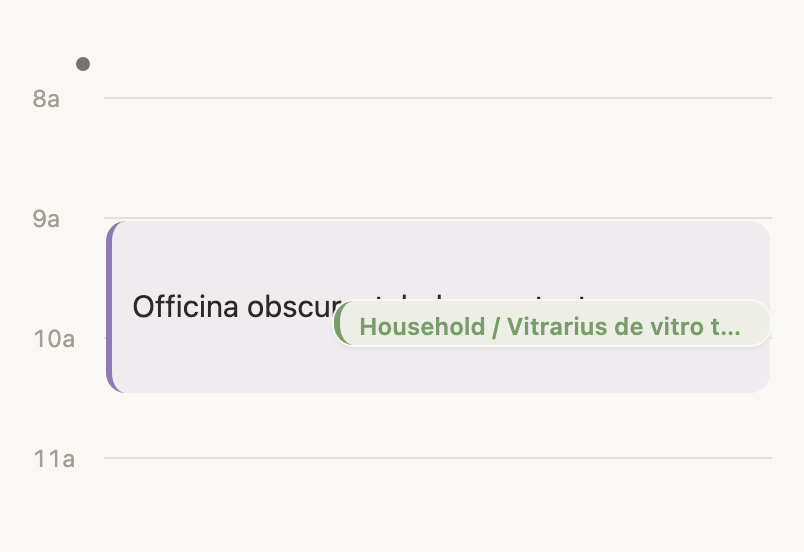
The gutter dots
On a phone, reading one column you still see the others. Reading Time logs, each moment shows as a dot beside the hours; reading Points, each time log shows as a short line at its own extent. Both take the colour of the entry’s life area, grey when it has none, and both open what they stand for. A wide screen has all four columns already, so it draws neither.
The timeline has two record layers, and a finish is one of them
The Day has two record layers and no third. A block occupies time, and a Changes row says what moved. A finished meeting is its work-log block, with the hours it took. A finished task is its Changes row, at the minute it closed. A tick, a badge or a dot saying a thing is done belongs to neither layer, so there is none. A fact that seems to need one means its record is missing rather than its marker.
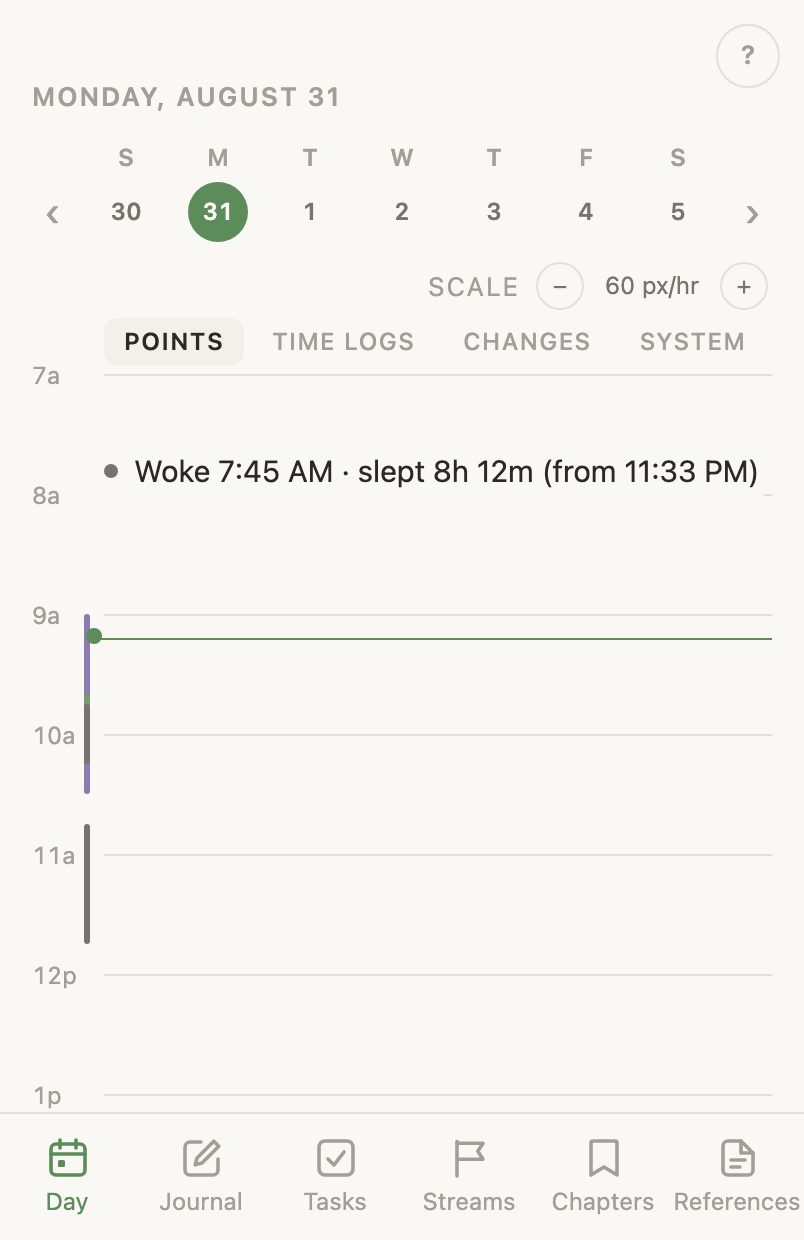
Where a new time log starts on the hours
A log you draw starts on a quarter hour, or on the end of the entry just before it when that is nearer, so the day is not left with two-minute holes in it.
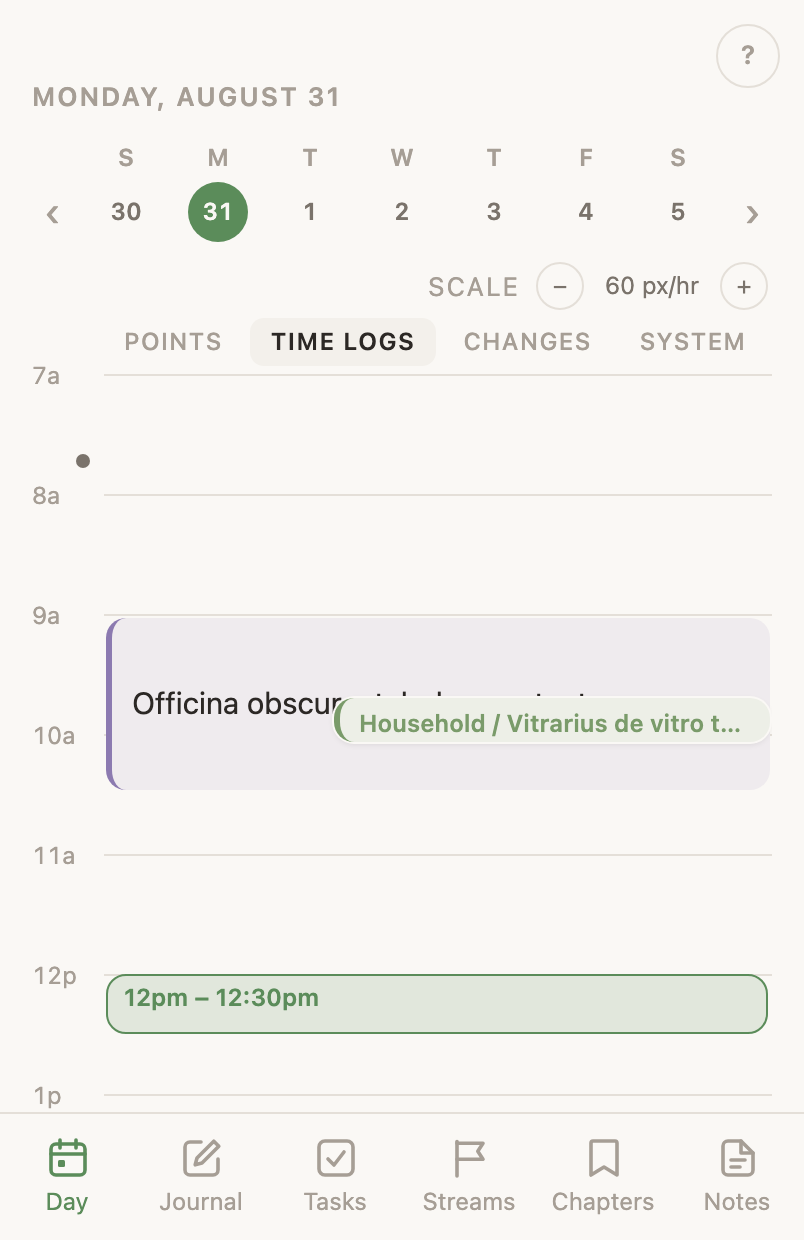
GoalsA goal is the long-running effort a run of tasks adds up to
Goals is on the menu either way; the Goals & task detail switch is what fills the page in. The browser and the phone app both have the screen.
A goal
A goal is a name, a status you chose, your own word for its kind, and a life area. Its row leads with the status, as a coloured pill, and beside it, quieter, the area, the kind and how much is open under it. The goal’s name takes the line under them. A goal with nothing open says nothing in that last slot, and the kind drops off the row while the list is sectioned by kind.
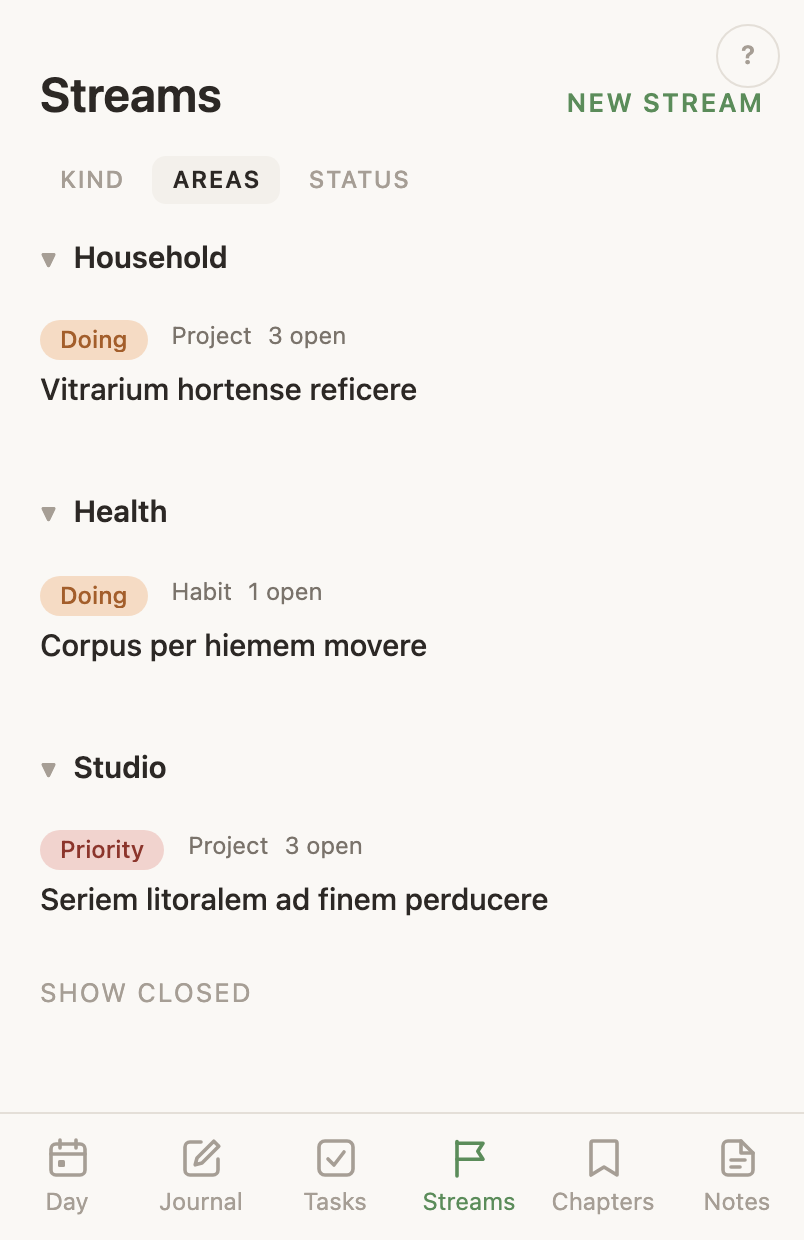
Section the goals by kind, area or status
Kind, Areas and Status above the list arrange the same goals three ways, the app’s own view bar in its usual place. Kind opens first. Under Status the sections follow your status order and under Areas your life-area order, so a section of one can lead a section of ten. Under Kind they follow the order on the Goals page under Apps in Settings. A sideways swipe across the goals moves between the three as well, in the phone app and in a browser alike. A kind you have no goals of gets no heading, and a list that is all one kind gets no headings at all. Every goal has a kind, so General at the end holds only goals made before kinds were a list, and that slot reads No area or No status under the other two.
Put the goals in your own order
Drag a goal row where you want it: the whole row moves on a computer, with no handle to aim at, and in the installed phone app you hold the row until it lifts. Which half of the row you drop on decides whether it lands above or below, so the last seat in a section is reachable. The order holds under all three views and is one order across every screen you read it on. Your order beats the sort the app would otherwise apply, and a goal you have never moved stays at the end rather than in the middle of the ones you placed. Dropping a row into another section moves it there as well, and the goal takes that section’s kind, life area or status along with its new place. A folded section takes a drop on its heading. The two blank sections, General and No status, take no row from elsewhere. While any goal has a dragged place, Sort by status in the Goals header forgets every place in one press and the list reads by status again.
Star a goal as Top priority today
Top priority today on a goal row’s menu stars the goal for today and puts it in a Today section at the top of the list, above whichever view is grouping the rest, while the goal keeps its place under its own kind, area or status; the same star and section the Tasks page has. A goal that moved today stands there too, without a star. The star holds for one day and wears on the row, in a browser and in the installed phone app alike. Today takes no goal from a drag; it names a day, not a kind, an area or a status.
A goal’s own page
Clicking a goal’s name opens its page. The top gives its status, its area, its kind and the days it runs between, and it draws no conclusion of its own about the goal. Under that comes Summary, the goal’s own writing, in the editor notes use, with History in the top corner. Then the notes filed under the goal, then its tasks, then the journal written against it, one after the other down a single column, with none of the three folded away. Each note says the day it was written and the day it last moved.
A goal’s Summary
The goal’s own writing stands under a Summary heading. An empty one is one grey line reading Write a summary or scratch notes, on the page’s own ground, with no box and no space held under it. The formatting bar arrives when you start writing and leaves when you stop: on the Summary heading’s line in a browser, above the keyboard on the phone.
Start a note from a goal
Write a note on the line of the goal’s Notes heading opens the journal’s note panel on a note already filed under the goal. In a browser the note also takes a row in the goal’s Journal, so it is on the day it was written on. The phone files the note and writes no row. The heading stands whether or not anything is filed there, and reads No notes yet under it while nothing is.
Attach a file to a goal
Attach a file, beside Write a note on the line of the goal’s Notes heading, takes a Word document, a PowerPoint, an Excel sheet, a PDF, a text file or an image. Each file is a row under the notes, saying its name, its kind and the day it was added, and an image row shows a small picture of the file as well. Pressing the name opens the file. Delete permanently, on the row’s menu, asks before it removes anything. The phone attaches photos. Other files from the phone come with a later update.
Write into a goal’s journal
The bar under a goal’s journal reads Add a journal entry, and it is the Journal’s own bar: the same + beside it for a note, a video, a voice memo and a file off the device, with everything it makes filed under this goal. Holding the arrow in a browser starts a time log against the goal. The phone’s bar leaves that one out.
Make a goal
A new goal needs only its name, and Enter makes it. In the browser the same dialog also takes its life area, from chips for the areas your goals use or All areas for any other, and a Summary, so neither needs a second trip to the goal’s page. The phone makes a goal from its name alone. Renaming it on the browser happens on the menu on its row; on the phone you tap the name at the top of the goal’s own page. A task is renamed the same way, from the title on its own page.
Make a task a goal
A task that turned out to be bigger than a task becomes a goal from its own row menu in a browser, and from the foot of its own page in the phone app. It keeps everything it had, and any subtasks under it become the goal’s tasks. A meeting cannot become one, on either surface. Every other open task can, a task already filed under a goal included. The list it leaves says which goal it became, and the link there opens that goal.
One name, one goal
A task finds its goal by name, so two goals cannot share one. The refusal comes on creating and on renaming alike.
A goal that is over is closed, not deleted
A goal that is over takes a closed status and moves behind Show closed, so what you were once aiming at stays readable. Delete is for a goal you never meant to make. It is at the bottom of the goal’s own page and needs two presses, and the tasks filed under it stay on your list.
Set the days a goal runs between
A goal’s dates are set from the goal’s own page, where they are shown. Both open together, since a start and an end are one decision, and an end before its start is refused. A goal with neither reads No dates.
Say what kind of thing a goal is
The kind is your own word for it, and it is the word the goals list opens sectioned by, so it decides which section a goal lands under. It is set from the goal’s own page, where it is shown, on the browser and the phone alike, from the row’s panel in a browser, and by dragging the row into another kind’s section on either. The list offers the words on your goal kinds list, and typing narrows what it shows rather than naming a new one. A goal with no kind reads No kind on its page and gathers under General on the list.
Linked goals
A goal’s page holds a Linked goals card: the goals this one points at, drawn →, and the goals that point at it, drawn ←. Each link takes a word for what the arrow means, and the row’s menu holds Rename label and Remove. A goal with no links shows the add line alone. The same links are the arrows on an Obsidian map, so one drawn there shows up here.
See the goals as cards and arrows on a map
Map, in the Goals header on a wide window, opens a board with a card per open goal, wearing its name and its area in the area’s colour, and an arrow for every link, drawn from one card to the other with the link’s word on it. Drag a card where you want it and the browser keeps the arrangement; Tidy stands the cards back in columns by area. Drag from the handle on a card’s right edge onto another card to draw a new arrow, then type its word. The word’s menu holds Rename label and Remove, which asks first. A press on a card opens the goal. The phone has no map.
EventsAn event names a stretch of days you lived
An event
A run of days with a name on it: a season of travel, a stretch of work, a move. It has no progress and nothing to finish, which is what separates it from a goal, and it covers days rather than an hour, which is what separates it from a meeting. An event IS its span, so its line on the timeline says its name, the day it begins, the day it ends and how many days that is.
An approximate end stays approximate
An end date is a day. An event that was given an approximate end before that choice was taken out keeps it: it is still running past that day, and its end shows with a tilde, so a date never claims a precision you did not give.
You set the stance, the calendar sets the state
You mark an event Committed, Maybe or Canceled. A committed event then reads as committed before its start, active once it has begun, and completed after a hard end has passed, worked out fresh each time it is read.
The days inside the span are its days
An event covers a run of days, so the entries written on those days are its entries. That holds without anything being filed, so an event never holds a stale list, and moving its dates moves what it covers.
An event’s page lists the notes filed under it
A note filed under an event is listed on that event’s page under Notes, above the work and the log, in a browser and in the phone app alike. A row there opens the note on both, and says the day it was written and the day it last moved. The heading stands whether or not anything is filed there. Renaming the event keeps what is filed, and deleting it keeps the notes and drops only the link.
An event can sit inside another
One trip inside a longer travel stretch is an event within an event, and both are true at once. On the timeline an event that holds events is a card with a fold arrow, and open it holds the events inside it as the same two lines each, smaller, with their dates under its own, and the free days between them; an event inside that holds events of its own is a card inside the card, to any depth. A single event is a plain line with no arrow. A parent’s top line says the days the whole of it covers, from the first day anything inside it starts to the last day anything inside it runs, while its own dates stay as you set them.
The list is a timeline of events
Events is one line per event, soonest first, then the events with no date, then what has finished behind one word, Earlier, at the foot, most recent first, with no headings between them. Every event is two lines. The first is its name in ink. The second is three columns in a fixed-width face, each at the same place down the whole page, so the dates can be read straight down: the day the event begins as Wed Sep 23 with no year, the day it ends as Mon Sep 28, and how many days that is counting both ends, 6 days. A one-day event says its day once, leaves the end blank, and reads 1 day. A tilde in front of the end means the end is approximate. An undated event reads No date. An event marked Maybe or Canceled says so after its name, and where two events claim the same days the word overlaps stands above the later one’s name. A single event is a plain line with nothing around it; an event that holds events is a card with a fold arrow whose top line is the same two lines, its dates the span of everything inside it. On a phone-width screen an event is the same two lines. The installed phone app draws the same timeline, plain lines and cards alike.
Open a card to the events inside the event
Pressing the top line of a card opens it and pressing it again shuts it; the date and the name on that line are controls of their own. Every card starts shut, and the cards you open stay open on that device until you shut them. Open, a card holds the events inside it as the same two lines each, smaller, with their dates under its own, and the free days between them as the same grey lines, and nothing else. A single event is a plain line, not a card, and does not open. Notes, the summary, the tasks and the journal stay on the event’s own page, which the name opens.
The free days between events are on the list, and a new event can take them
Between two events with free days between them stands a plain grey line in the three date columns, with no name: the first free day, the last free day, and how many there are, as 6 days free. One stands first, from today to the first event, and one stands last, after the last dated event, with a date and no count. None stands in the past, and the same lines stand inside an open card between the events inside it. The count runs from the last day anything before it holds, an event’s legs included. Right-clicking the line in a browser, or holding it on a touch screen, offers New event, which makes an event on exactly those days with its name ready to type, inside the card the line is in.
Start an event from the plus
The plus at the right of the page title makes New event on today, a one-day event on today’s date, placed among what is coming with its name ready to type on its own line. The day on that line then sets the days it runs.
Start an event inside another from its card
New event inside on an event’s own menu makes an event with no date inside that event, opens the card so the new line is on screen, and puts its name ready to type on that line. A single event becomes a card when it gains one. That opening is for now only, and the cards that stay open on the device are the ones you opened yourself. Right-click the event’s line in a browser, hold it on a touch screen.
An event’s own page
The name on an event’s line, or Open on its menu, opens the event, and that page holds everything about it. Its days lead, above the name; under the name are its stance, its life area and the event it is inside, each the control for the thing it names. The state read off the calendar stands beside the stance where the two differ, and that one takes no edit. Under all of it the page reads the way a goal’s page reads, in the same order: your writing under Summary, then the notes filed under the event, then the tasks filed under it, then the journal written on it. Rename and History are at the top of the page, and Archive and Delete are along the bottom. The browser and the phone app read the same way.
Set the days an event runs between
An event’s days lead its own page, above the name, and pressing them opens both dates at once, since a start and an end are one decision. An event with no days yet reads Set dates there. In a browser those are your own date fields and on the phone they are a month grid, and the phone offers the same pair for the end. On the list, the day on an event’s line opens the same panel under that line.
File a task under an event
An event’s page lists the work filed under it, open work first, with finished work behind Show finished and a count beside it. The line under that list files a new task under the event and gives it the event’s life area. A task’s status is changed from the word on its own row, and closing one moves it into the finished list. The browser and the phone app both do this. The event’s line on the list holds no tasks.
Write a journal note on an event
The page shows what was written on the event, newest first, each entry with its day on its own row. The bar at the top of that log writes an ordinary journal entry filed under the event, stamped with the moment you send it, so it reaches that day’s journal like anything else you write. A new entry stands once under the bar whenever the log does not already show it, and nothing on the page moves. The browser and the phone app both do this.
Read an event’s journal as filed or as all its days
The Journal card on an event’s page has two words on its top line. Filed lists the entries filed under the event; All days lists every entry written on its days, filed or not, and an event with no end counts up to today. It opens on Filed when anything is filed and on All days when nothing is, and remembers your pick for each event on that device. An undated event has no days and no switch. A click on an entry’s words opens it, and right-click or a long press opens its menu. The browser and the phone app both do this.
Put an event away without destroying it
Archive at the foot of an event’s page takes the event off the list and keeps everything written on it. The page then offers Restore, which puts it back where it was. Delete is beside it and is the permanent one, and it still needs two presses. The browser and the phone app both do this.
An event says who wrote it, when it was not you
An event made by Chat, or by a Claude you connected, reads Written by and the writer’s name under its title. Your own events say nothing there, and neither do events older than the record. A mark on those would be a guess rather than a fact. It reads the same in a browser and in the phone app.
Start a note from an event
Write a note on the line of the Notes heading makes a note already filed under the event and opens it, with the name field ready. It is the only way to file a note under an event, in a browser and in the phone app alike. The heading stands whether or not anything is filed there, and reads No notes yet under it while nothing is.
BoardsA board is a whiteboard, kept as you draw
Boards is an app like the others, on the bar when you put it there. A board is drawn on a wide window; the phone says so.
A board
An endless canvas with the tools of a whiteboard: sticky notes, text, rectangles, ellipses and diamonds, freehand lines, arrows that stay attached to what they join, and pictures pasted in. The editor is Excalidraw, drawn inside the app; the board itself is yours, kept on your account. Boards lists every board, the most recently changed first, with when it changed, and New board starts a blank one and opens it.
A board is kept as you draw
A moment after each change the board is saved, and the word at the right of the header says so: Saved, Saving…, or Not saved with the reason under it, such as a board grown past 16 MB with its pictures, in which case the last drawing that fit is the one kept. Leaving the page mid-stroke sends what you have on the way out. Panning and zooming are remembered with the drawing but do not by themselves cause a save.
Rename or remove a board
A click on the name in a board’s header renames it; Enter keeps the name, Escape leaves it. On the list, a right-click or a long press on a row opens its menu, with Rename and Remove, which asks first. A board with no name is called Untitled board.
Put goals and tasks on a board
Goals & tasks in a board’s header opens a tray of the account’s open goals and open tasks, with a field to find one. A row dragged onto the canvas becomes a card there, a box in the drawing with the record’s name in the colour of its life area, a goal’s with the heavier line; a click on a row puts the card in the middle of the view. A card has a link to the goal’s or task’s own page, opened from the link mark when the card is chosen. A record can be on a board as many times as wanted, and the tray says On the board on its row once it is there. The card is part of the drawing like any shape: moved, joined by arrows, recoloured, undone, saved with the rest. When the board is opened, a card whose record was renamed takes the new name, a card whose goal or task has since closed gets a check mark before it, and a card whose area was recoloured takes the new colour.
Show a FigJam board inside the app
Add a FigJam board on the Boards page takes a board’s share link from FigJam and lists it with the others, marked FigJam. Opening it shows the board through Figma’s own embed, which is view-only and needs the file shared in FigJam to anyone with the link. Drawing on it still happens in FigJam; that is as far as Figma lets an embed go.
Apps from extensionsThree apps an extension brings, when your instance installed it
These apps are not part of every LifeOps. Each comes with an extension its owner chose, and an instance without the extension shows nothing of it.
Ideal Year
An app an extension brings, at /year in a browser. It holds your goals by life area, the tensions between them, and one year drawn a week to a row, Monday first, with each layer as its own column of seven days so two layers stand side by side. It shows only what you have stated and combines nothing for you. A Claude you connect can read it.
A layer of the year
One of five kinds. A dates layer holds anchors with a minimum and an ideal stay centred on each, awareness-only dates, and your birthday with the days each side, on a fixed day or the nth weekday of a month. A work layer holds holidays, and events with their travel days. A ranges layer holds a season to avoid, or sample programs. A plan holds trips, stays and travel days, and draws the dates and work layers inside its own column. A weather layer is one station’s daily normals.
Switch a layer on and off
The switches above the year turn each layer on and off, and a plan’s trips have a switch of their own. The browser remembers which are off. Hovering over a day, or tapping it, names everything on it.
One weather rule bands every place
A place’s days come from its station’s 1991–2020 daily normals. One set of thresholds on the Rule card bands every day of every place as Avoid, Fits your rule, OK, not great, or Too cold, with an optional dew point that makes a muggy day Avoid. A band is never picked by hand, except where you add an override with your reason, which the day then says.
A plan counts its nights
With a plan on, a table counts the year’s nights at home, with parents, travelling, in drive hotels and on work trips, splits the home nights by the weather of home, and costs them from the plan’s rent and tax and the prices a night.
The year on the phone is read-only
The phone draws the same year a month to a card and a week to a row, each layer that is on as a line of seven days. Layers switch on and off there and the choice is remembered; every card folds and stays folded; a tap on a day shows what is on it. Every change is made on the web.
Retirement
An app an extension brings, at /retirement in a browser and not on the phone. A plan is phases of a life, in today’s dollars after tax, and the answer is the share of real market history it survives. There is no rule-of-thumb withdrawal rate anywhere. A Claude you connect can read the outlook.
A scenario
A whole plan with its own name and note. Every scenario is compared on one grid by when it retires, the most it can spend and still hold in every history, and the spending at the 5th percentile, 20th percentile and median history, sorted by the first and tinted by the 20th percentile.
Open, add or clone a scenario
Clicking a row opens that scenario’s plan below the grid, and every change goes to it. Add under the grid makes a full copy of the open one under a new name. A right-click on a row offers Name and note, Clone and Delete; the last scenario cannot be deleted.
A phase and its transition
A phase reads as Starts, Each year, Spending and Invested, then when it ends and how many histories ran out first. The transition before it is its rule: an age, a month and year, or a net worth reached within a span of ages, optionally waiting out a market down by more than a share, up to an age. The strip draws the ages it happened at across history.
A plan is tried from every year of market history
Each plan runs from every starting year of a record of real stock and bond returns and inflation, from 1926 unless set otherwise, wrapping past the last year. Does it hold gives the share that held, a Monte Carlo reading, the ending balance, and the flat spending that would have held in each history. A crash can be laid over every history from a chosen year.
Read a scenario’s balances from Money
Where Money is installed too, Update all scenarios from Money reads your accounts into today’s balances, which every scenario starts from, and the plan reads them again each day after the first read. Without Money the balances are typed in.
Following
An app an extension brings, on the phone and at /following in a browser. It lists every upcoming date on the pages of the people and venues you follow. The page itself is the alert, with no email and no outside account to join. A show and a ticket sale opening appear on the Day, and a Claude you connect can read the list.
A follow
A person or a venue, with the page that lists their dates, a section in your own words, what to keep from the page, and why you follow them. On the web a follow also records who they are to you and connections to other people you follow.
Follow a person or a venue
Follow someone opens the form, and the same form edits a follow; Remove asks first. A new section word makes a new section, and a follow without one stands under Other.
Every follow’s page is read once a day
Once a day each page is opened in a real browser and its dates are taken from it. A follow says when its page was last read and how many dates were on it, or that the page could not be read and why. A date known only to the month or year is kept and takes its day when the page names it.
New dates, sales opening, and dates gone from the page
A date first seen in the last seven days says New. A presale or on-sale opening in the next week says when. A date the page stopped showing is struck through until its day passes. A run of nights at one place is one row that opens into its shows.
Star or hide a follow’s date
A right-click on the web, or a long press on the phone, stars a date you are considering or hides one you are not. The hidden ones are counted at the foot of the person’s dates and shown again on a press.
Following’s four views
On the web: People (who they are to you and to each other), Timeline (fifteen months of trips, colored by kind), Workshops (your focus, when they fall, new this week, and every trip in one table) and Shows (dates by city). The phone draws Coming up, Dates by month and People instead. Every block folds and the fold is remembered.
ChatAsk in plain words. The answer reads your data first
Ask about your own life
Chat is the speech-bubble icon in the top corner of every screen in the browser, and Chat behind the … in the phone app’s top corner rather than a tab on its bar. It takes a question in plain words, spoken through the microphone button or typed, and answers from what is in your account, reading your days, tasks, journal, goals and notes. It can reach the web for the parts your data cannot answer, and it can make changes you ask for in words — add a task, write a journal line — putting them where you would have put them yourself. A spoken question gets its answer read back out loud, and the speaker switch beside the field reads every answer aloud whether you spoke it or typed it.
See what it is reading while it answers
While Chat works, the line under your question says what it is reading, such as your day or your tasks, and changes as it moves on. An answer usually takes seconds and is stopped with a reason after three minutes. The browser and the phone app both show it.
A count of your tasks says what it counts
Asked how many tasks you have, Chat counts the list your Tasks page shows, the same way every time, and says what the number covers: meetings and subtasks in; suggestions you have not answered, finished tasks and ones hidden for today out. A connected Claude gets the same count.
One conversation that keeps
There is one thread and it stays. Chat opens at the latest exchange, beside the field where the next question goes, and a follow-up can lean on what was just said.
A task a Claude added waits in its own band
A task added by Chat, or by a Claude you connected, waits in a band of its own on Tasks, headed Added by your assistant with a count beside it. Both write through the same tools, so both land here. Until you answer it, the task stays out of every list, every count and every view, so your list is the work you chose. The phone app shows the band above your list, and the browser shows the same band on the same page. Assistant is the word the app used for Chat before the rename.
Add or discard a task a Claude added
Add moves the task into your list, where it reads and behaves like one you wrote. Discard deletes it. The row’s words open its page first, so you can read what it is before you answer. One line at the top of the band says a connected assistant wrote these and that an added one keeps its writer line, and adding one is recorded in the day’s changes.
A failed ask looks failed
When an answer cannot happen, the send is refused with the reason under the field and your words stay in the field. Chat reaches only your own account, and it cannot see or send photos.
A connected ClaudeA Claude conversation of your own can read and write your LifeOps
Chat answers inside the app. A Claude you talk to in a browser, on your phone, or in a terminal answers from outside it, joined to your instance and reading the same database the app draws from.
A Claude connected to your LifeOps
A Claude conversation joined to your instance reads and writes your real data. It reaches the same database the app draws from, so an answer is current to the second and a write is on your screen when you refresh. One connection covers every conversation in that client, and the phone app is a second client that asks for itself.
Connect a Claude to your LifeOps
Your backend’s address with /mcp on the end goes into Claude’s custom connector dialog. Claude sends your browser to a LifeOps sign-in page that takes the same username and password as the web app, with the same lockout behind it, and the connector is live from the next message. There is no second account and nothing to create.
Connect a Claude as your agent
An agent account has no login of its own, so the person it works for connects it. Ticking Connect one of my agents instead on the sign-in page and signing in with your own login lists the agent accounts that work for you, and Connect as one of them hands Claude the agent’s token, never yours. What it writes is signed as that agent. Left unticked, the page connects you as before.
A task a connected Claude wrote says which one, and opens the conversation
A task the connector wrote has one line under its words in the assistant’s tray and on its own page: the client’s name, the time, and the connection it came through. The line opens that connection under Settings › Apps › MCP, where a line under the title says each card is an assistant connected to LifeOps over MCP and what it wrote, every conversation of the last thirty days is a card, newest first, and one conversation reads as every call it made and what each call wrote. A card is the assistant’s name, when it was connected and what it wrote, and Disconnect, in the card’s menu and on the connection’s own page, cuts the assistant off while the card and its calls stay, marked disconnected. Your own tasks wear no line. The line, the cards, the sentence under the title and the transcript are the same in a browser and in the phone app, where Disconnect is on a hold of the card and on the connection’s own screen.
Disconnect takes an assistant’s key back and keeps its log
Disconnect is a button on a connection’s page under Settings › Apps › MCP and an item in its card’s menu, and it asks once. It revokes the key the assistant reached LifeOps with, a sign-in-page key or a pasted one alike, and every connection on that key is cut off with it. The card stays, marked Disconnected with the time, and its calls stay readable for audit. It refuses, saying why, when the key is the one this browser runs on or when the connection predates LifeOps recording its key.
Let a connected assistant act as you
My assistant acts as me, a switch on the MCP page under Settings › Apps, starts off. Off, a task a connected assistant writes waits under Added by your assistant on Tasks. On, it goes straight onto your list, still marked with who wrote it, and the assistant can add or discard what is already waiting there. The connector’s task list marks a task still waiting for you either way, so it never reads as on your list while the page holds it apart. It is for an account whose holder is the assistant. The phone app has the same switch on its MCP screen.
A connected Claude reads through named tools and nothing else
Each tool answers about one part of the app, and the list is closed. A day, the journal, tasks, goals, events, notes and your life areas each have one. A connected Claude cannot run a query of its own or reach a table no tool names. Your photographs, what your devices report, and Chat’s own thread are outside all of them.
A connected Claude reads what changed, and whose hand changed it
Over a window you name, it reads every recorded change in the order it happened rather than a snapshot. A task that went open, then stalled, then open again reads as three moves instead of as no change at all. Each change names the hand that made it, so a move you made is told apart from a move an agent made.
A connected Claude reads and writes the stretches of days you name
Your events come back grouped into what is underway, what is coming up and what you have not decided on, each with its two dates, whether that end is approximate, what you wrote on it, and the notes you filed under it. The ones already over and the ones you called off are left out until they are asked for. A write names one or changes one; it cannot nest one inside another, and it cannot delete one.
A connected Claude reads a day that has already closed
Your tasks, your goals and your events come back as they stood at the end of a past day you name, replayed backward through that same record of changes, and one note’s words come back as the trail of saves behind it holds them. A goal renamed since answers under the name it had then, an event you had not started yet is there because it was on your books that day, and anything the record cannot settle is counted and named rather than guessed at.
A connected Claude hands you the link to a note
Every note it writes, reads or lists comes back with the link that opens it in your LifeOps, so a chat gives you the note itself rather than a guess at its address. The link asks for your own sign-in like any other page and shares nothing.
A past the record does not cover comes back refused
Ask about a day before your instance began recording changes and the answer refuses and hands back the date the record starts. A note whose words changed after the day you asked about, with no saved state from around then, refuses the same way rather than serving today’s words under a past date.
What a connected Claude writes is marked as its own
It writes a journal entry, logs a conversation onto your day, and writes one of your tasks, goals, notes or events — naming an id to change one, naming none to make one. It can change a journal entry only when an assistant wrote it; an entry you wrote is refused. That is the whole list, and each of those is stamped as its own: in your journal beside the entries you typed, in the task band on Tasks, and in the change record months later. Deleting is absent, and every field a write leaves out is left exactly as it was, so a wrong write is yours to correct on the page it landed on.
ObsidianYour LifeOps opens in an Obsidian vault as files you can edit
A plugin fills one folder of an Obsidian vault with your goals, tasks, notes, journal, events, areas and reminders. The app stays the source of truth; the files are a view of it that writes back.
Your LifeOps as an Obsidian vault
One folder, called LifeOps, holding a file per goal, per open task, per note, per event, per life area and per day you wrote on, each day named for its date. Every folder is flat, with no folder per life area inside it, and what a thing is filed under is a link property at the top of its own file. The plugin writes nowhere else in the vault. An About file beside them says, in your own words, what each folder holds and which half of it saves back.
Five saved views over the vault
Tasks, Goals, Notes, Events and Journal each have a saved Obsidian base beside the folders, and each draws the files of one kind as a table: open tasks grouped by life area, goals grouped by status, notes grouped by life area, events grouped by status, and every day with its date. They are what gives a flat folder its shape. The plugin writes them once and then leaves them alone, so a column you add or a filter you narrow survives every sync, and Rebuild vault from the app is how you ask for the five starting views back.
Point an Obsidian vault at your LifeOps
Whoever runs your LifeOps puts the plugin in the vault; you turn it on in Obsidian’s own settings and fill in its five fields, which are the backend address, the token, the folder, how often to check, and whether to hold a live connection open. Sign in takes the username and password you use for the app and fills in the token for you, and Test connection answers with your name.
Edit a goal, a task or a note in the vault
A goal file’s fields, its summary and its checklist of tasks all save back, and renaming the file renames the goal. Every open task is a file of its own: its status, its date, its words and the links to its area, its goal and the task it is a step of all save back, and closing it takes the file out of the folder. Ticking a box closes a task, a line you type with no id becomes a new task, and a word that is not one of yours saves nothing and says which word stopped it. Notes, events, life areas, reminders and a day’s journal entries edit the same way. Each edit ends with the file rewritten from the app’s answer, so what you read is what landed.
Draw an arrow between two goals on a map
Every life area with a goal still open in it has a canvas, holding a card per open goal. Drag the cards where you want them and the vault keeps the arrangement. An arrow you draw between two cards becomes a link between those goals in the app, in that direction, with the word you put on it as its label, and the goal’s own page in the browser shows it under Linked goals. Rubbing an arrow out deletes that link in the app, and no other edit in the vault removes anything. Your sticky notes and groups survive every rewrite, though a rebuild does lose them.
The vault keeps up with the app on its own
It checks when Obsidian opens, when you come back to the window, when you open a file in the folder, and on a timer you set. With live updates on it also holds a connection open where the platform provides one, and a change made elsewhere then shows up within about a second. An edited file goes up about a second and a half after your last keystroke, and only the fields you touched are sent. Sync now and Rebuild vault from the app are in Obsidian’s command palette, under LifeOps.
Deleting a file in the vault removes nothing from the app
Delete a file and the app keeps what it held; the plugin writes the file back and says so. Deleting a task line, a journal block or a reminder line works the same way, and the line returns at the next sync. Removal is a gesture you make in the app, and what you remove there disappears from the vault at the next sync.
A note holding a picture or a table is read-only in the vault
Plain text cannot hold a picture, a table or a video, so a note with one of those is marked read-only, starts with a line saying which app to edit it in, and never saves back; its words are still there to read. A picture inside it is copied into the vault, in a Files folder named for the note, so it draws rather than reading as a file that cannot be found. An event and a task behave the same way. A goal’s writing goes further: its Summary section is that one line and nothing else, so those words are read in the app. The read-only sections elsewhere — a day’s calendar and finished work, an event’s filed items, an area’s lists, a goal’s notes and files — save nothing either.
The Obsidian vault reads the same on a phone
Obsidian’s phone app runs the same plugin over the same files, and the vault reaches the phone however your other vaults do. Live updates hold a connection open only where the platform provides one; where it does not, the timer is the whole mechanism and a change made elsewhere shows up at the next check.
SettingsSettings is your account, your areas, your statuses, and the app’s switches
Your account
Account holds who you are signed in as and the zone your days are measured in. Both apps follow the device you are holding, so landing somewhere moves your days with you and there is nothing to set. On the web the zone is also a searchable list, each entry showing the current time there, for the times you want a zone that is not where you are standing.
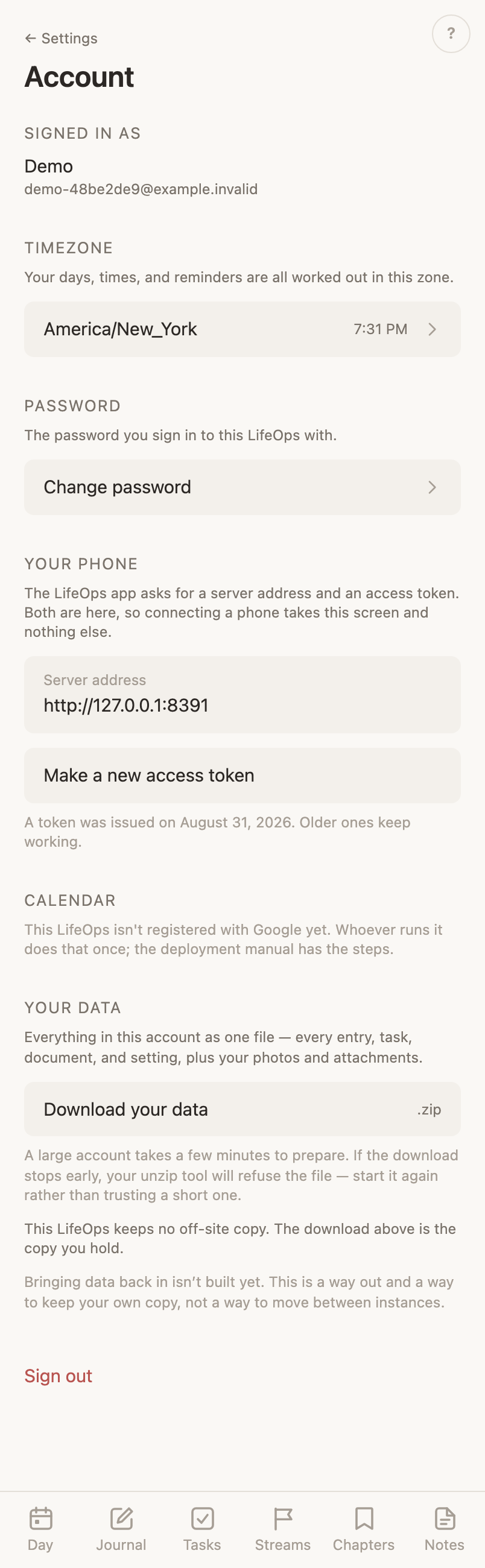
Change your password
Three fields on the web: the password you use now, the new one, and the new one again. The current password is checked on the server, and every refusal ends by saying your password has not changed.
What a new password does
Changing the password signs every browser out, this one included, and the browser making the change is sent to the sign-in page. The phone app holds a token of its own and stays connected.
Your life areas
Add a life area, rename it and the new name shows everywhere, and pick its colour from thirteen or leave it Automatic, which gives each area a colour no other area wears.
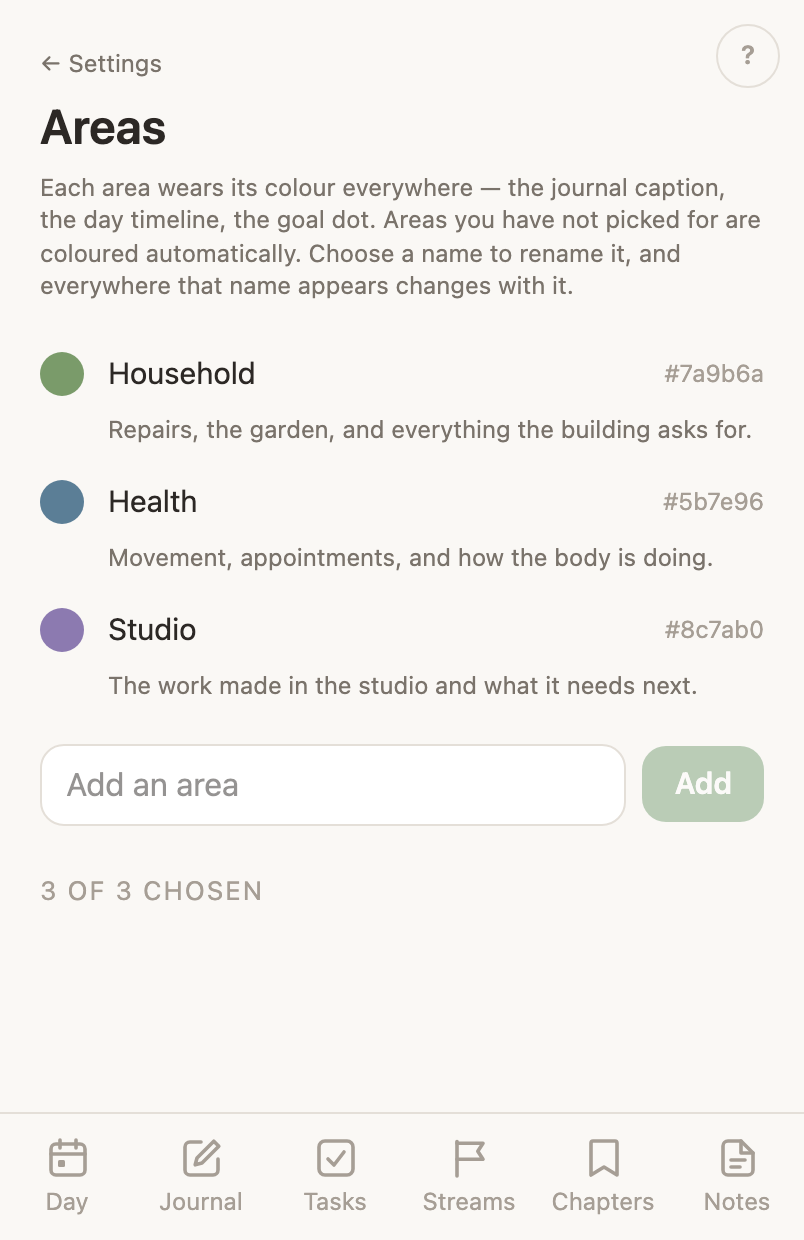
Your life areas stand in your order
On the web, drag an area by its handle, or use its up and down arrows, to put your areas in the order you want. Every area list and picker shows that order, and the AI is given your areas in it when it files. A move changes nothing but the order.
What an area is saves itself
On the web, the line saying what an area is saves a moment after you stop typing, and again when you click away or leave the page, and says Saving and then Saved as you write.
A life area is renamed, never deleted
Renaming fixes a typo everywhere at once. Removing a life area would unfile every task and entry under it with no way back, so a life area has no delete anywhere.
The AI switches
One switch turns every AI job off for you alone, and under it each job has a switch of its own. Each row says what that job does and exactly what it sends when it runs. Five jobs are on the page: life area filing, area descriptions, transcribing a recording, what changed in a version, and the Quick Capture decision between a journal entry and a task. A job that has not been built has no switch here, and a job whose answer no screen shows has none either.
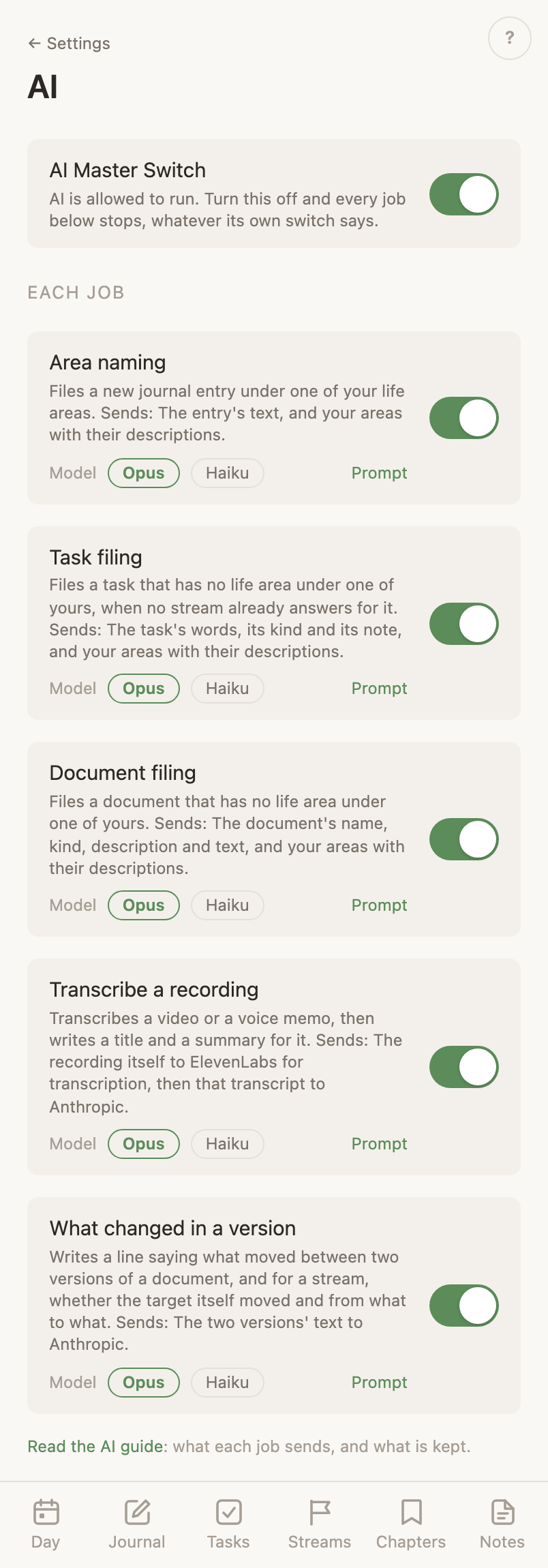
The model and the prompt on each AI job
Every job names its model choices under its description, Opus or Haiku, as two pills with the one in use marked and nothing written under them. Prompt beside them opens the words the job runs on in a box you can edit and save. Those words are the ones written into the app until you change them, and your version is what the job uses from then on. A job whose prompt takes inputs says which markers have to stay in the text.
When no Anthropic key is stored
With the Anthropic slot in Settings › Integrations empty, every AI job stops and Chat stops answering. Running the app that way is supported: entries save with no life area filled in, notes keep their history without summaries, and no control breaks. The AI page keeps every switch in that state rather than taking itself away, on the web and on the phone alike, and a line under the master switch reads “No Anthropic key is stored, so nothing here runs. Add one in Settings → Integrations.” with the last three words as the way there. In a browser the AI row on the Settings index reads On, no key.
Your statuses
Statuses are your own words, in four fixed groups the app reads. Each one has a colour and a sentence saying what it means to you. Open, Done and Cancel keep their names because the app looks for them by name. Everything else you can rename.
Where a deleted status sends its tasks
A status nothing uses deletes on the spot. One still in use will not delete until you pick the status its rows move to, and it says how many tasks and how many goals those are. Both move together.
Your goal kinds
Kinds are your own words for what a goal is, one plain list of names in an order. Every goal you make has one, and it takes the first word on the list. Every kind renames, with no name held back the way four of the statuses hold theirs, and a rename refiles every goal that said the old word. A LifeOps whose goals name no kinds starts with Upcoming Goal, Long Term Goal and Responsibility. One whose goals already carried kind words starts with those. The list is yours to order, dragged into place a row at a time, and the Goals page draws its Kind sections in that order. The list is on the Goals page under Apps in Settings in a browser, and under Settings, Tasks, Your goal kinds in the installed phone app.
Where a deleted kind sends its goals
A kind nothing uses deletes on the second press. One still in use says how many goals use it and will not go until you pick the kind they move to. The last kind on the list cannot be deleted, since a goal being made needs a word to be made with.
Goals & task detail
One switch adds the deeper task system, meaning statuses, types and the extra views, and on the web it fills in the Goals page. Turning it off destroys nothing. The tasks keep their statuses and types, and the simple list stops showing them.
Set a reminder
Settings › Apps › Tasks › Reminders opens a composer: what to remind you to do, the day, the time, and how often. A task’s own menu has Remind me as well, which starts one about that task. A reminder’s time is never the task’s due date.
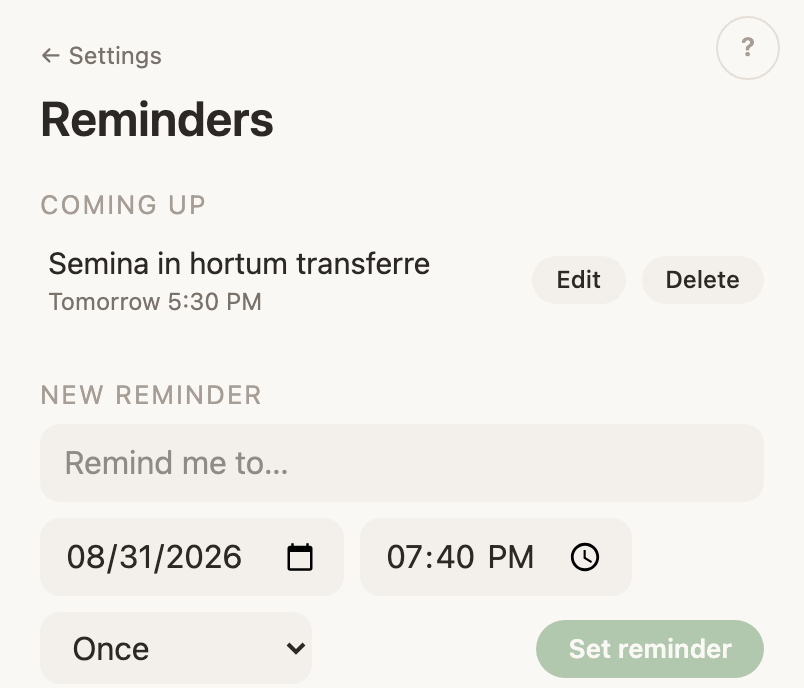
Repeat a reminder
A reminder comes back every day, every weekday, or every week. The next time is worked out from the wall clock each time it fires, so a repeat survives travel and the clocks changing.
The reminders you have set
Coming up leads the page and lists every reminder still ahead of you, soonest first, each with when it is due and how often it comes back. New reminder is the group under it, and History under that again holds the ones that have already gone off.
A reminder is over once it has reached you
A reminder interrupts you once and is then finished. There is nothing to mark done and nothing to snooze, and the reminder moves itself from Coming up to History. Before it goes off, its row’s menu offers Edit and Delete, and Delete is how you call one off.
A reminder reaches your phone
A reminder you set arrives as a notification on your phone at its time. Setting the first one asks your phone for permission to send them.
The Apps section
Settings has an Apps heading, after Integrations, and under it one row per app that has something to set, in the order the menu bar lists them: Tasks, Goals, then MCP and Sleep, then any app an extension brought with a settings page. A row opens that app’s own page inside Settings, headed by the app’s name, with the rail beside it in a browser, holding what the app lets you set: Tasks holds the task system and the rows to Statuses, Recurring tasks and Reminders, Goals holds your kinds, MCP holds the assistants that connected, Sleep holds the morning reading, and an extension’s app holds whatever it brought. There is no on/off switch on any page, and Journal, Day, Events and Notes, which have nothing to set, have no page and no row.
The sleep switch
One switch turns the morning sleep reading off, if you do not want the entry at all. Readings already in your journal stay: a switch is not a delete. The switch is on the Sleep page under Apps in Settings.
Choose the sleep entry’s life area
Beside the switch you pick which of your life areas each morning’s entry is filed under, so the night shows up with everything else in that area. Filing it under no area is a real answer, and the entry is still written. The choice points at the area rather than at its name, so renaming the area keeps the nights and deleting the area leaves them unfiled.
Download your whole account
One file on the web holds every entry, task, note, setting, photo and attachment in your account. It is a plain download, made without sending anything anywhere.
The off-site copy
Your Data names the day this account was last copied off the server, or says plainly that no copy is kept, or that the check itself failed. Those are three different sentences and it never collapses them into one.
A way out, not a way between
The download is a copy you keep. Loading one back into a LifeOps is not built, and the screen says so rather than leaving you to find out.
The guides
Guides is a row on the Settings index, and it opens this app’s own manual. It stood as a ? in the corner of every web screen until Sep 2 2026, when the manuals moved into Settings. The guides open even when you are signed out.
The Development page
Development, at the bottom of Settings, shows what is being built for your LifeOps and what is running: the work in flight, the work waiting on you, and the commit the backend and the web last deployed, with how long ago each went up. It reads live rows rather than describing a process.
Choose which backend the app talks to
Backend, at the bottom of Settings, names the backend this web app is talking to and lets you move it to another one. You give the address and its token, and the app checks both against that backend before it stores anything: an address that does not answer changes nothing. The move takes effect straight away, with nothing to redeploy, and going back is the same act.
The page says whether the move outlives a deploy
A move is held in two places, one in force now and one that survives the next deploy. When only the first lands, the page says so and names the backend a deploy would go back to, rather than leaving you to find out the next time something ships.
Sign out of your account
Sign out on the web ends the session. On the phone it also clears the address and the token, so the app has to be connected again. Both ask twice.
Written for youThe app writes rows you never typed
Each entry the app writes names what wrote it. You correct the sleep reading and your Claude’s entries the way you correct your own; the Day’s System and Changes rows open to be read and nothing else.
The sleep reading
Each morning the app works out your night from the traces you left and posts it as a journal entry, one line: when you woke, how long you slept, and the time it has you falling asleep. When the end had to be inferred the line says so instead, giving the waking as a limit and the span as an upper bound. What it read to get there is on the entry, not in that sentence. You correct it like anything you wrote, and the sleep switch turns the whole thing off.
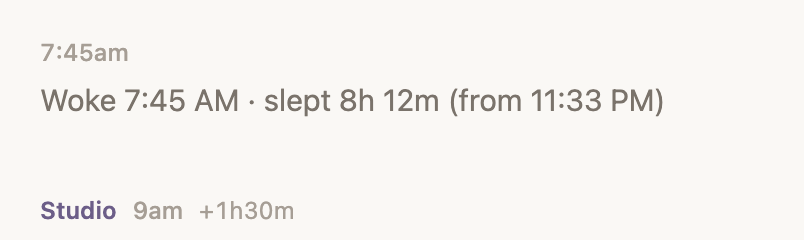
The morning with no reading
Some mornings there is not enough to go on: too few traces, or no gap that looks like a night between three and fourteen hours. The app writes no entry at all rather than a number nobody can stand behind.
A corrected night stays corrected
Once you fix a night by hand, the next morning’s run leaves it alone. Your number is the one that stands.
Device signals
A charger, the home Wi-Fi, CarPlay, and a computer gone idle are each recorded as a small Signal row, and the sleep reading uses them as proof. Each takes a small setup on its device, done by whoever runs your LifeOps.
Send a Mac’s device signals
Your LifeOps ships the daemon that makes a Mac one of those devices. It watches how long since the keyboard or trackpad was touched and posts a signal on each change: the moment input resumed, and the moment fifteen minutes of quiet began, each stamped when the thing happened rather than when the daemon noticed. A Mac that slept posts both ends on waking, so a night the machine was down is a night the reading can see. A post the network refuses waits in a file beside the log and goes out on a later poll, keeping its own time, which matters most at a wake, when the Wi-Fi is least likely to be back. Whoever runs your LifeOps installs it in two lines.
A meeting becomes a task
Calendar events arrive as tasks, typed as meetings. Completing one writes a time log over the hours it was scheduled for, which you can then correct. A meeting with no end time logs without one.
A calendar that reads and cannot decline
A connection made before the app could answer invitations still reads every calendar and refuses every RSVP, so it looks whole with one verb dead inside it. Settings → Account → Calendar says so instead of leaving you to find out on the meeting you were declining, and Reconnect beside the line is the fix. Cancel task keeps working meanwhile, since it never calls Google.
A task becomes a calendar event
It goes the other way too: a task with a date is written into your calendar as a real event, and edits follow it. Whoever runs your LifeOps connects the calendar for now.
Deleting the meeting cancels the task
An event you remove from your calendar leaves its task cancelled rather than gone, so the record of what was planned survives the change of plan.
Change records
Making or shelving one of your things leaves a row in the Day’s Changes column at the minute it happened. Tasks, goals, notes and events all write one, and so does a change to a task’s status or any of a goal’s fields, with the value it left and the one it took. Meeting decisions show up the same way: Done and Cancel & Decline close the meeting’s task, and going to one of two overlapping meetings leaves a row for the one stood down. Deleting something takes its rows away with it. What you deleted leaves nothing on the Day. Shelving keeps the whole trail. A thing on the shelf still happened. An instance driven with test records before you ever saw it can have the whole log emptied in one operator call, which is the one deliberate way a record of changes goes.
File an entry under a life area
An entry saved without a life area gets one from the AI, which is sent the entry’s text and your life areas with the descriptions you wrote for them, nothing else. It is one of the AI’s jobs, with its own switch, and with it off the entry saves with no area filled in.
Session notes
This one is not built yet. Editing a note writes nothing to your Journal today: the changes save into the note as you write, and the note itself is the record. A note about each editing session is planned as one of the AI’s jobs, with its own switch when it is built.
A note keeps its earlier versions
A note holds its current text and the versions it passed through. Saving replaces what is on screen and the earlier states stay readable behind the history panel. Versions and the raw autosave trail read as one list, newest first, with the trail thinned to one row per run of writing so a long afternoon reads as a few rows rather than forty saves. The sentence saying what changed between two versions is written by an AI job you can switch off.
Agent rows
Entries marked Agent were written for you by your Claude: a conversation logged, a note taken on your behalf, or a line it spoke out loud. A device signal is not an Agent row. That is a machine reporting, not something deciding what to write.
Search skips the app’s own rows
Journal search returns what you wrote. The rows the app keeps for itself stay out of the results, so looking for a word finds your words.
Recurring tasks
A task that repeats is written onto your list on its schedule as a fresh task, so finishing this week’s does not touch next week’s. The definitions behind them are a page of their own in Settings, where each one reads as a task row with when it comes underneath, and can be added, paused, changed or deleted. The page is under Settings in a browser and in the phone app alike.
What happens once a day
Once a day the app copies its whole database, and keeps the recent days’ copies plus one a week further back. None of it needs you awake, and none of it writes into your journal.